
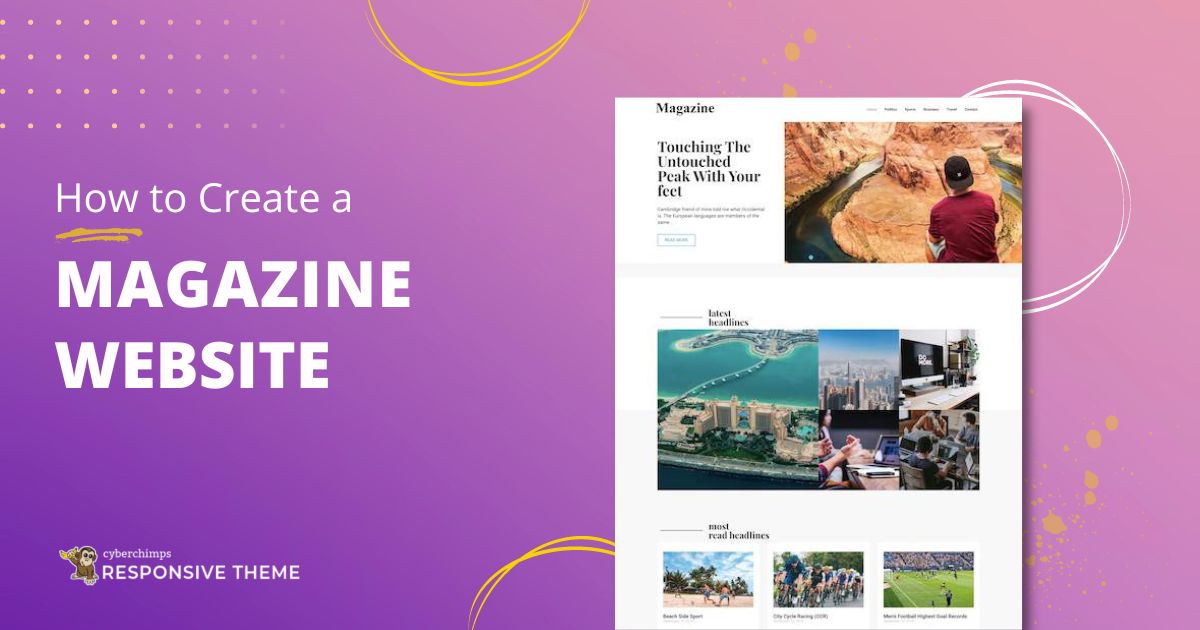
Summary
The article explains how to create a magazine website with WordPress. It defines the steps from choosing hosting and a domain to installing WordPress and a magazine theme.
It also highlights layout setup, content organization, and customization tips. Helping readers build a professional, content-rich online magazine site.
Have you ever dreamed about driving your own magazine website?
In today’s digital era, launching a magazine website is easier than you think. Using WordPress, you don’t have to be a tech guru or coding expert to build a professional-looking website that attracts readers and keeps them engaged.
Creating a blog on WordPress is an easy task. However, there are times when you are unable to find the perfect layout for your blog. This is a common problem when the niche is highly competitive, such as fashion, beauty, or lifestyle.
A web magazine is a website that focuses on a particular niche only. All the content on the website revolves around the central and supporting themes. Now, creating a web magazine is a real challenge!
In this guide, we’ll walk you through everything you need, from choosing the best theme to customizing layouts and adding content for your magazine website with WordPress. By the end, you’ll be ready to launch a stunning publication that makes readers keep coming back for more.
So let’s dive right in!
Responsive Starter Templates is the best plugin to import Website Templates – Get it for free.
Create a Fascinating Homepage
The homepage is where all the action happens. For a large section of your visitors, the homepage is the first page that serves as the introduction to the website. An attractive homepage design is essential for retaining and growing subscribers of the web magazine.
Remember that a simple and easy-to-navigate homepage depends upon several factors that combine to attract readers. This is where theme selection plays an important role.
Many people make the mistake of choosing an all-purpose WordPress theme for launching their web magazine. The intention is to replace the theme with a custom web magazine theme later on. However, they forget that as long as the all-purpose theme is up and running, they are annoying the visitors with a horrible homepage design.
Additionally, a custom-built WordPress theme offers proper category display options, the right balance between text and images, and proper navigation that ensures that visitors can find their way to the content they wish to view.
Choose Your Hosting Provider
The hosting solution that powers your web magazine matters a lot. If your host is unable to provide the required support for your website, the visitors of the web magazine will have a horrible experience and will not return.
Many WordPress-powered web magazine owners start with shared hosting to reduce costs. However, this is a counterproductive decision because shared hosting is often unable to support the operations of a growing web magazine. The result is frequent crashes that reduce the UX of the website and hurt the reputation of the web magazine.
In addition, WordPress fails to perform on shared hosting solutions because of the limitations of these hosts.
Moreover, Cloudways is one of the leading managed WordPress cloud hosting which offers an exceptional hosting solution for your web magazine. They take care of all server-side headaches, allowing you to focus completely on the web magazine.
Installing the Responsive Theme
To create a magazine website with WordPress, you first need to install a theme.
A theme is the basic architecture that defines the look and feel of a WordPress website. Themes control the headers, footers, page layouts of your website, and a site’s overall look and feel, including its fonts, colors, and background images.
For this, we’ll install the Responsive theme by Cyberchimps, a fast, lightweight, and fully customizable theme that loads completely under 100 KB. Besides, it’s SEO-friendly and built with the best semantic practices, keeping search engines in mind.
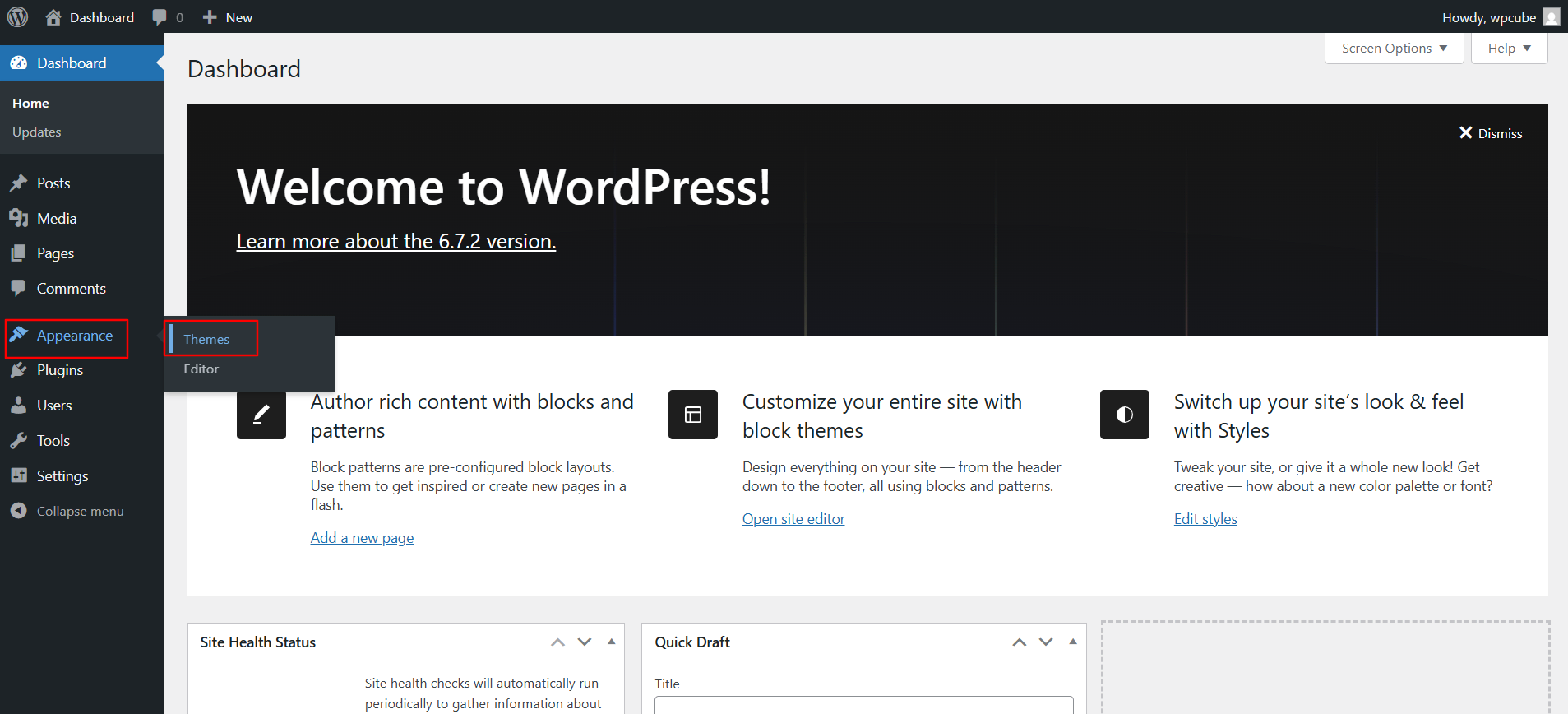
Below are the steps to install the Responsive theme:
From your admin dashboard, navigate to Appearance > Themes.
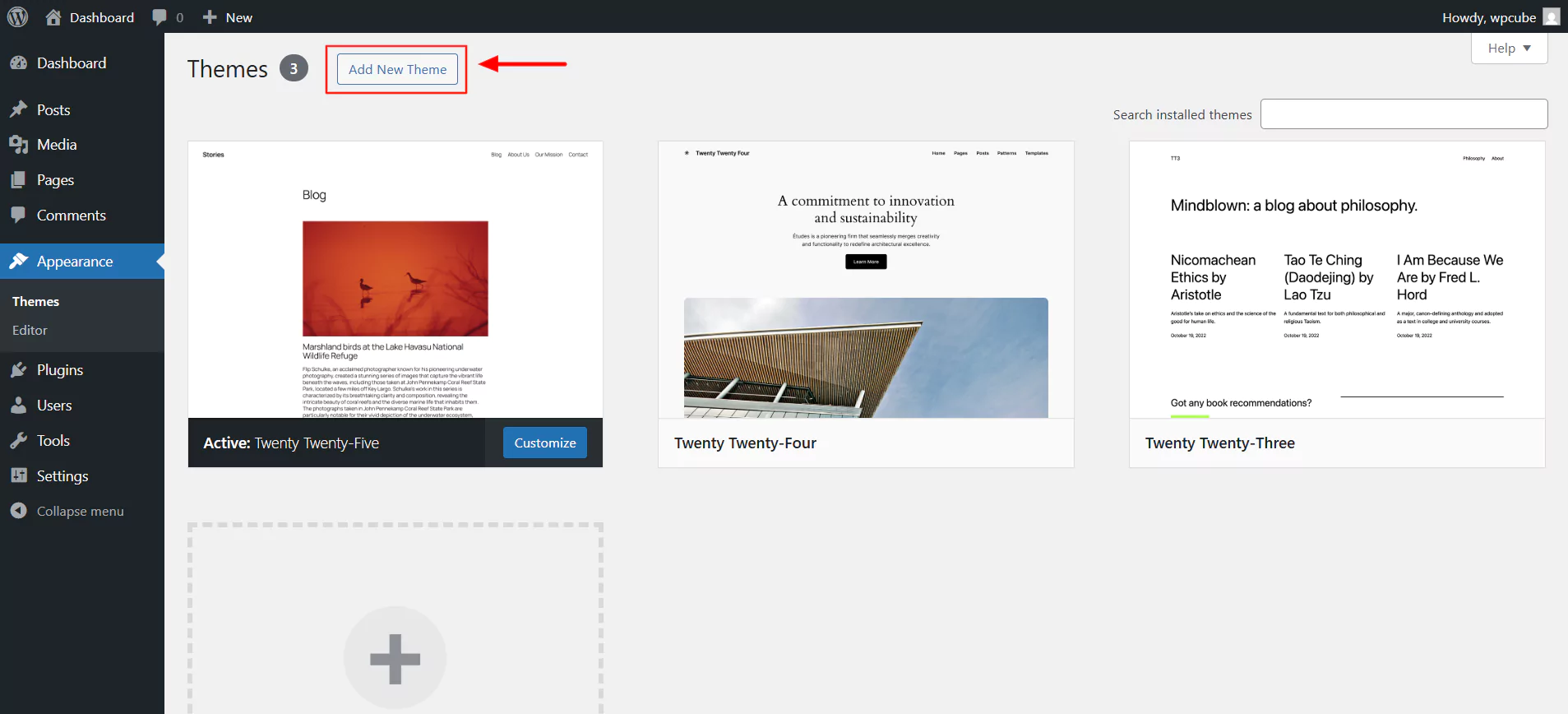
Click the Add New Theme button at the top.
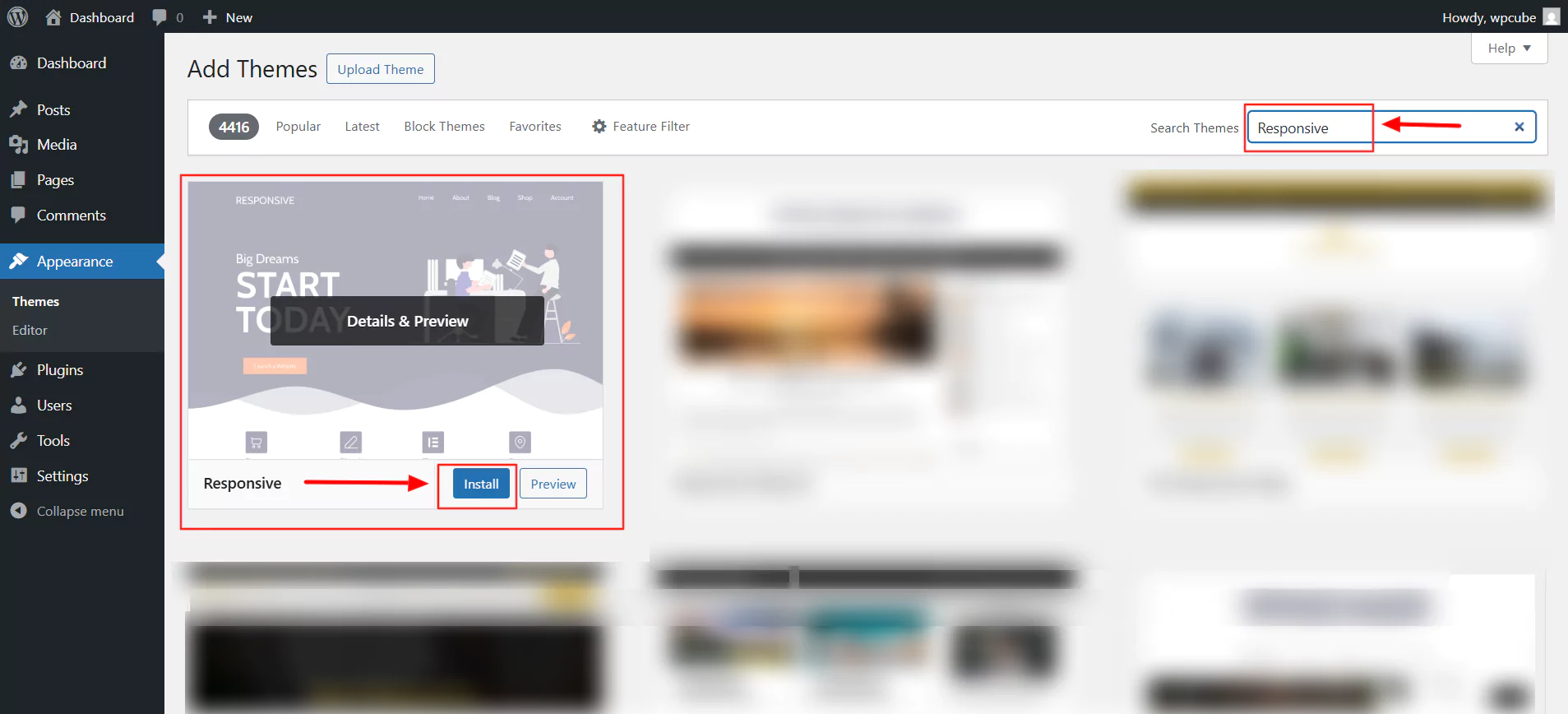
The next step is to type Responsive the search bar and click on Install.
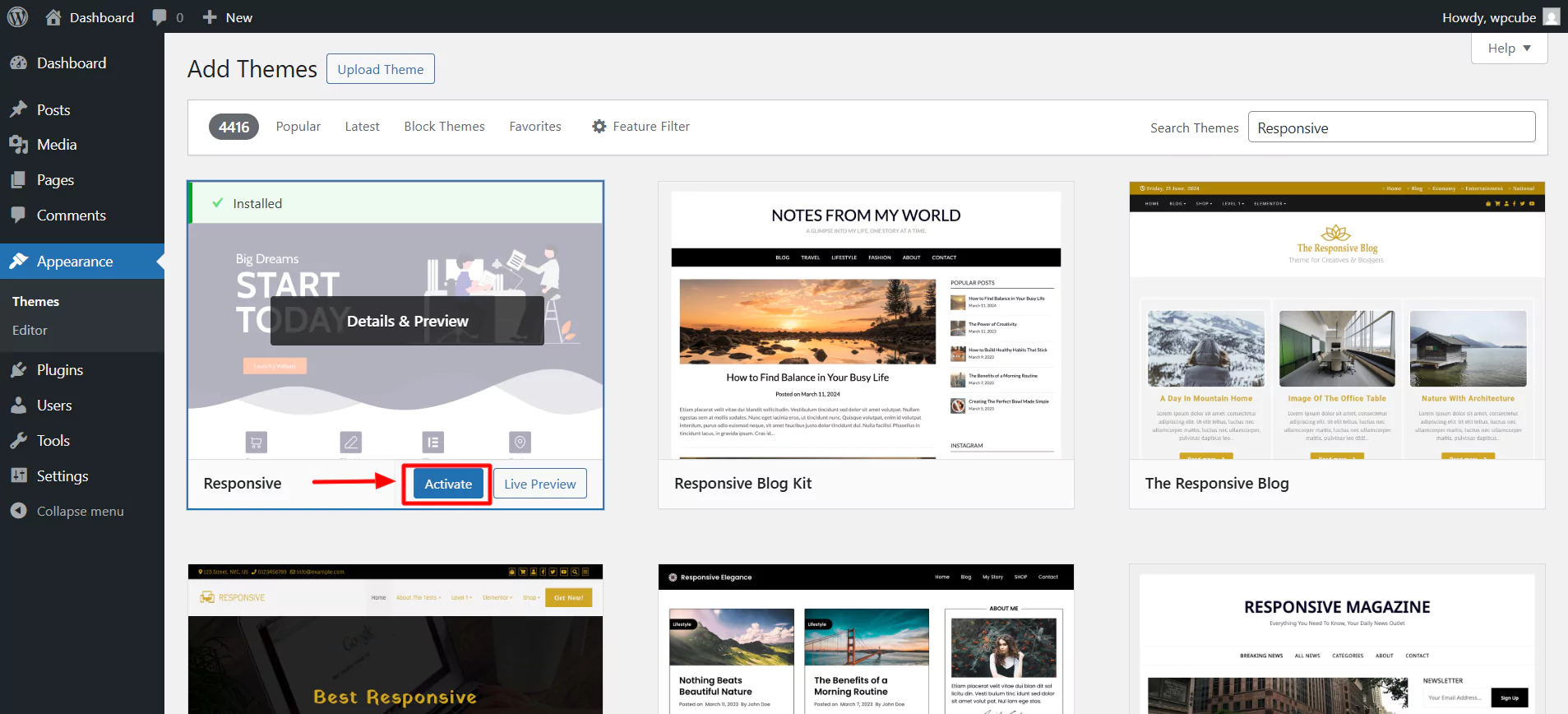
Next, click on Activate.
Click on Appearance > Customize.
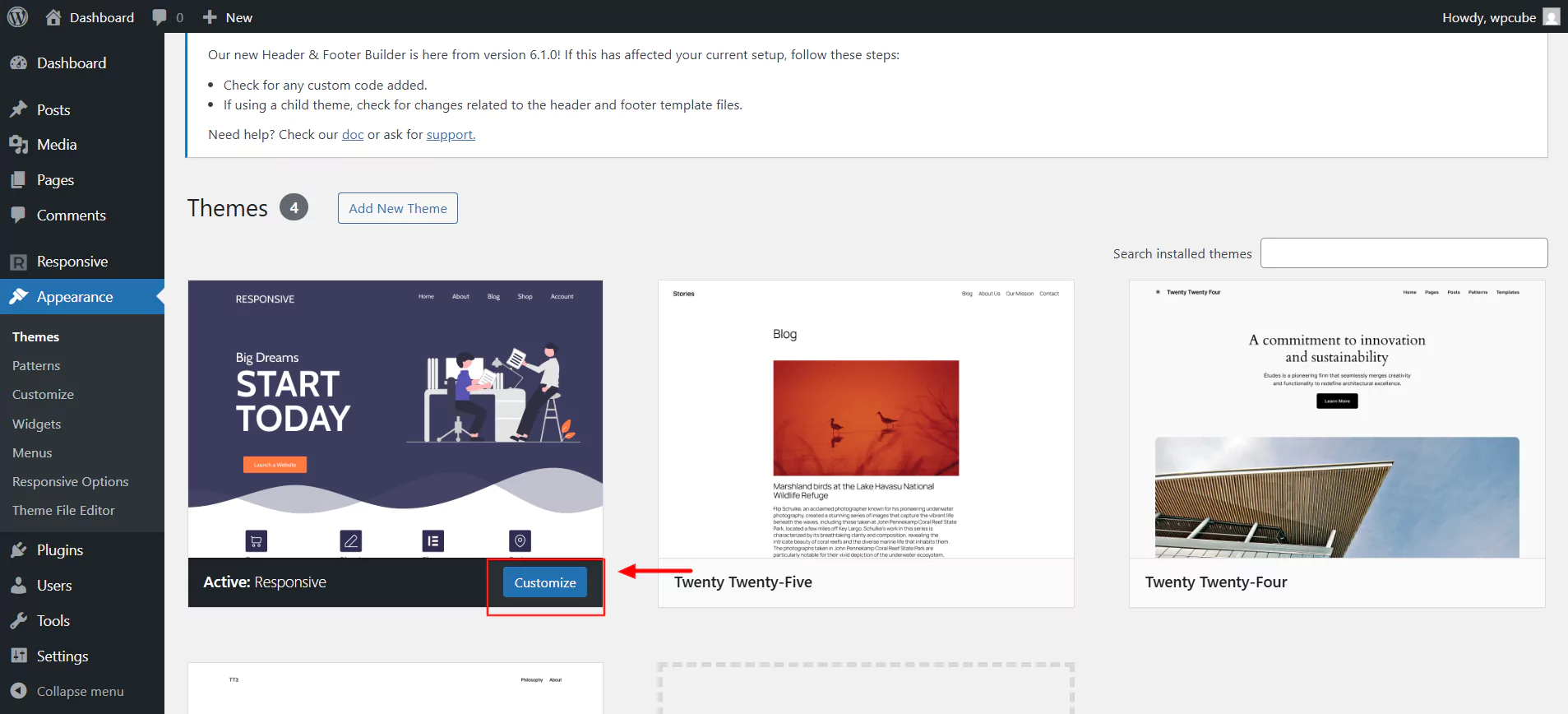
There you go! You have now installed and activated your theme.
Installing Responsive Plus – Starter Templates Plugin
The Responsive Plus – Starter Templates is a plugin by Cyberchimps, which consists of a collection of 250+ professionally designed templates that can be imported with a single click. It offers advanced features like white label, custom fonts, mega menu, site builder, and even WooCommerce integration. It extends its functionalities by integration with the Responsive theme by Cyberchimps.
Here are some of the key features and characteristics of the Responsive Starter Templates Plugin Library:
- Pre-Built Websites: The library includes dozens of fully designed websites for different niches, including business, blog, e-commerce store, and portfolio examples.
- Page Builder Support: The templates are built for popular WordPress page builders, including Elementor and the Gutenberg Block Editor that is included with the native WordPress editor. Once imported, you just need to drag and drop to customize the imported template.
- Mix-and-Match: Depending on the library you are using, you can import a single page or mix two different website templates to make a new website. As a result, you can make a fantastic and unique site.
- WooCommerce Ready: Many of the templates are built with WooCommerce integration for an e-commerce solution. As a result, it becomes easy to get an online store set up to sell your products.
- Site Builder: You can easily customize individual page headers and footers to match your brand identity. Plus, it lets you create a custom 404 page with ease.
- Compatible with essential plugins: The Public Speaker Starter Template is designed to be compatible with crucial plugins, which extend its functionality beyond just a basic layout.
Follow these steps to install the Responsive Plus – Starter Templates plugin.
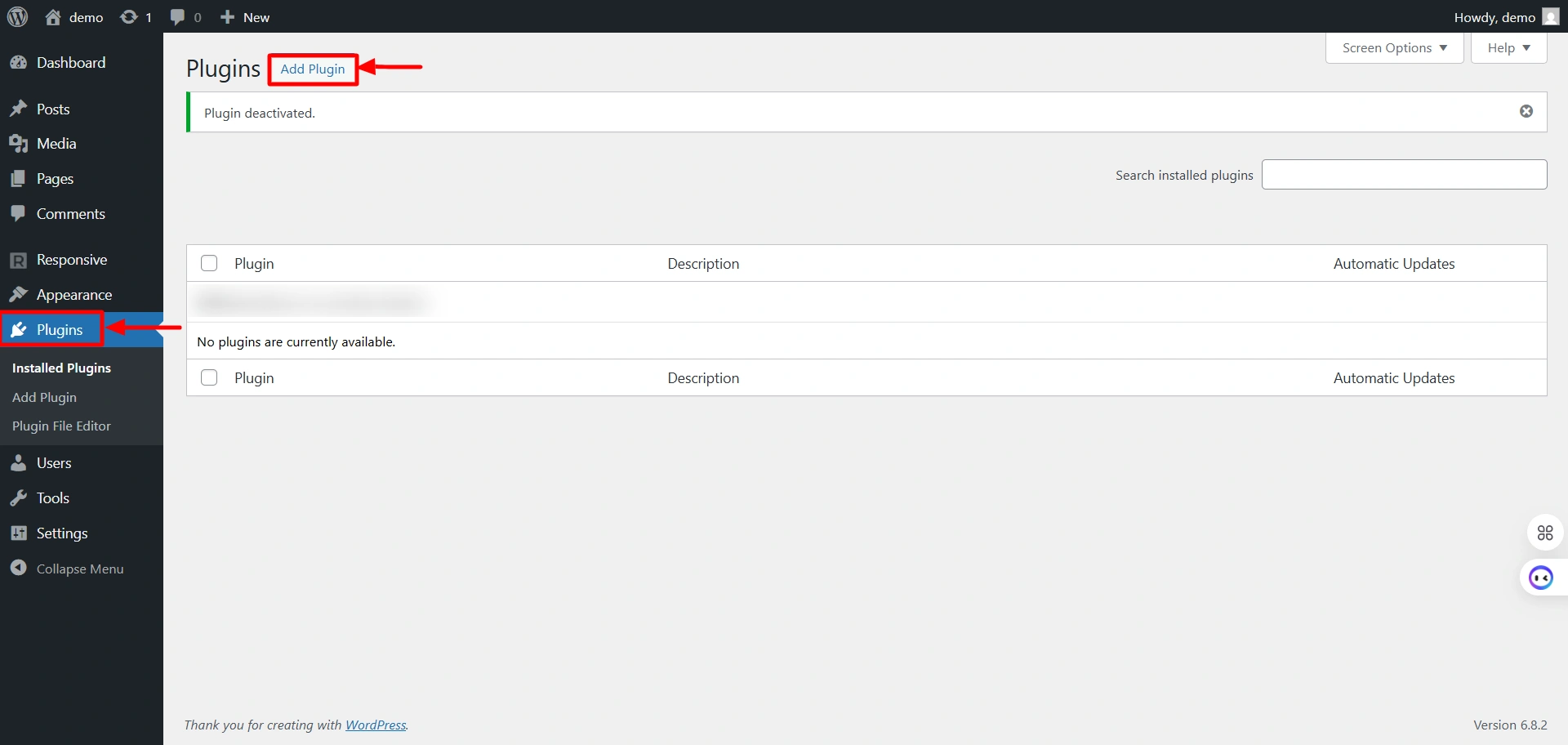
Select plugins and click on the “Add Plugin” button.
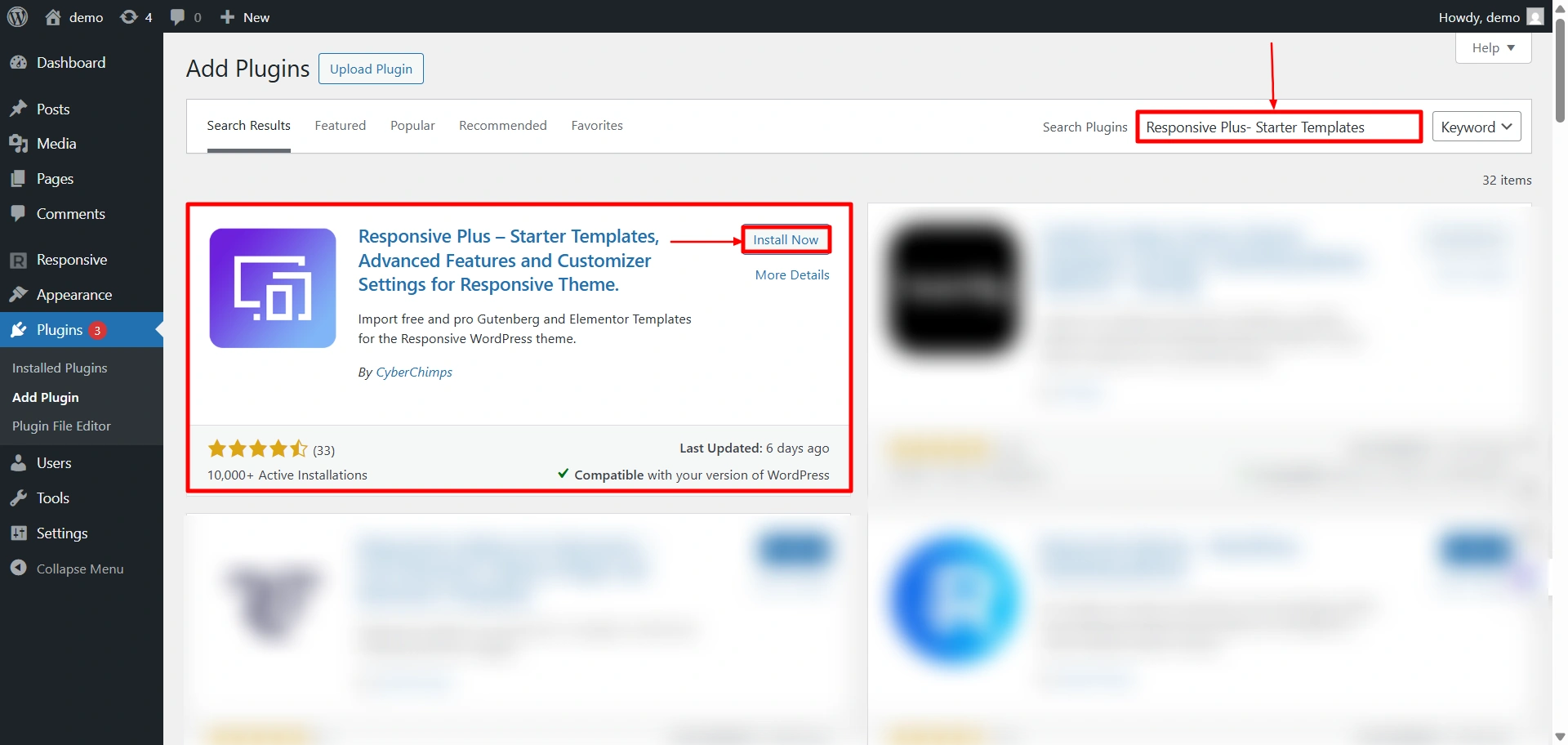
The next step is to search for “Responsive Starter Templates” in the search bar option and click on the “Install Now” button to install the plugin.
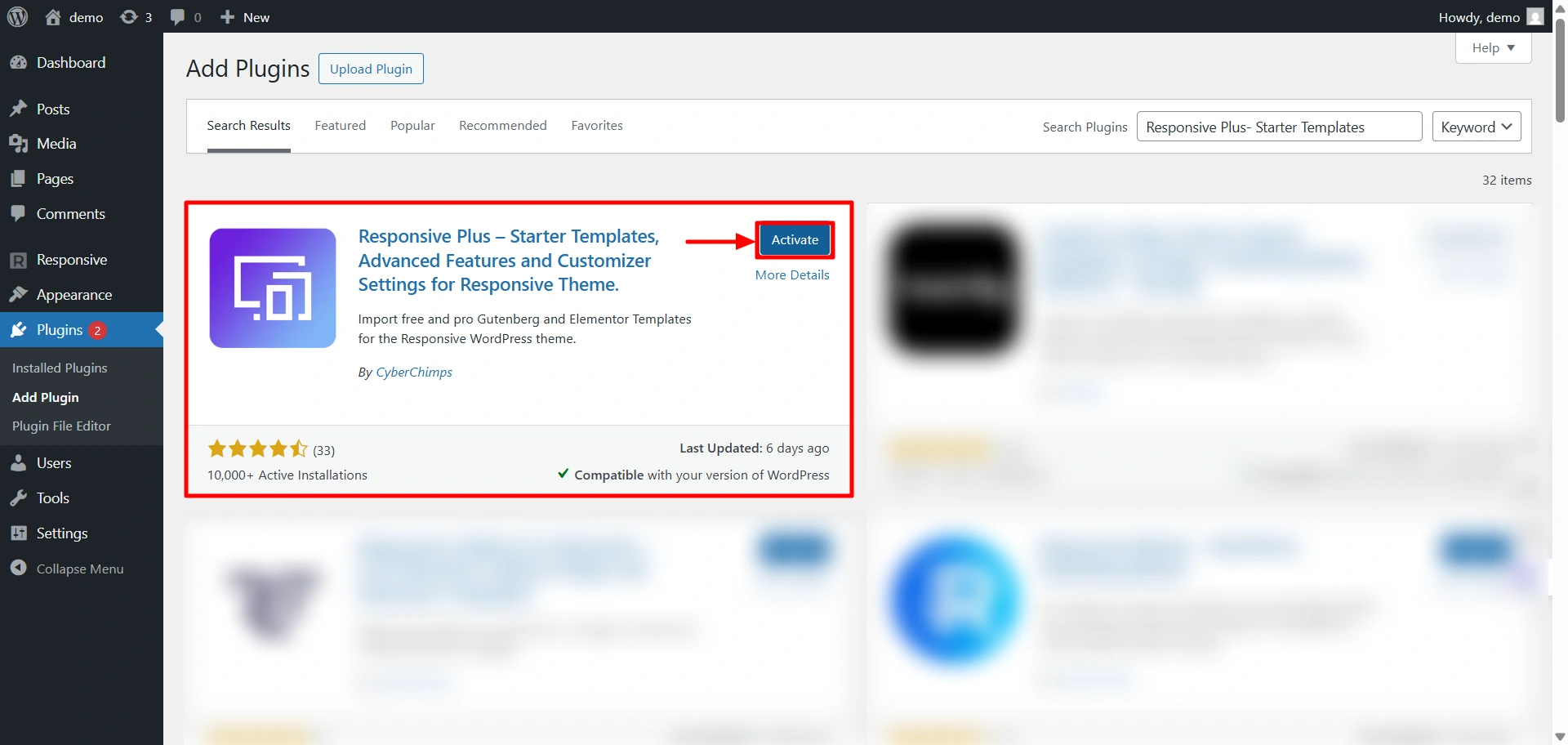
The next step is to activate the plugin. To do so, click on the “Activate” button.
Importing a Magazine Template
The next step in the process is to import the Magazine template from the plugin. Follow the steps to import the Magazine template:
Hover on Responsive and click on the “Templates” button.
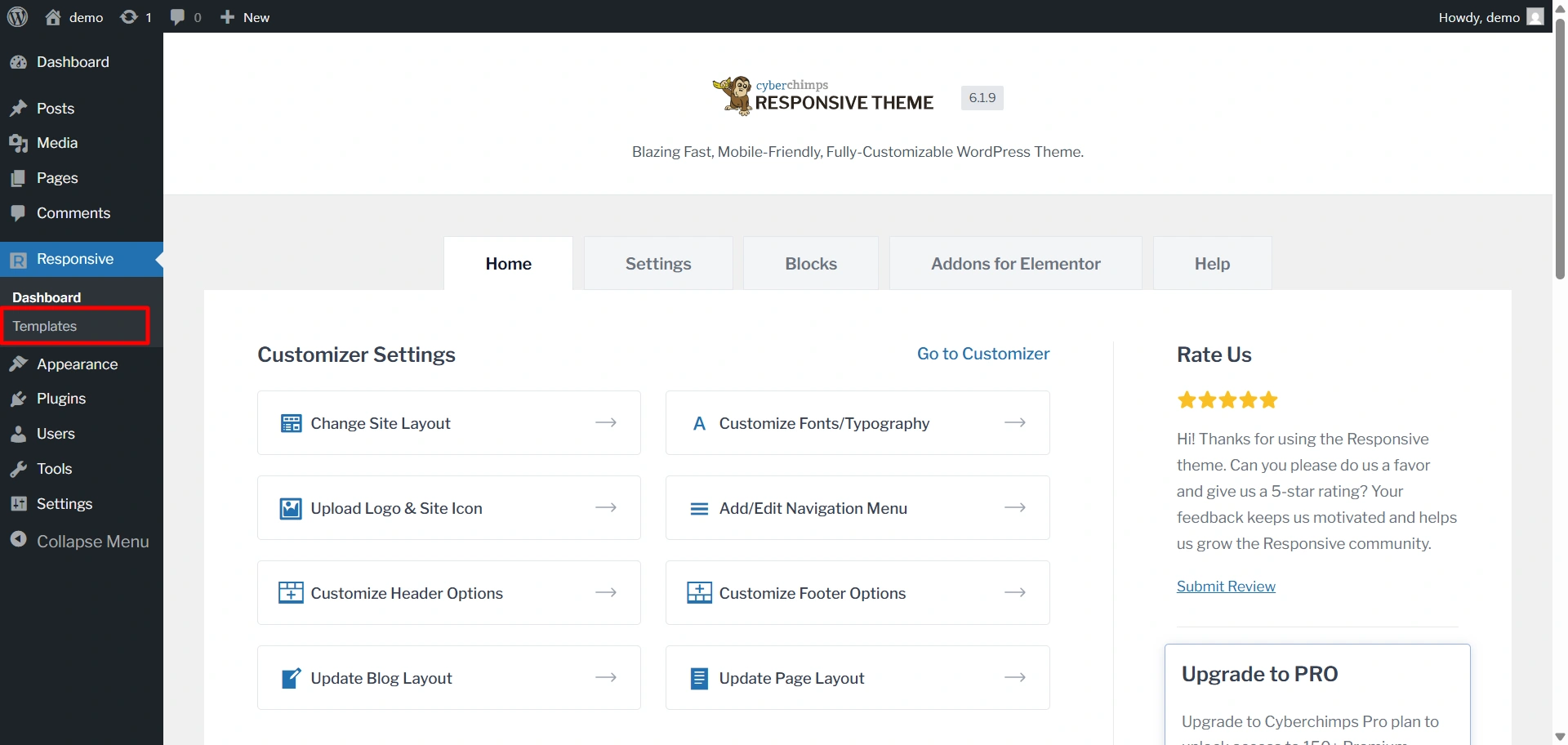
Search for the Magazine template and click on it.
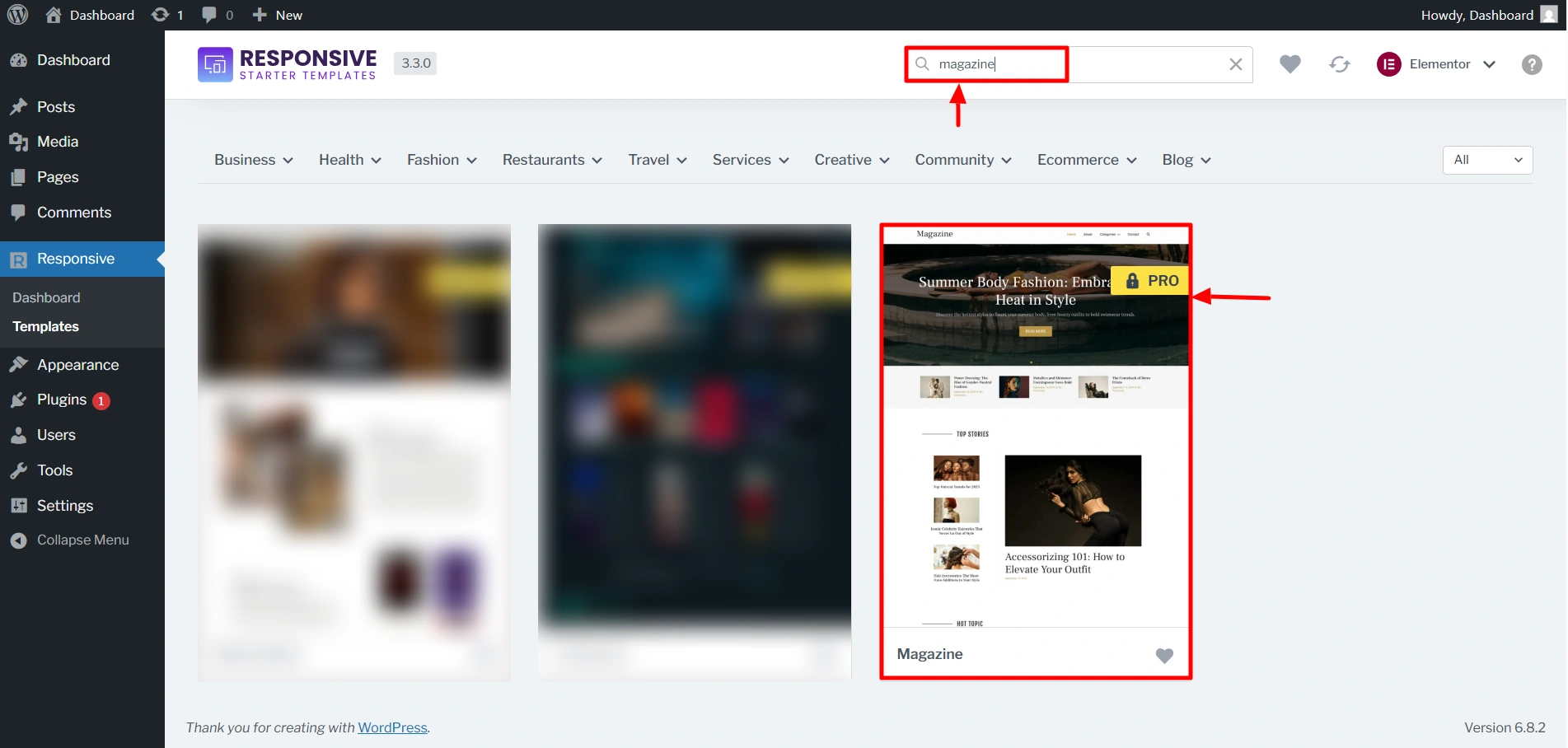
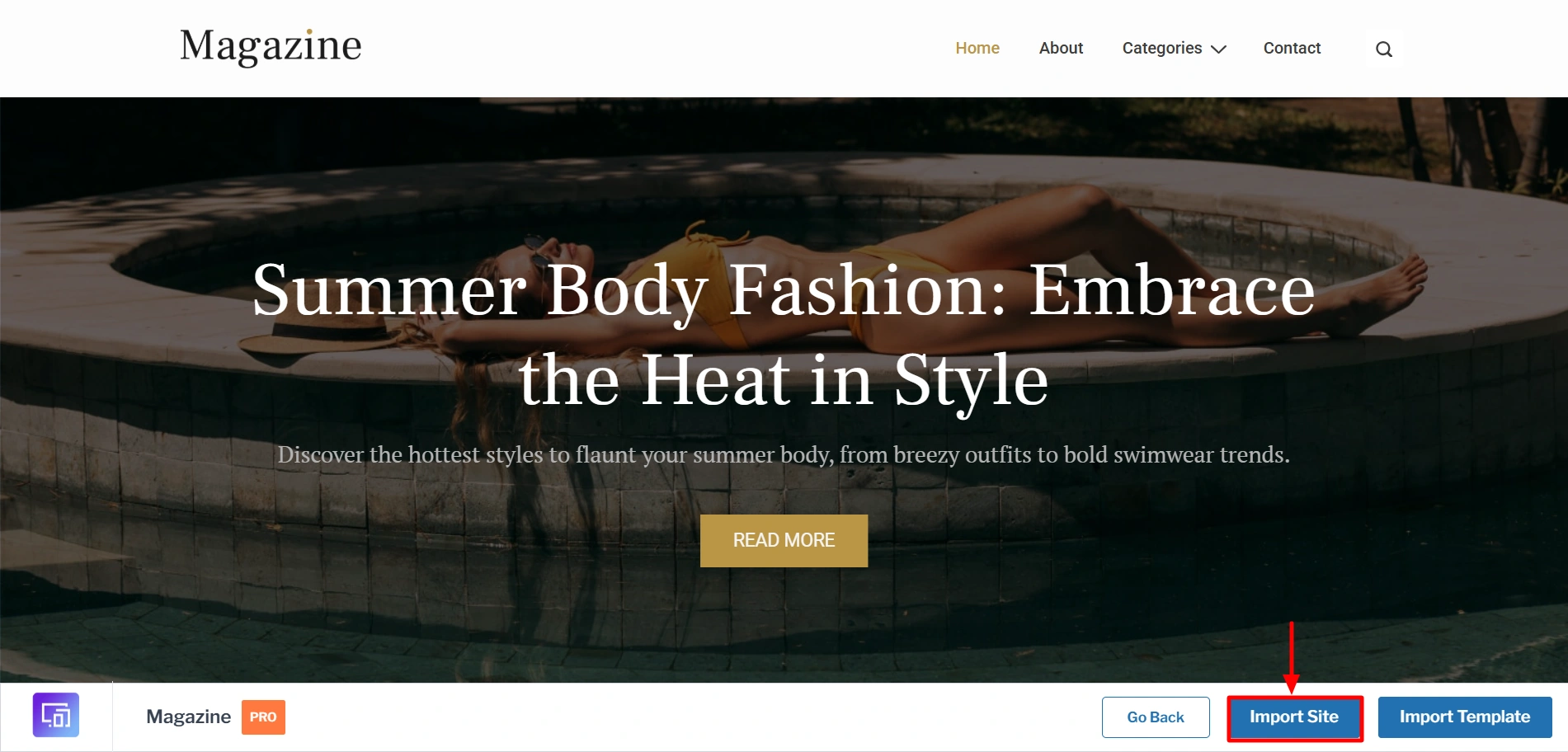
Now, click on Import Site to start importing your site.
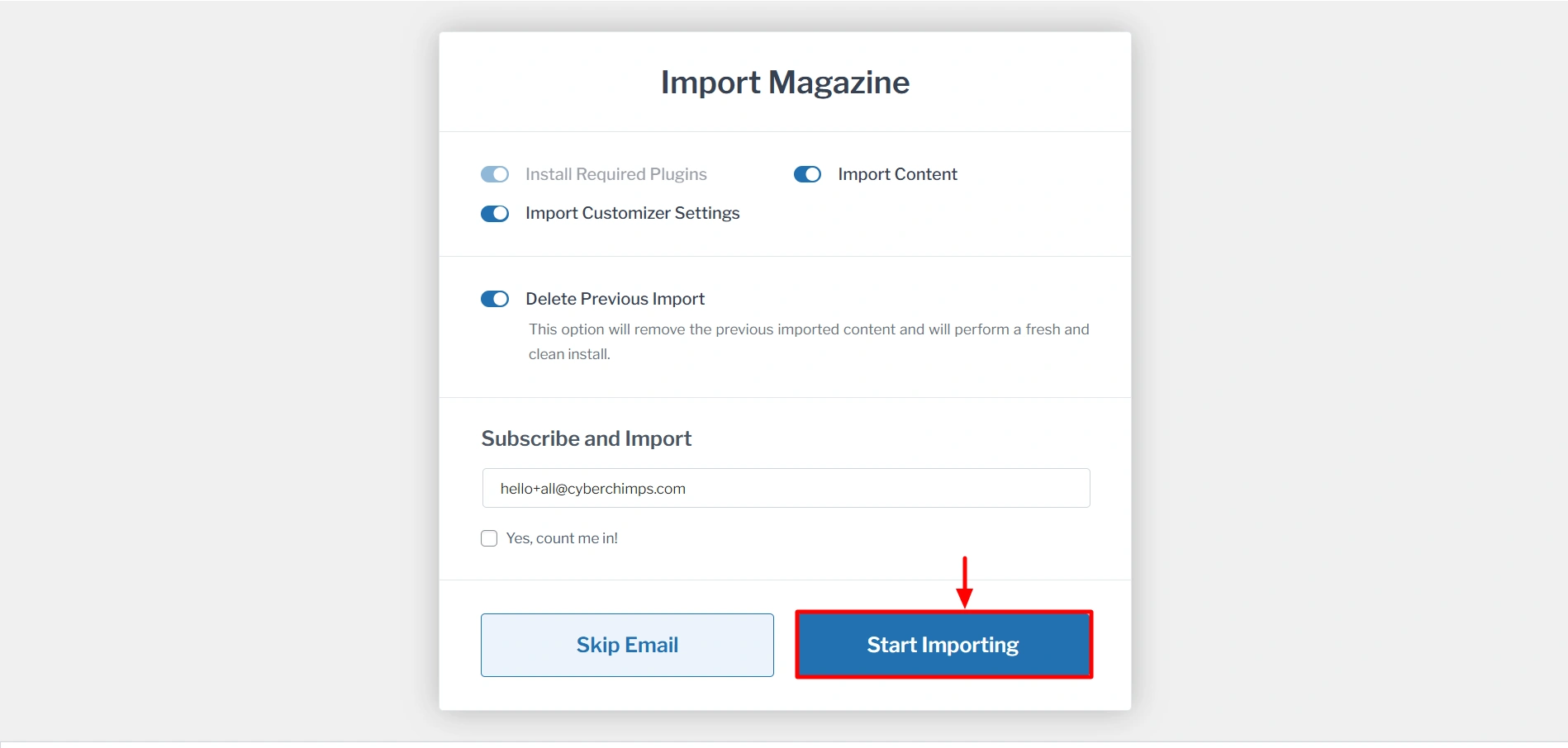
Next, you must click on Start Importing to import.
It might take a few seconds to fully import. And once it’s done, you can click on View Website.
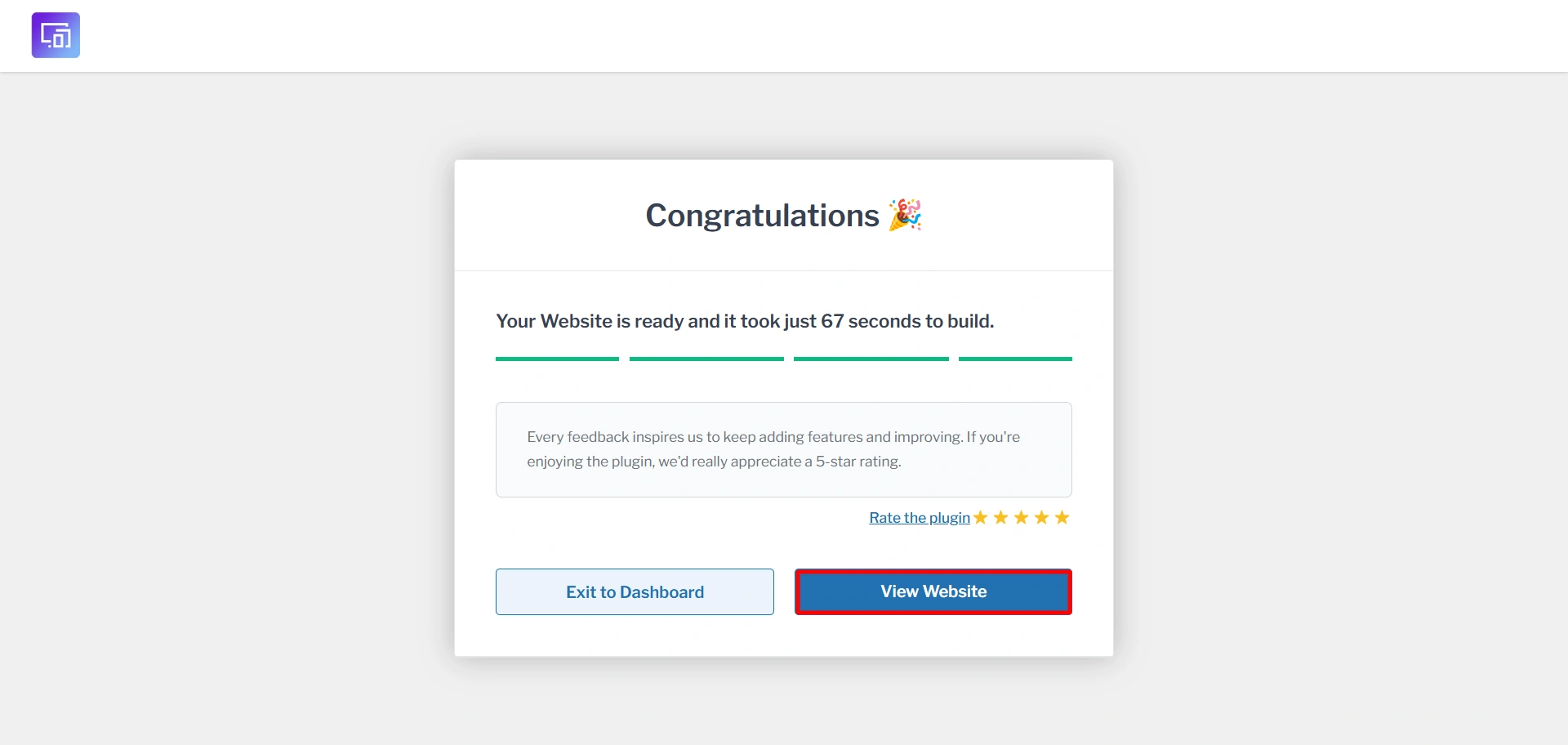
Finally, you have successfully imported a template for your magazine website.

You can easily edit this template to your liking. You can also install the Responsive Addons for Elementor plugin to add various widgets to Elementor
FAQ
Not at all! WordPress does not require you to know how to code. It is beginner-friendly and comes with drag-and-drop page builders. You can easily build and customise your site without having to write a single line of code.
Responsive Theme by Cyberchimps is one of the top choices to create a magazine website. It is fully compatible with popular plugins like WooCommerce and WP Legal Pages. Moreover, it is super easy to use and is fully compatible with all devices. With it, you can easily customise headers and footers, add a custom header and footer to single pages with the new site builder feature, and add a mega menu. In a nutshell, Responsive Theme is a great choice.
Absolutely! You can monetize through display ads, sponsored posts, affiliate marketing, or even subscription-based premium content. Many magazine themes have built-in ad spaces for easy monetization.
Conclusion
Now we know that building a magazine website using WordPress does not have to be overwhelming. With the help of the correct theme and plugins, you can easily create a stunning website.
Use this guide and follow the steps to create your own magazine website with WordPress that attracts readers, showcases stories beautifully, and even generates revenue.
So, are you ready to create and launch your website today and flaunt it to the world?
If this article was helpful to you, you might also like to read:






2 Comments on “How to Create a Magazine Website with WordPress- An Easy Guide”
Hi M Saud, I have seen lots of wordpress magazine theme. I want to develop a magazine website. Which theme is best for Magazine website? Thanks
Hello Saud,
Although it is difficult to gather all the best in one website, but setting up a magazine wordpress is very hard and need to be inspected. Content, host, frequently updates, … are so much important.