
Summary
The article explains how to add animations in the WordPress Block Editor. It shows how to enable and apply animations to blocks, choose animation types, and set triggers.
It also covers basic settings like duration and delay for animated effects.
Want to give your website a dynamic and modern look using the Gutenberg editor?
Animation extension can help you in this and make your task easier. This extension can be used to enhance any block’s visibility feature.
By adding vibrant animation, you can make your simple, plain web page into an interactive experience for users using CSS animations in WordPress editor.
The Responsive Blocks plugin provides you with a powerful, intuitive way to implement these effects without writing any code.
So read the guide till the end to learn how to add animation in WordPress the right way.
Responsive Blocks is the Best WordPress Blocks Plugin – Get it for free!
Why add Animations Extension to the Blocks?
Adding animation is just not a static choice. It is a need. It helps you attract more visitors and keep them engaged with your site.
You may have seen plugins such as Blocks Animation: CSS Animations for Gutenberg Blocks to achieve this, but why add another plugin when Responsive Blocks plugin includes animations for free, plus extra customization options, performance-friendly controls, and seamless Gutenberg integration?
This is what animation helps you with.
1. Increase User Engagement
When elements smoothly slide into view or fade in using CSS animations in WordPress editor, it encourages the user to continue scrolling and explore the content. It breaks the monotony of text and images, making the interaction feel more dynamic and less like reading a static document.
2. Enhances Storytelling
By timing animations to specific points in a scroll, you can reveal content piece by piece, turning your page into a narrative. This method is highly effective for explaining complex services or telling a brand’s story in an engaging, captivating manner.
3. Professional Aesthetic and Modern Look
Websites that incorporate thoughtful motion and block animations are generally marked as more modern, high-quality, and professional. It draws attention to detail and a commitment to a premium user experience.
Overview: Animations Extension in Responsive Blocks plugin
The Responsive Blocks plugin extends the capabilities of the WordPress Gutenberg editor. The Animation Extension is a dedicated module within the plugin that provides a vast library of preset animation effects based on the widely used Animate.css library, coupled with scroll-based triggers powered by WOW.js.
This extension allows users to apply entrance and exit effects to virtually any block (e.g., heading, paragraph, image, column, button) with granular control over how and when the animation occurs.
Key Features of the Extension:
- Diverse Animation Types: There are dozens of effects categorised by style (e.g., Fading, Sliding, zoom-in, zoom-out).
- Scroll Triggering: Animations start when the element comes into view, improving both performance and visual impact.
- Granular Customisation: Fine-tune the duration, delay, and iteration count of each animation.
How to Add Animation In WordPress- Step by Step
Follow these steps to bring your blocks to life. For this, you need to have the Responsive Blocks plugin installed from the dashboard.
Once you have the plugin, make sure the animation extension is enabled.
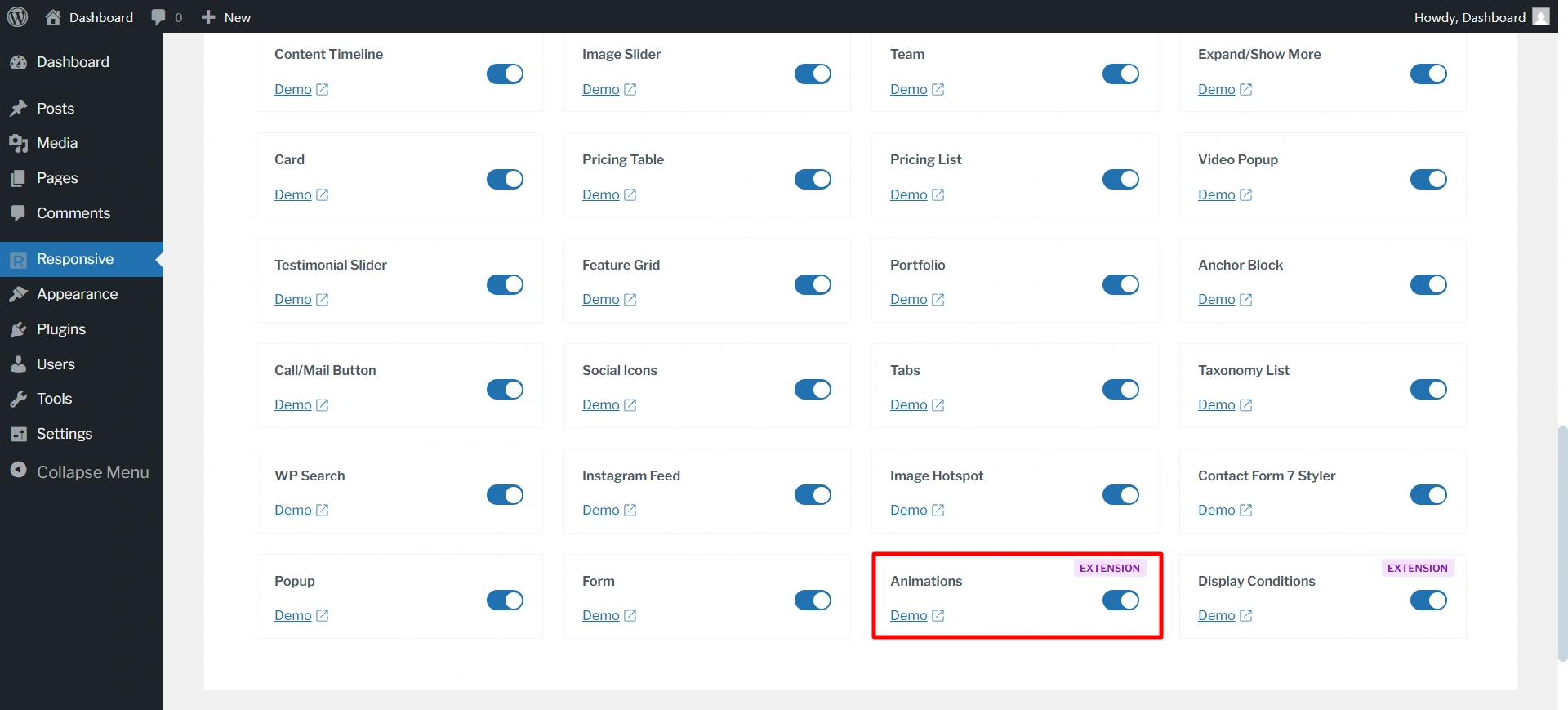
After that, click Create New Post and select the block where you want to add the animation. Like right now, I’m using the image block.
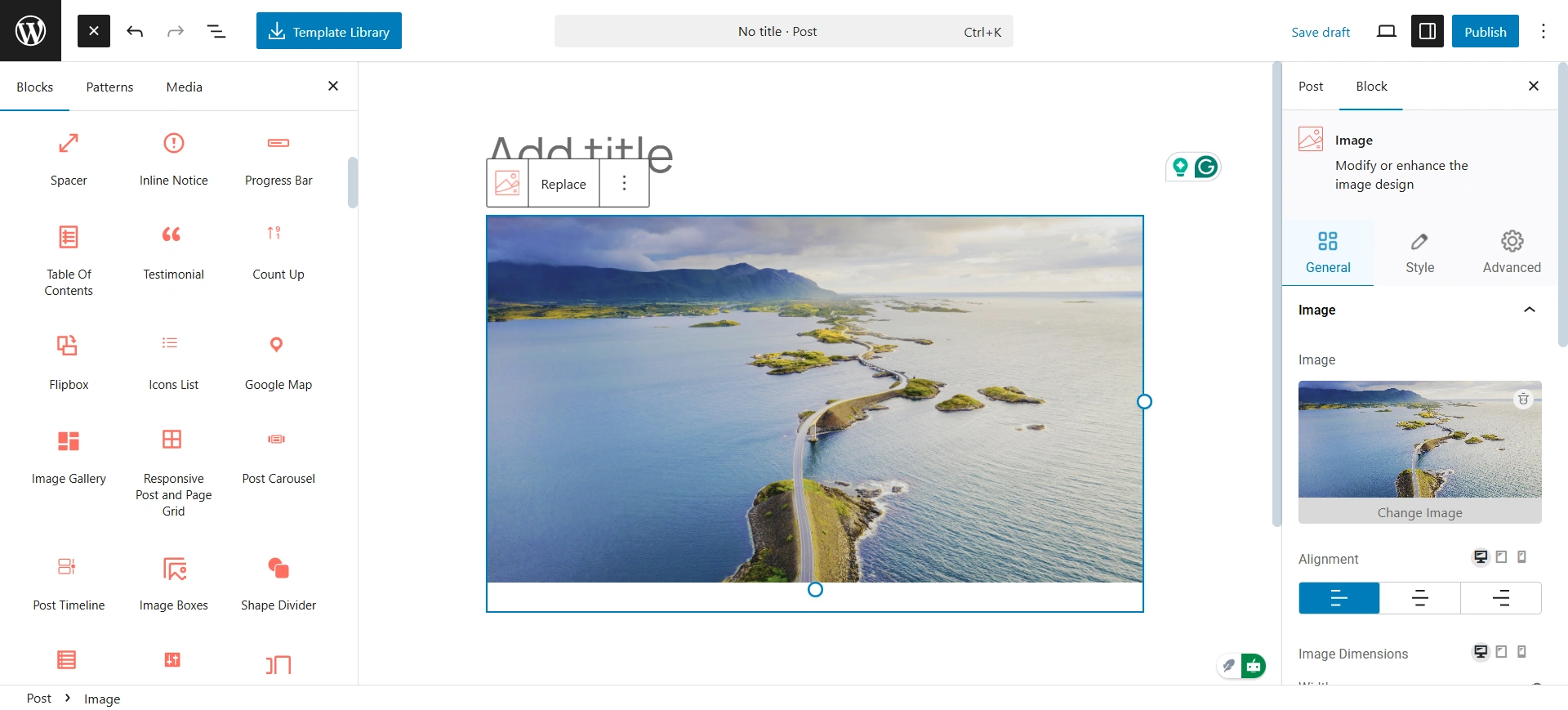
Now, Click on Advanced > Animations.
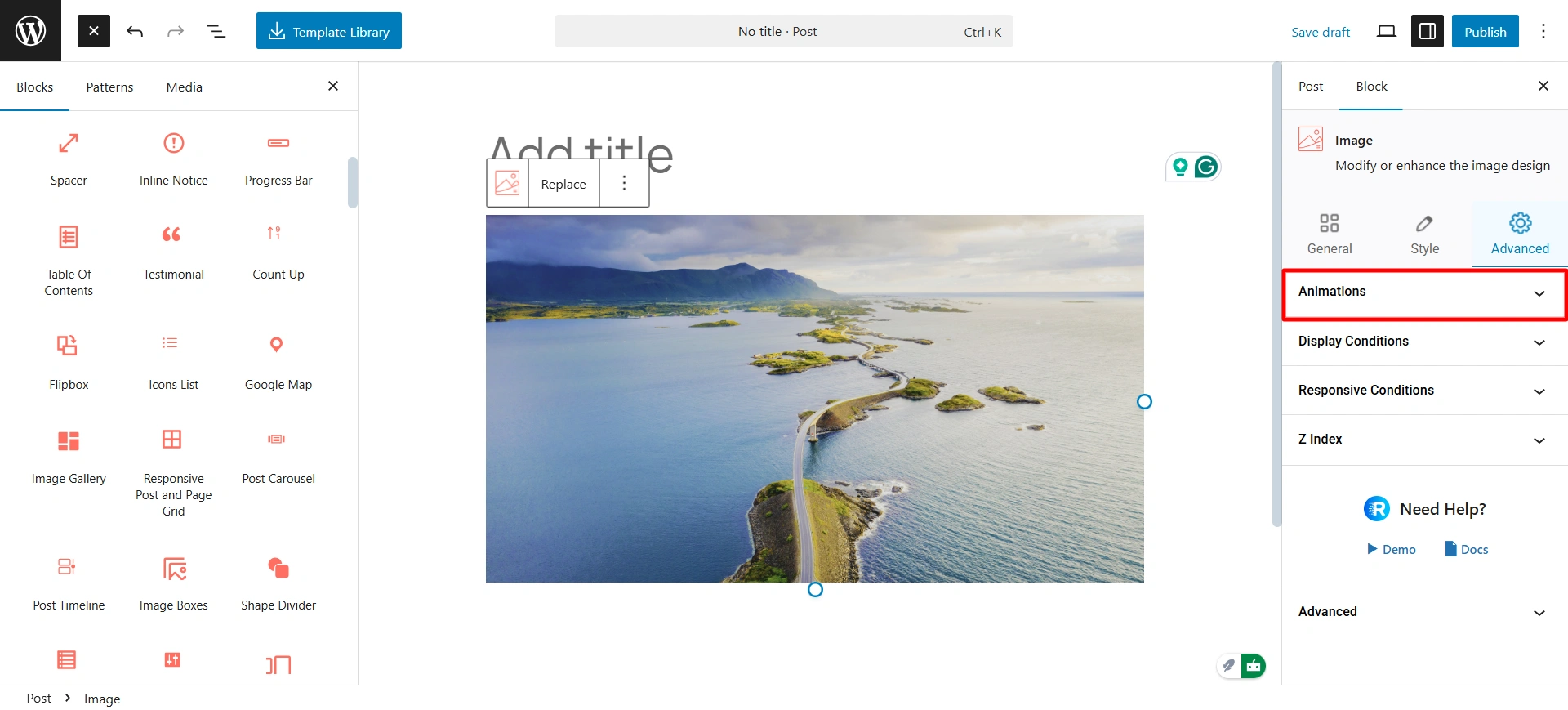
After that, open the animation setting panel and select the type of animation you want to apply to the block. Like I have chosen the Flip right.
Set the duration and delay, and even set it on repeat play while scrolling.
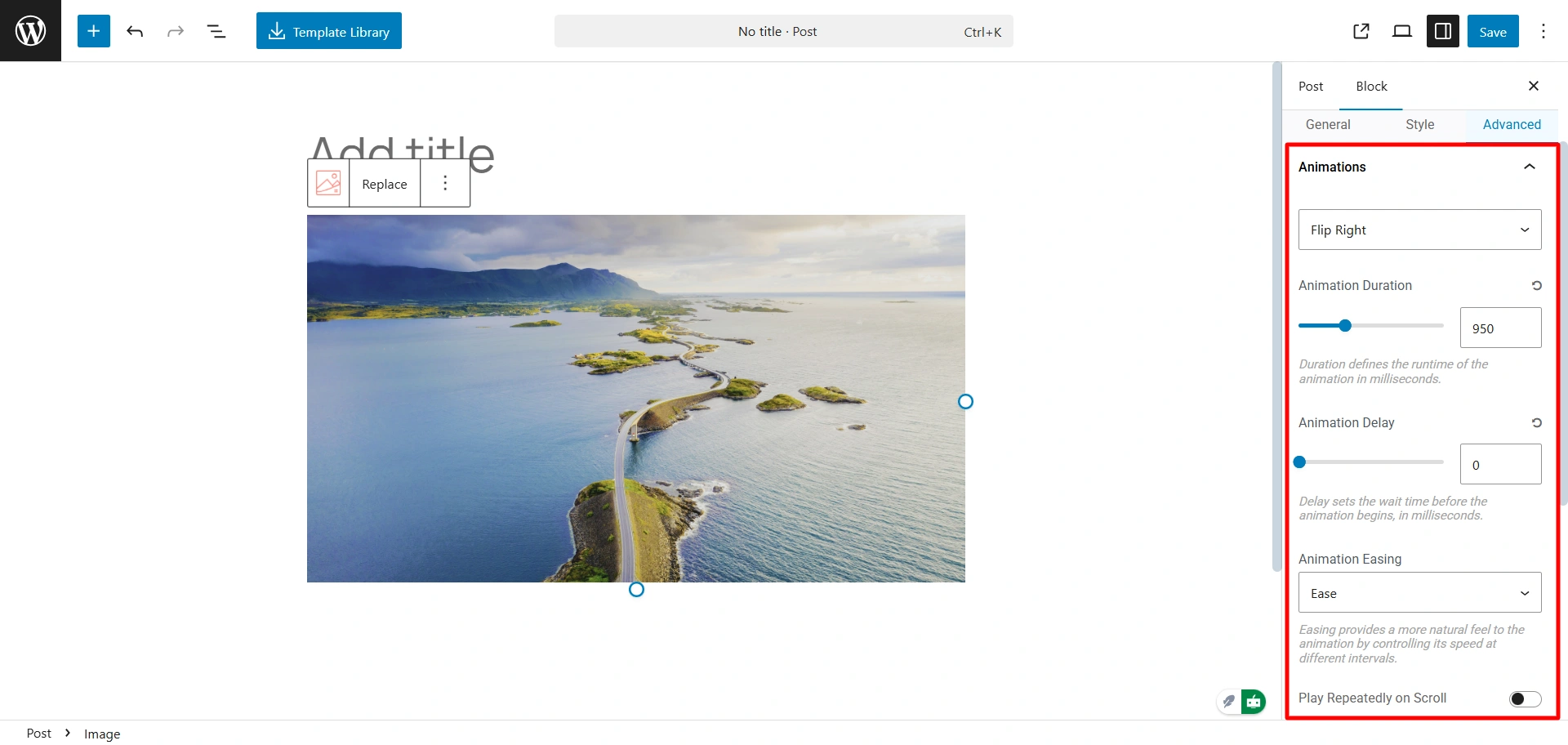
Once you are done, click on publish and check the animation.
Best Practice Tips
While animations are powerful, overusing animations for blocks can ruin the user experience.
- Use animations sparingly, not on every element.
- Apply animation on key sections such as CTAs, hero banners, or feature highlights.
- Test on mobile devices, some animations might appear too fast or distracting.
- Keep the duration under 1 second for modern motion.
- Stick to consistent block animation styles across your site.
Use Cases & Examples
Block animations are versatile and can be applied to nearly any element when you add animation in WordPress.
- Feature Section Display: When showcasing three to four product features, animations are perfect for introducing them sequentially.
- Call-to-Action Highlight: A CTA button is the most critical element on many pages, and a subtle animation can ensure it gets noticed.
- Testimonial Reveal: Animation makes customer reviews appear dynamically as the user scrolls down the page.
Frequently Asked Questions
Duration: How long the animation takes to run. The duration means the element moves/fades for one full second.
Delay: The pause before the animation begins. A delay means the element waits half a second after entering the viewport before it starts the animation.
Typically, no. The Responsive Blocks extension is designed to apply a single entrance animation effect.
No, that is the intended, standard, and best-practice behavior. The Responsive Blocks feature uses scroll-triggered animations (powered by the underlying WOW.js library). This means the animation only runs when the element enters the user’s viewport.
Yes, you can animate any Responsive Blocks element in a Gutenberg block.
Conclusion
Block animations are a great, low-complexity way to update your WordPress website. The Animations Extension in the Responsive Blocks plugin is simple and remarkably powerful.
You can use unique animations to build an inviting, engaging experience for the user, and you don’t need to write any code.
The most crucial factor is to maintain consistency, use minor movements, and maintain the overall style of your site while maximizing user experience.
Give it a try. You will love seeing your blocks come to life.
If you like the article, consider reading these other articles.
- Introducing the Display Conditions Feature in Responsive Blocks
- What is a Child Theme in WordPress? Do you need it?
- How To Create Stacking Cards on Scroll Using Elementor Free
Get the Responsive Block plugin and the Responsive theme.





