
Summary
We have explained how to add shape dividers in WordPress editor using the Responsive Blocks plugin.
The article shows what shape dividers are, why they improve page design, and gives step‑by‑step instructions to install the plugin, and insert a Container block.
Then add and customize various SVG shape dividers (like waves or zigzags) to enhance your site’s visual flow without extra plugins or code.
Are you using extra plugins just to add shape dividers to your website? This might be slowing down your page speed, especially when all a shape divider really does is enhance your website’s layout and flow.
Shape divider makes it easy to break sections on a page and helps guide user flow by replacing straight horizontal lines with gentle curves, angles, and waves. They elevate a dull layout into an expensive design.
For years, this feature was locked behind a complicated page builder, additional plugins, or required custom CSS or code.
But with the Responsive Blocks plugin, you can now add beautiful, aesthetically pleasing shape dividers to any section of your WordPress site. This opens the door to advanced web design for everyone.
Responsive Blocks is the Best WordPress Blocks Plugin – Get it for free!
What Are Shape Dividers?

Before we get to the “how,” it’s essential to understand the “what” and the reasons that make these elements so effective.
Shape dividers actively decorate webpages by placing SVG graphic elements between two distinct content sections.
They are intended to create a more seamless, smoother transition visually than a simple straight line.
SVGs are lightweight, XML-based vector files that look crisp and sharp at any screen size or resolution, from a small smartphone to a large 4K monitor. This is a technical advantage over raster images (JPG or PNG) that lose quality when resized, and is why they are the standard in creating beautiful shape dividers in the Block Editor.
With the Responsive Blocks plugin, you can add a free shape divider background to Gutenberg blocks.
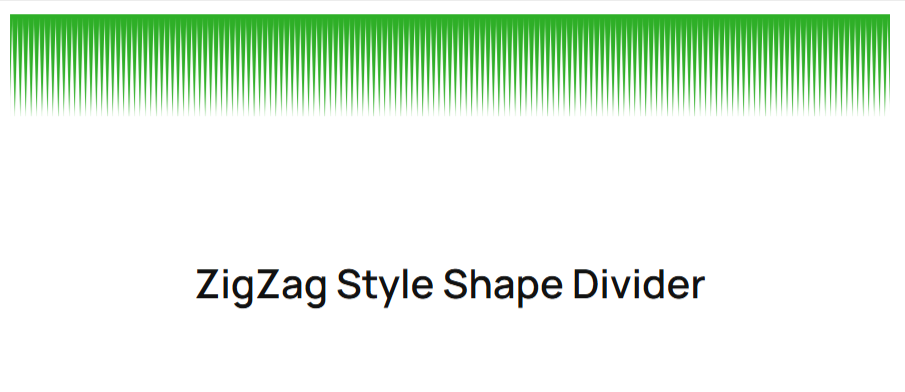
1. ZigZag Design
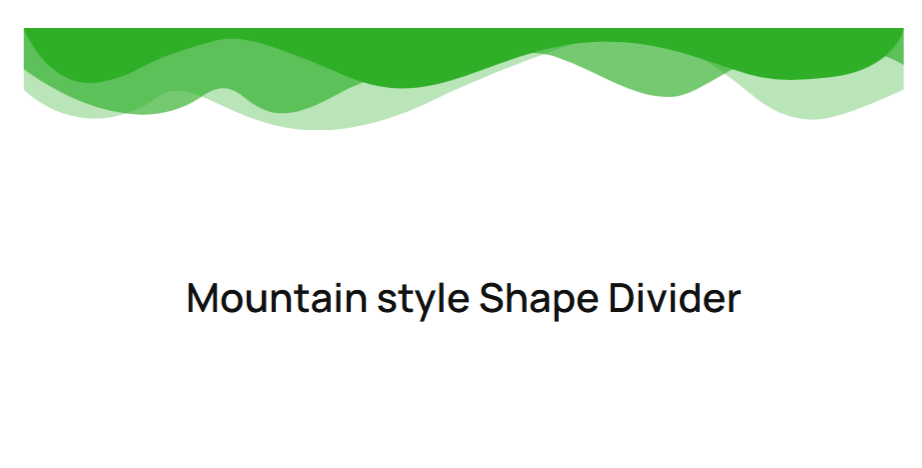
2. Mountain Design
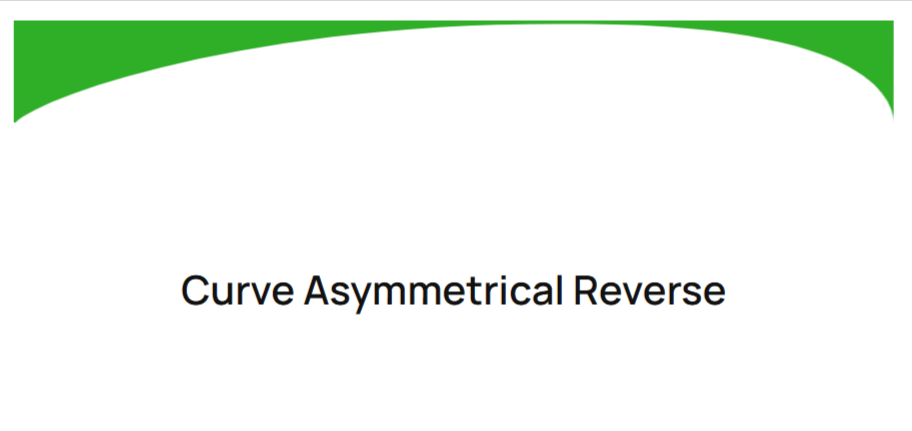
3. Curve Asymmetrical Reverse Design
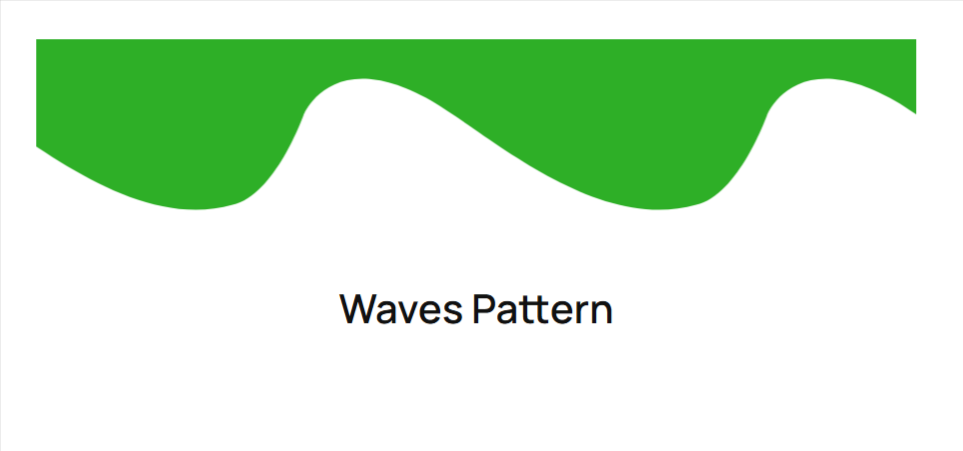
4. Waves Pattern Design
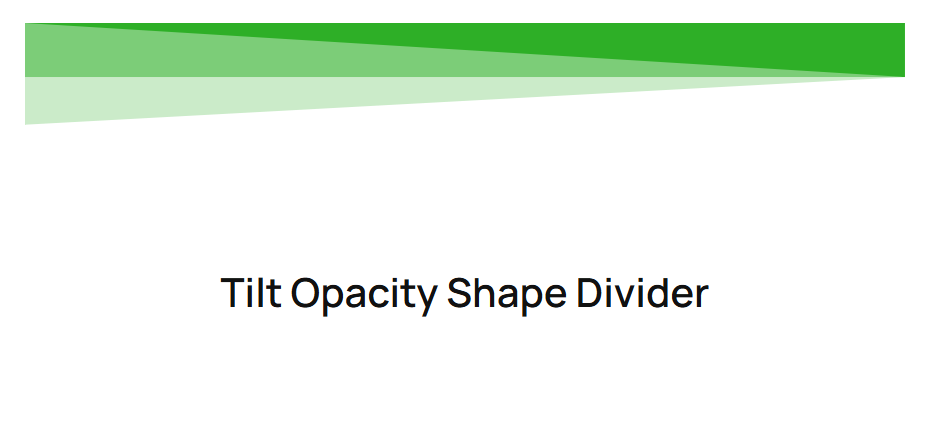
5. Tilt Opacity Design
Common Use Cases for Shape Dividers in WordPress
The strategic placement of a shape divider can enhance user experience (UX) and call attention to key parts of your page:
- Separating Hero from Content: Wave and curve are the common design patterns that are used in the hero section. These dividers help make the website more visually captivating.
- Content from Footer: A divider can help you differentiate between your footer content and provide a clear visual of the main information.
- Highlighting CTA: You can use these dividers to highlight CTA blocks.
Getting Started with Responsive Blocks
Before adding the shape divider, it is necessary to add a few tools.
Step 1: Install and Activate the Responsive Blocks Plugin
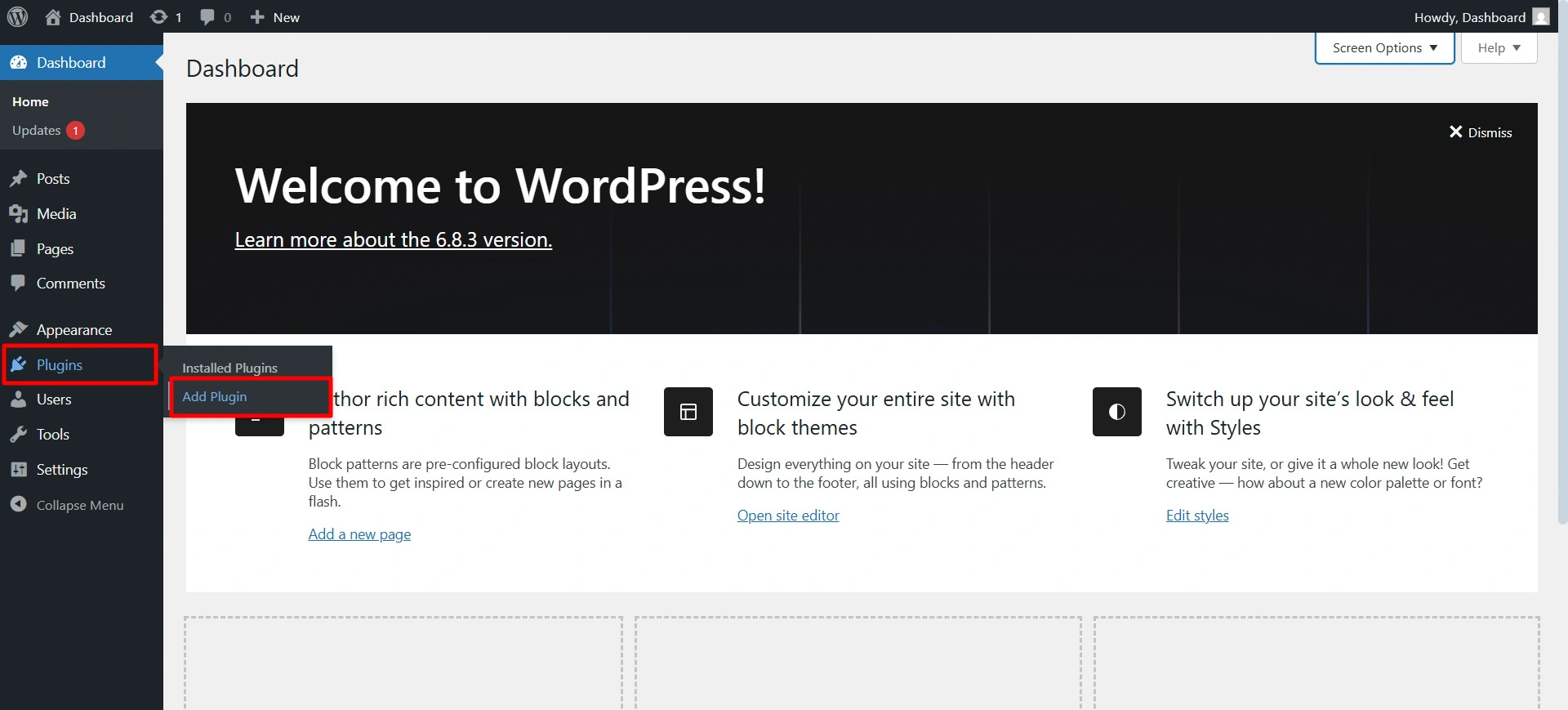
To install the Responsive Blocks plugin, navigate to your WordPress dashboard, click on plugins > Add Plugin.
Search for the Responsive Block plugin. Install and activate it.
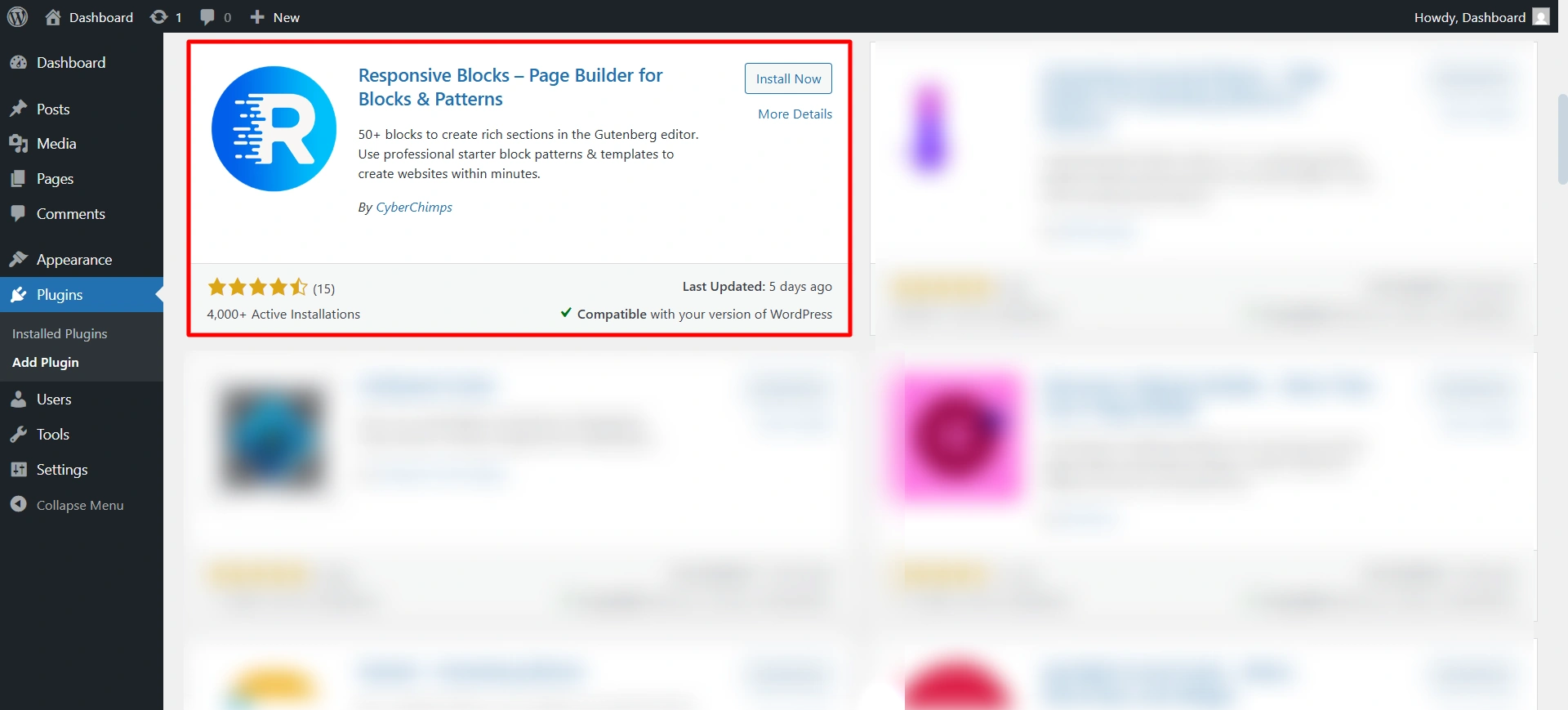
Once it is downloaded, you will get redirected to the block page.
Step 2: Create a New Post or Page
Add a new post.
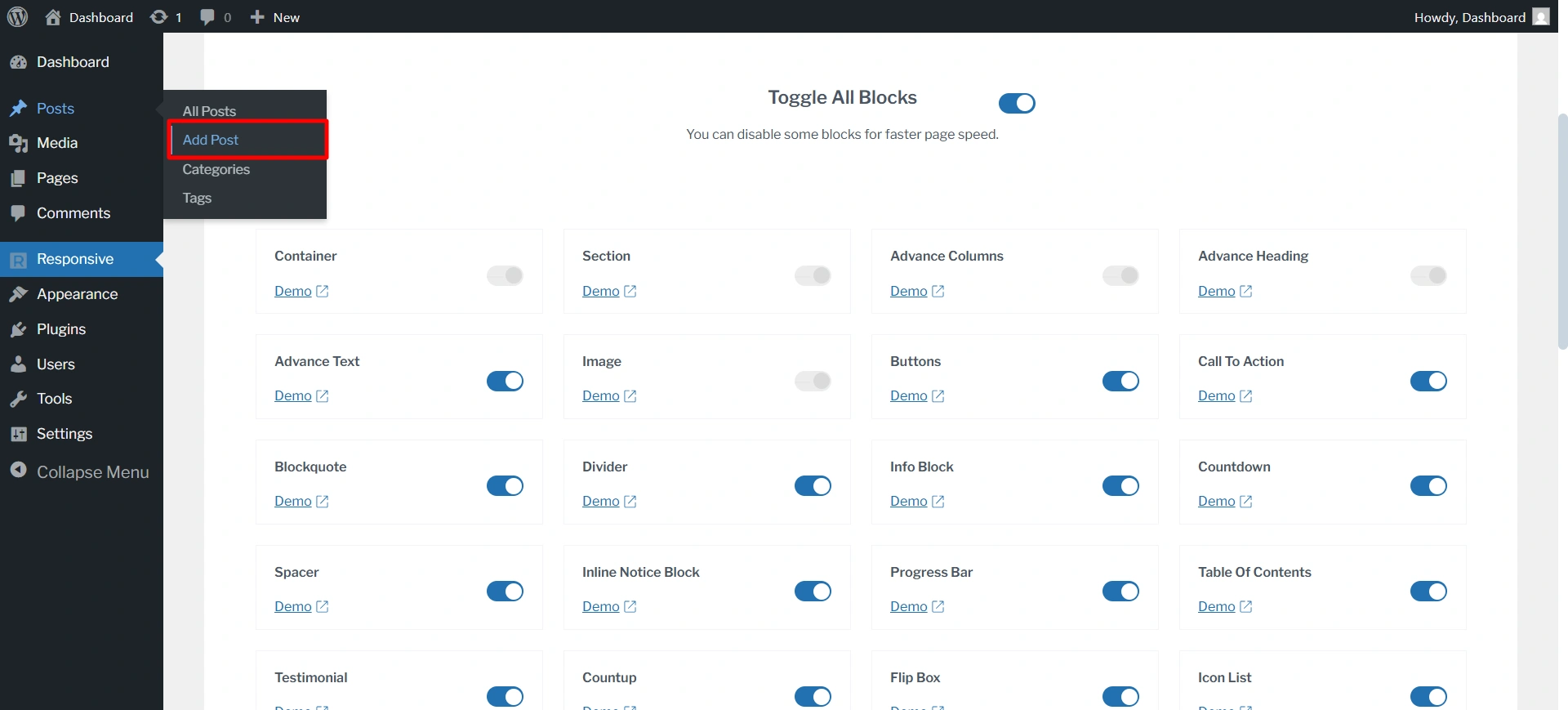
Step 3: Add a Container Block
Next, add a Container block. The shape divider effect functions within this block, so it needs to be applied here.
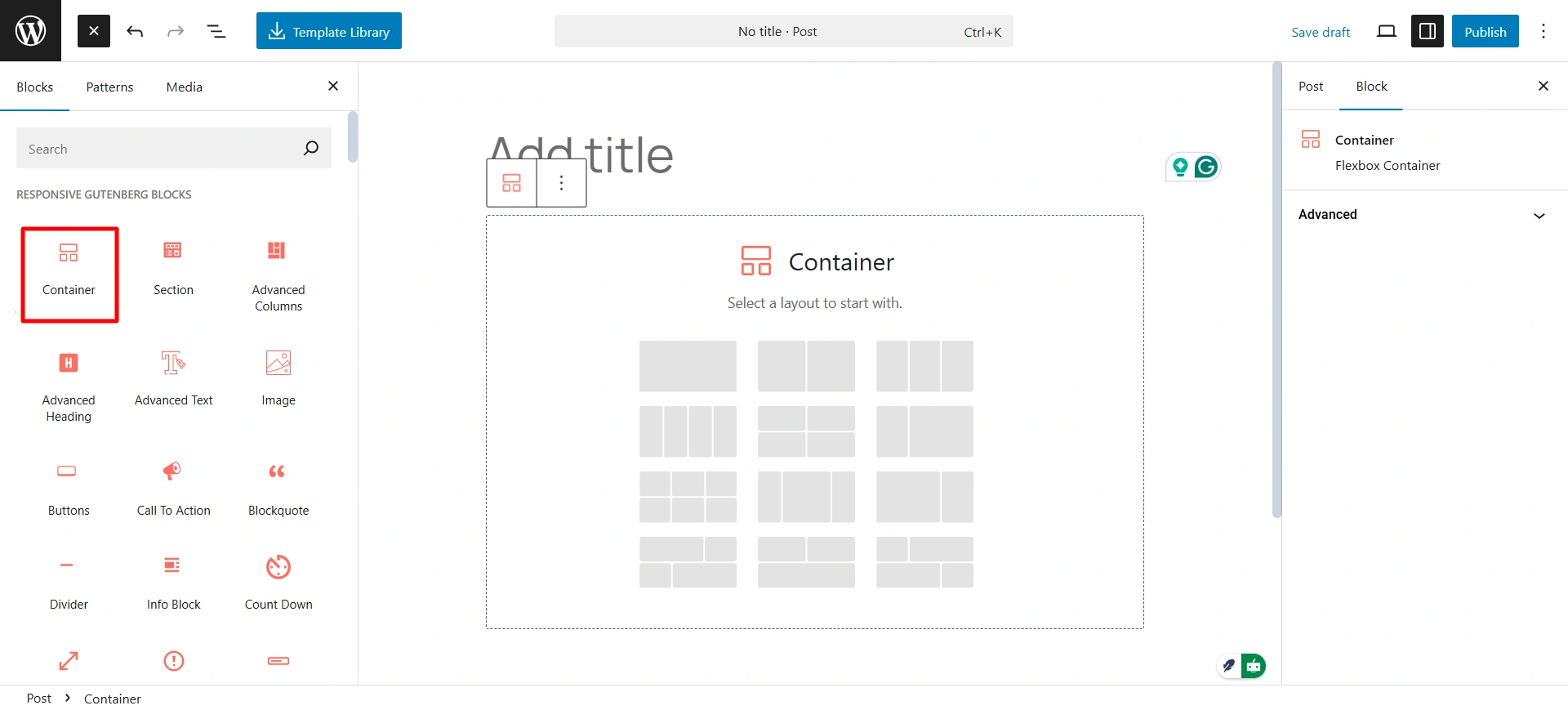
If you want to know more about the flexbox block, read our doc on Container.
Note: Responsive Blocks are fully compatible with the Responsive Theme and other popular block themes.
How to Add Shape Dividers in a Post Using Responsive Blocks
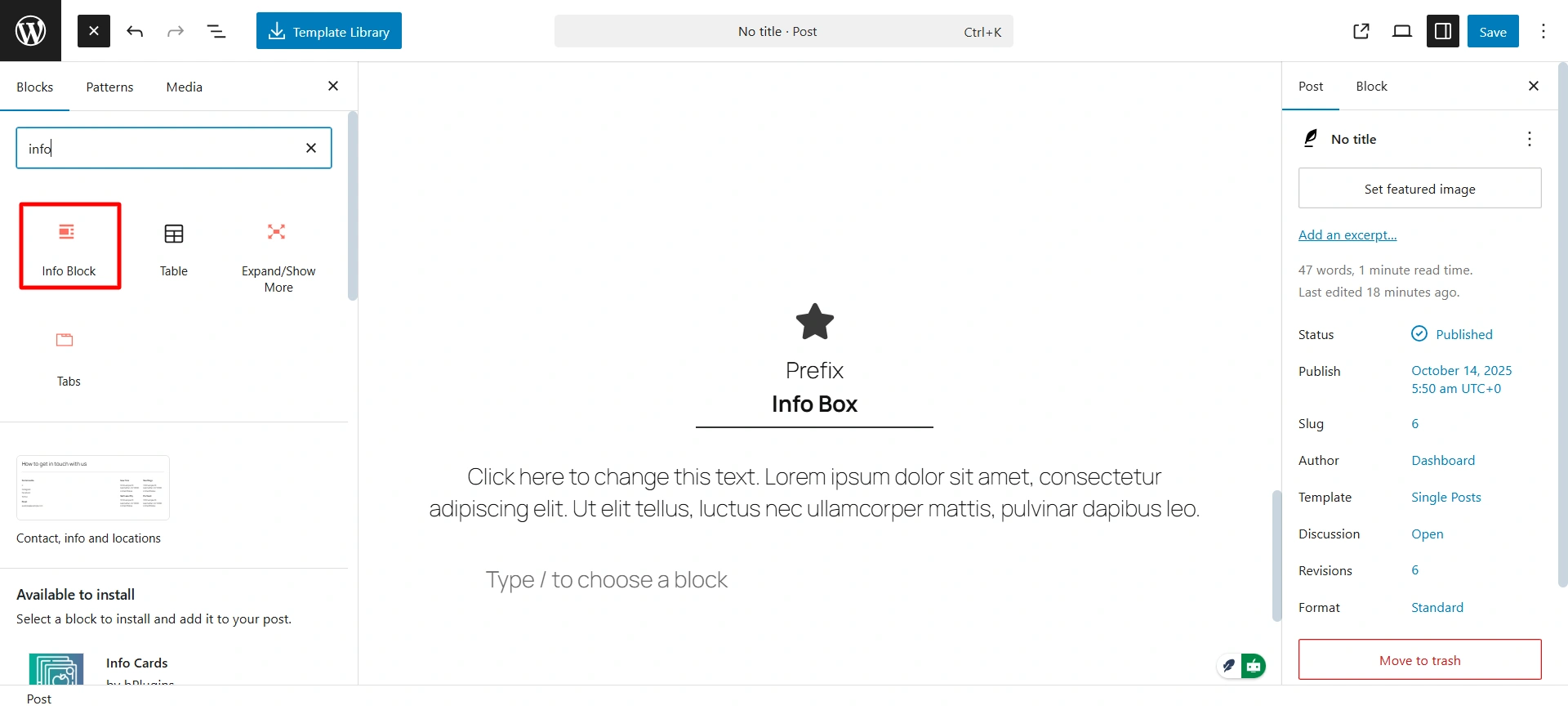
Step 1: Select Your Container Block
Now, add a block in the container, like I’m adding the info block in the container.
Step 2: Shape Divider
You will be able to see the shape divider in the style option.
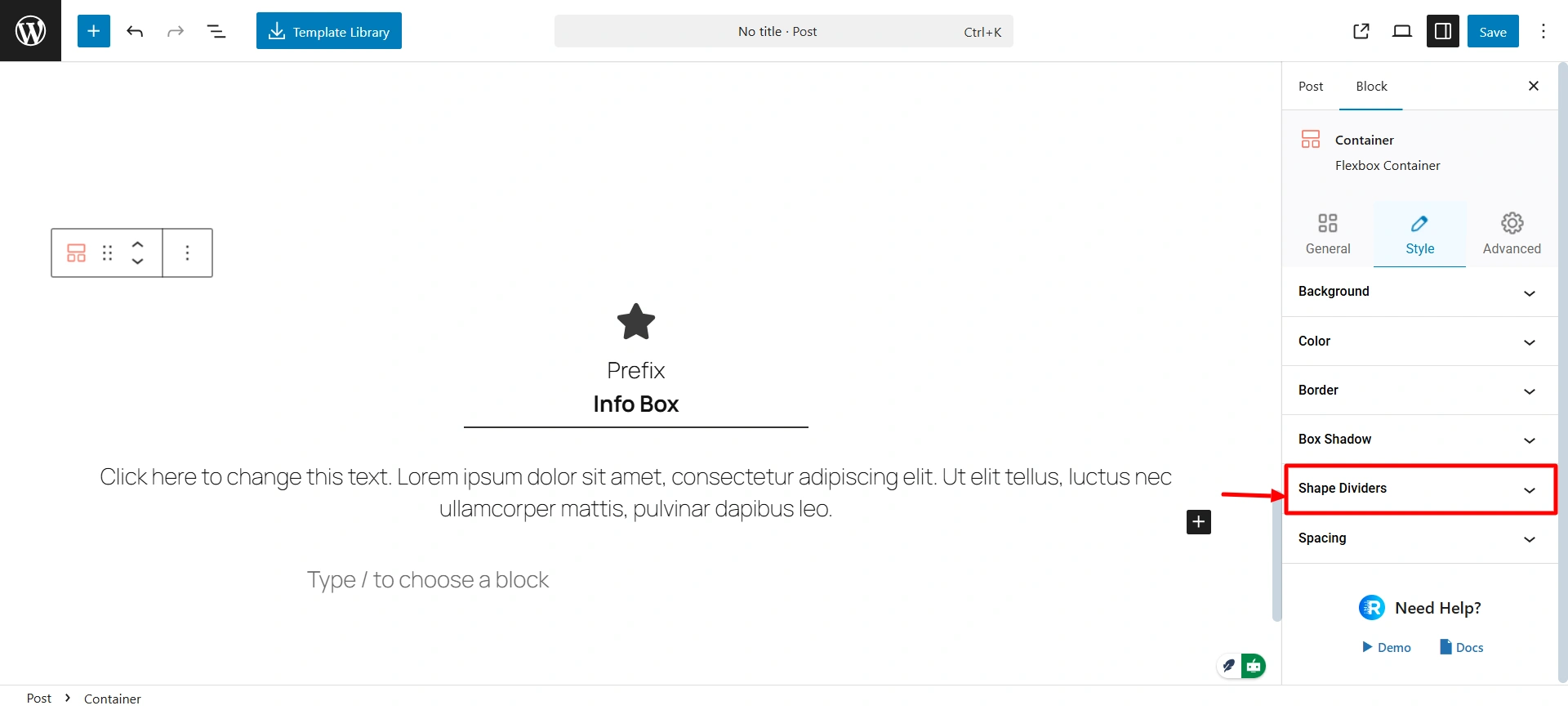
The block lets you add a shape divider at the top and bottom. Let’s see how we can do that.
Step 3: Add and Customise the shape divider
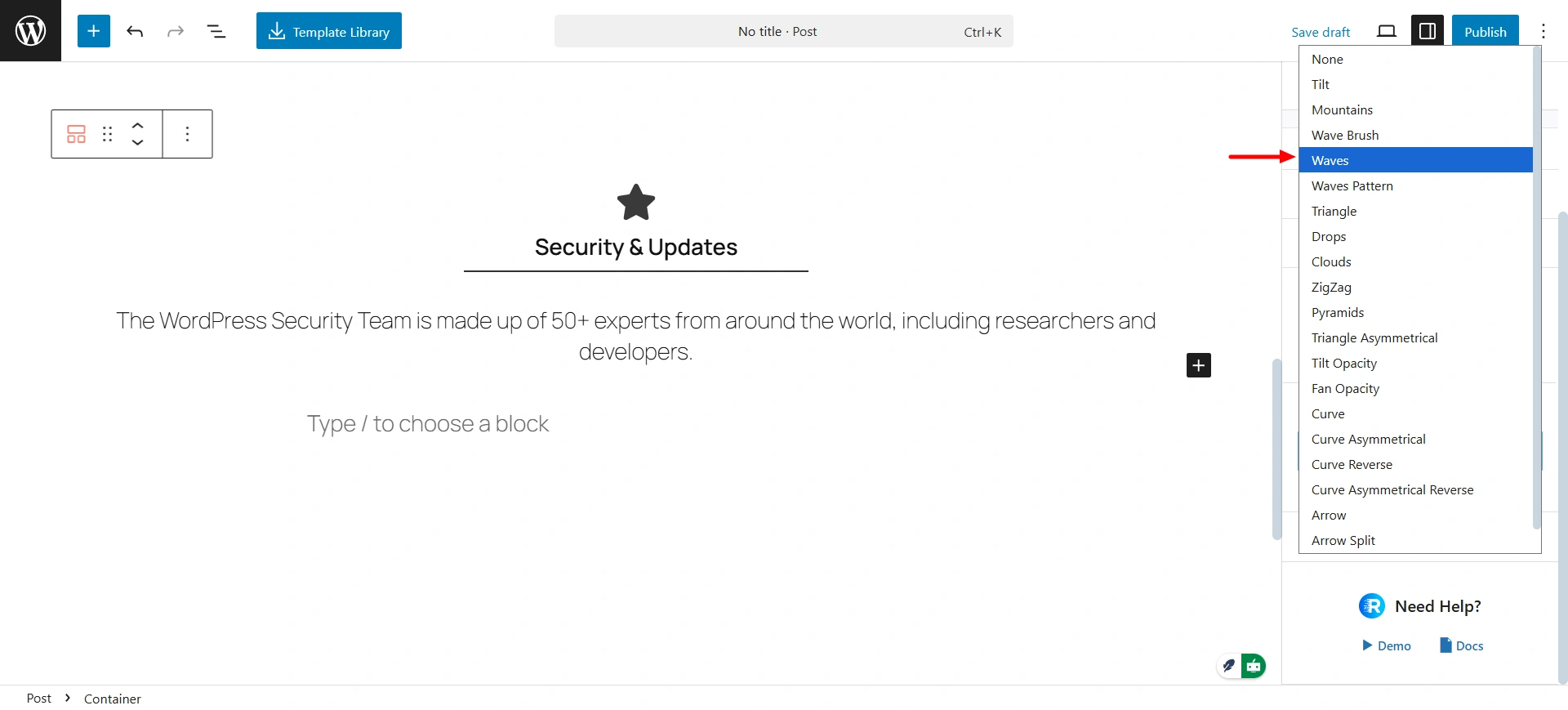
Select the type of shape you want for your block. Right now I’m using the Waves design.
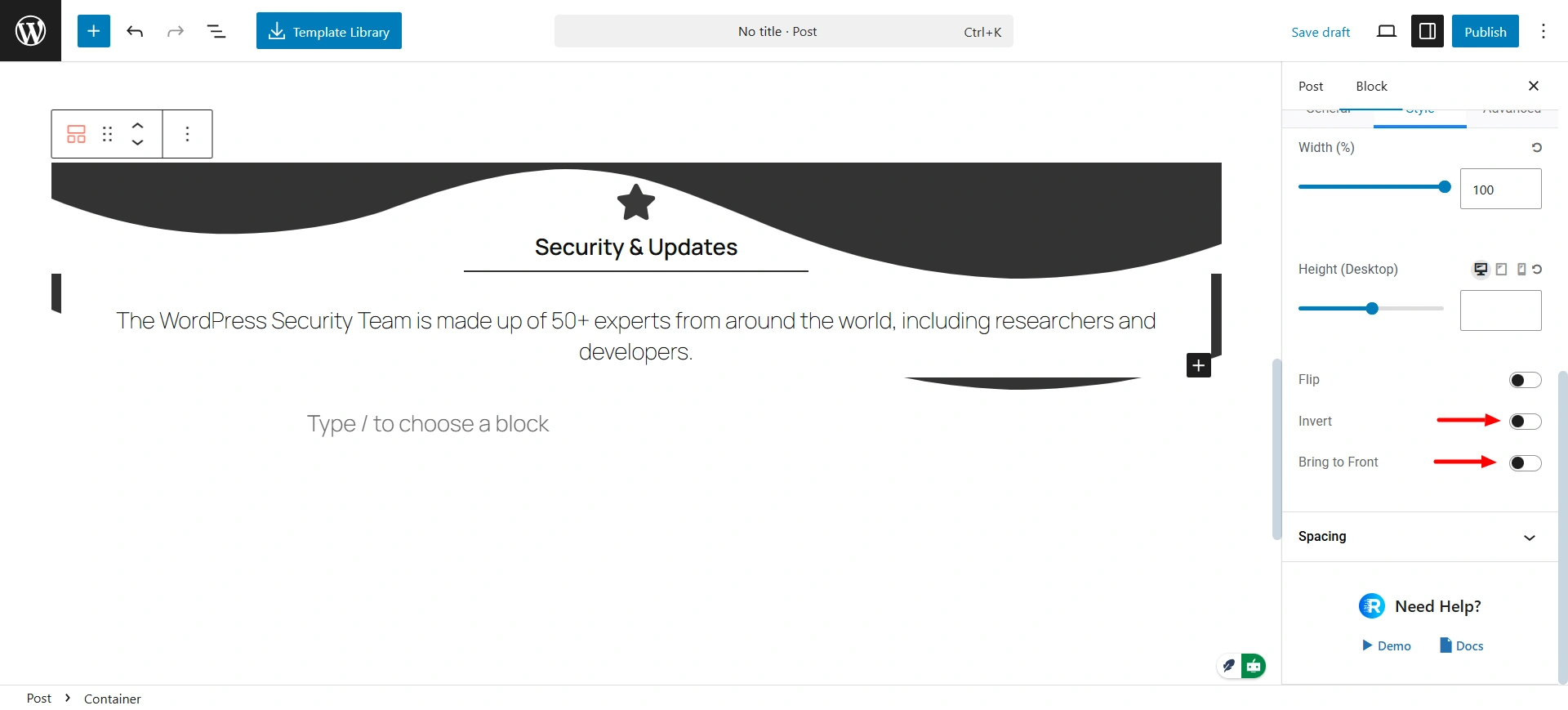
Repeat the same steps for the bottom design. From the WordPress shape divider background settings, move your design to the front and invert it so that the bottom shape appears the right way up.
Change the colour of the shapes.
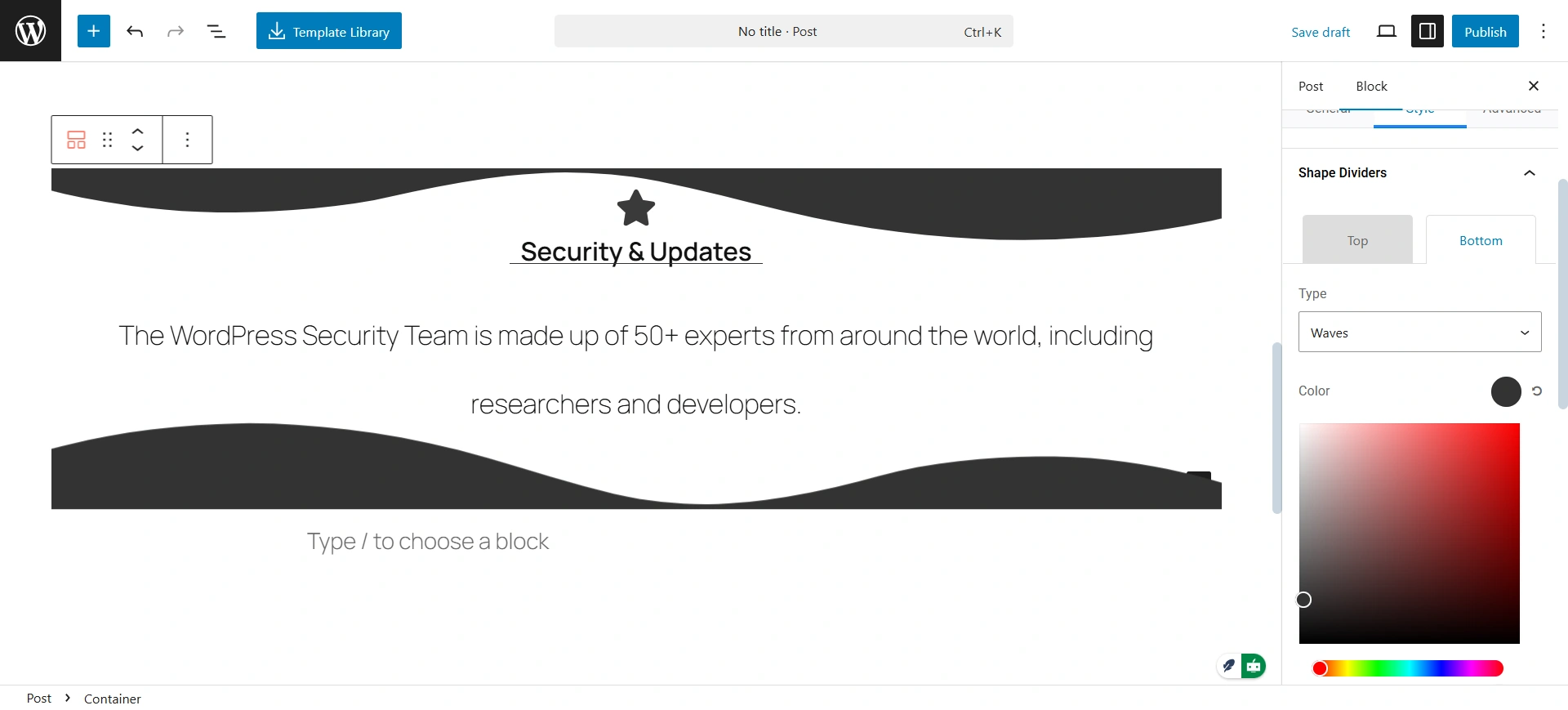
This is what your design will look like.

Conclusion
Shape dividers in the Responsive Blocks plugin are an easy and fast way to add a free shape divider background to Gutenberg, giving a professional, modern look to your WordPress website.
Simply install the plugin, add a Container block, and then apply shape dividers to convert boring sections into engaging layouts for your pages.
There are many options to customise different aspects, including colours, angles, and orientation, which lets you design exactly what you want, and your site will match exactly.
Shape Dividers in WordPress can enhance the overall flow of your pages, set apart important sections, and look professional. Try several shape dividers with different placements and settings to find the best look for your site, brand and purpose.
Start using Responsive Blocks now to give your website a professional, modern design edge and install the Responsive theme.
If you like this article, consider reading.
- Introducing the Display Conditions Feature in Responsive Blocks
- How To Create Stacking Cards on Scroll Using Elementor Free
- How to Add Related Posts in WordPress Using Theme
Install the Responsive Blocks plugin today.





