
Summary
The article explains how to add related posts in WordPress using your theme. It shows how to enable related posts from theme settings or customizer.
It also covers options to control which posts appear and basic display settings to match your design.
Are you looking to add related posts to your WordPress site using a theme?
When visitors finish reading a blog post, the worst thing that can happen is that they leave your site without exploring more of your content.
This is where related posts come in handy.
By suggesting similar articles at the end of each post, you’re not only keeping your users engaged but also improving your site’s SEO with stronger internal linking.
Most people rely on plugins to display related posts, but there’s a simpler and faster way.
If you’re using the Responsive Theme by CyberChimps, you can add and customize posts directly from the WordPress Customizer with no extra plugins required. This approach is both faster and more reliable, as it helps your site load more quickly and provides you with complete control over the design.
In this guide, we’ll walk you through the different aspects and will help you build one for your site using the Cyberchimps Responsive theme.
Cyberchimps Responsive is the Best WordPress Theme – Get it for free!
What Are Related Posts in WordPress?
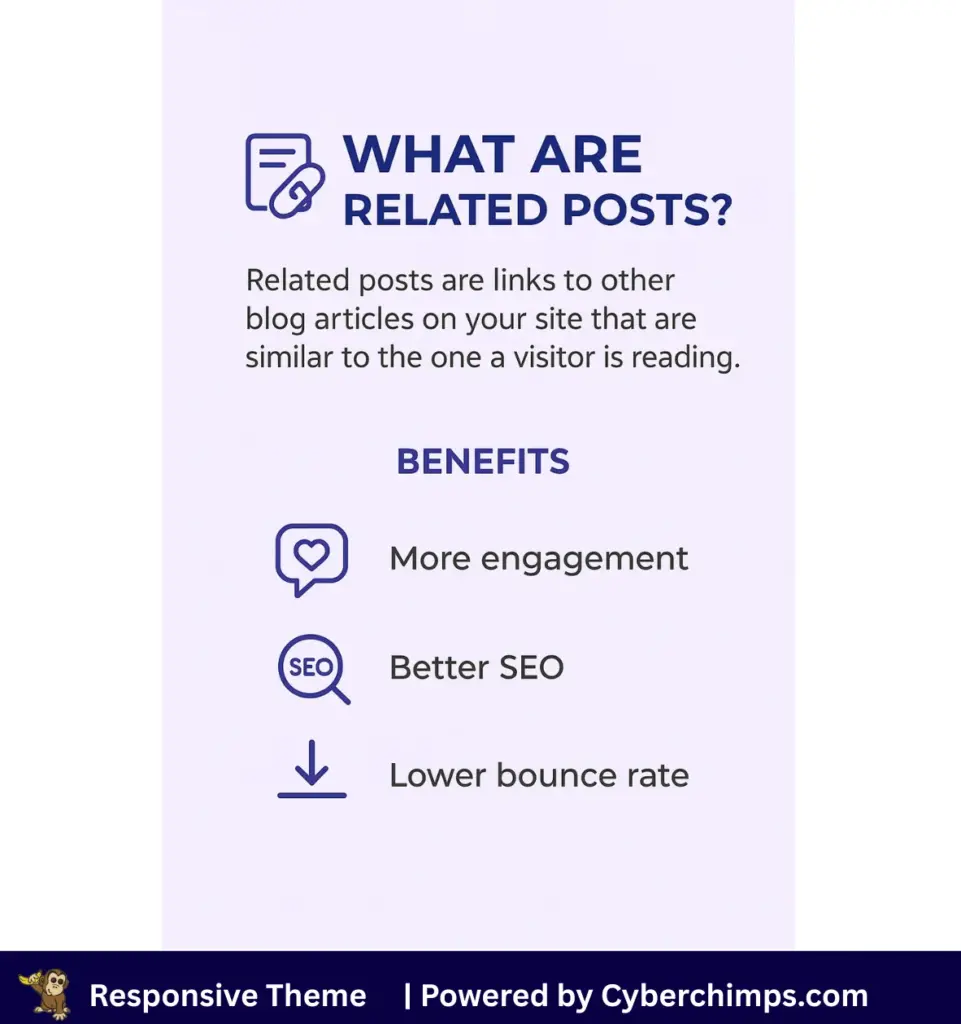
Related posts are a list of posts that link to other blog articles on your site, which are similar to the one a visitor is currently reading.
They are usually placed at the end of a blog post. Reasons behind this are to make your readers stay a bit longer on your site and engage more.
Most of the time, the headings are labeled as Related Posts, Recent Posts, or Similar Articles.
Why Are Related Posts Important?
Related posts serve as a crucial strategy to encourage people to read more of your website’s posts.
Some of the major advantages of having a recent posts section include:
1. Improve User Engagement
Provide readers with additional reasons to stay and explore. Instead of leaving after one article, they continue reading other posts that interest them.
2. Enhance SEO via Internal Linking
By linking to other articles on your site, you create a strong internal link structure. This helps search engines better understand your content, which can improve your site’s overall SEO performance.
3. Keep Visitors Longer on the Site
When visitors connect with the content you make, they gradually spend more time browsing. The longer they stay, the more likely they are to remember your brand and potentially become customers.
For example, if someone is reading a blog about how to speed up WordPress, the simialr posts might suggest:
- Best WordPress caching plugins, or
- How to optimize images for faster loading
Methods to Add and Customize Related Posts in WordPress
There are two primary methods for adding related posts in WordPress without relying on third-party plugins.
You can either use a theme that already includes this feature or add it manually with custom code.
Let’s look at both methods at a glance.
1. Using a WordPress Theme
The simplest way to display recent posts is through a theme. Some WordPress themes include this functionality by default, so you don’t need to install anything extra.
One such theme is the Responsive Theme by CyberChimps. It comes with built-in settings for related posts that you can control directly from the WordPress Customizer.
Options available in the Responsive Theme include:
- Enable or disable related posts with a toggle.
- Show or hide featured images.
- Choose between different layouts (grid or list).
- Decide how many posts to display.
- Select by category or tags for better relevance.
Advantage: Since this method uses your theme’s built-in tools, you don’t need another plugin. It keeps your site lightweight, loads faster, and is much easier to maintain.
2. Using Custom Code
If your theme doesn’t provide a related posts option, you can add one manually with custom code. This approach is a bit more technical but offers full control.
Here’s what it usually involves:
- functions.php & WP_Query: Write a custom function in your theme’s functions.php file using WP_Query to fetch related posts.
- Customize Layout with CSS: Style the recent posts section to match your theme design (grid, list, hover effects, spacing, etc.).
- Filtering Options: Decide whether to display posts based on tags, categories, or other taxonomies.
Advantage: Perfect for developers who want a completely customized, similar posts section tailored to their website’s needs.
As mentioned above, you can add related posts via two methods: one using popular themes, such as Responsive, and the other using code. Here, we’re not trying to add using a plugin, as we intend to make our website lightweight.
Now let’s move to the first method. For tutorial purposes, I will be showing you how to add using the Responsive theme.
Method 1: Add Related Posts Using Responsive Theme
???? My Real World Test Results:
- Load time on shared hosting: 0.78 seconds
- GTmetrix Performance score: 100%
- Total theme size: Under 80KB
- Mobile PageSpeed score: 99/100
- Save design time with 100+ Premium-grade Starter templates
Responsive theme is one of the best free themes that helps you build an extraordinary website. It’s fast, lightweight, and easy to use, making it an ideal choice for WordPress users.
With this theme, you can easily add related posts to your WordPress site for free. To start with, make sure you’ve the Responsive theme installed and activated.
Watch this video on Responsive Theme Installation to learn how to install and activate.
Once you have the theme in place, follow these simple steps.
The first step in the process is to have at least 4 to 6 posts published on your Blog page. This way, it becomes easier to display the related posts section.
With all the posts in place, head over to the WordPress dashboard. You’ll need to have a blog page.
To create one, hover on Pages and click on the Add Page button.
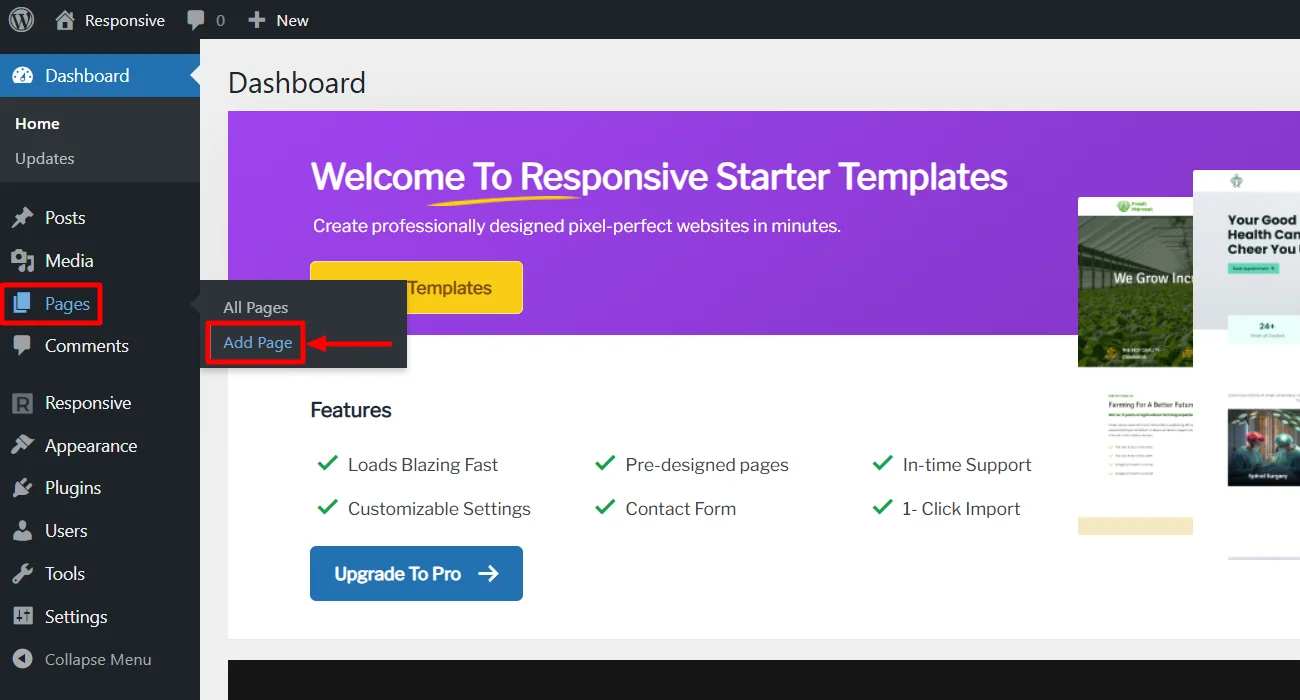
Next, provide a heading like Blog and click on Publish.
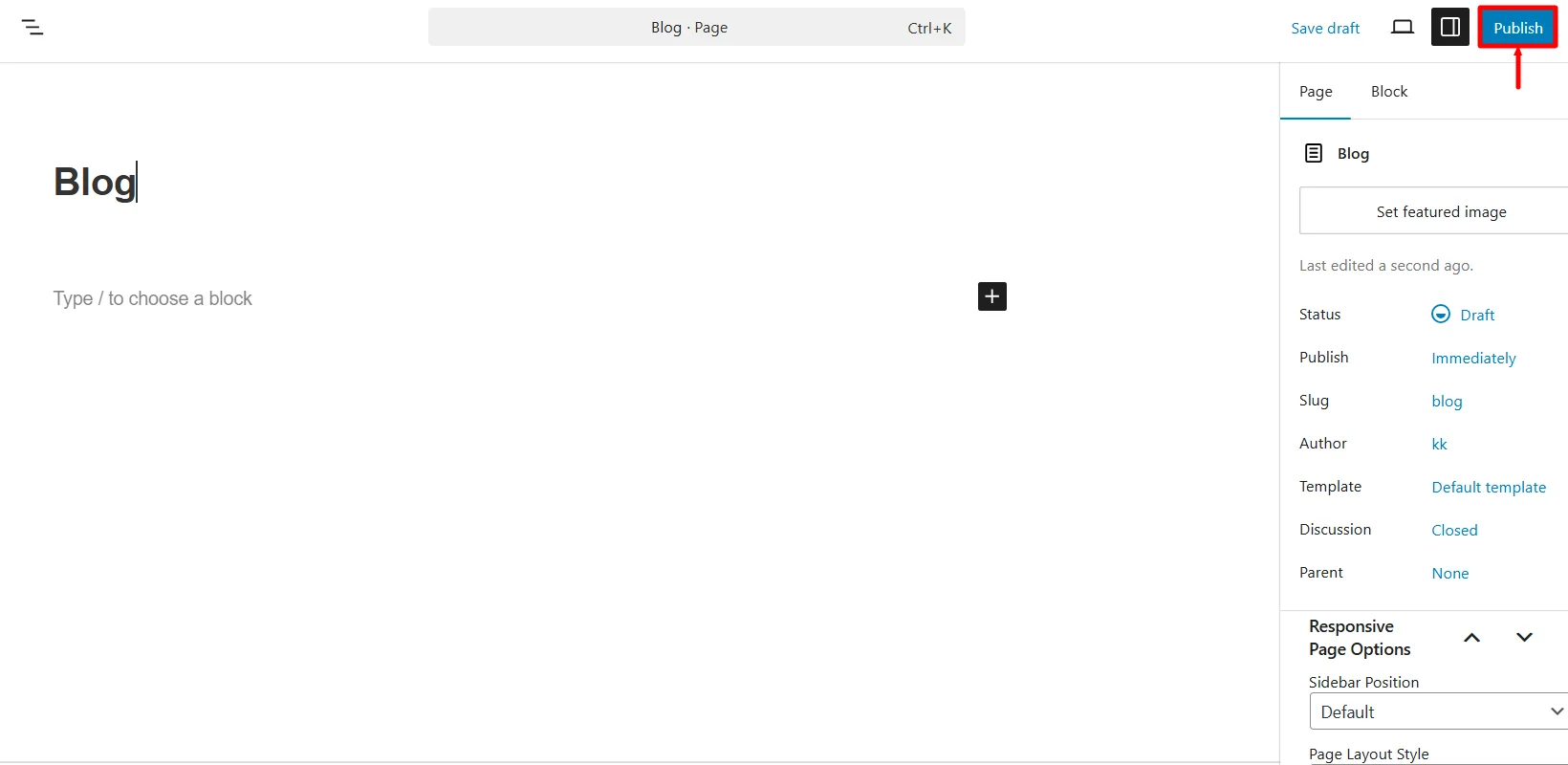
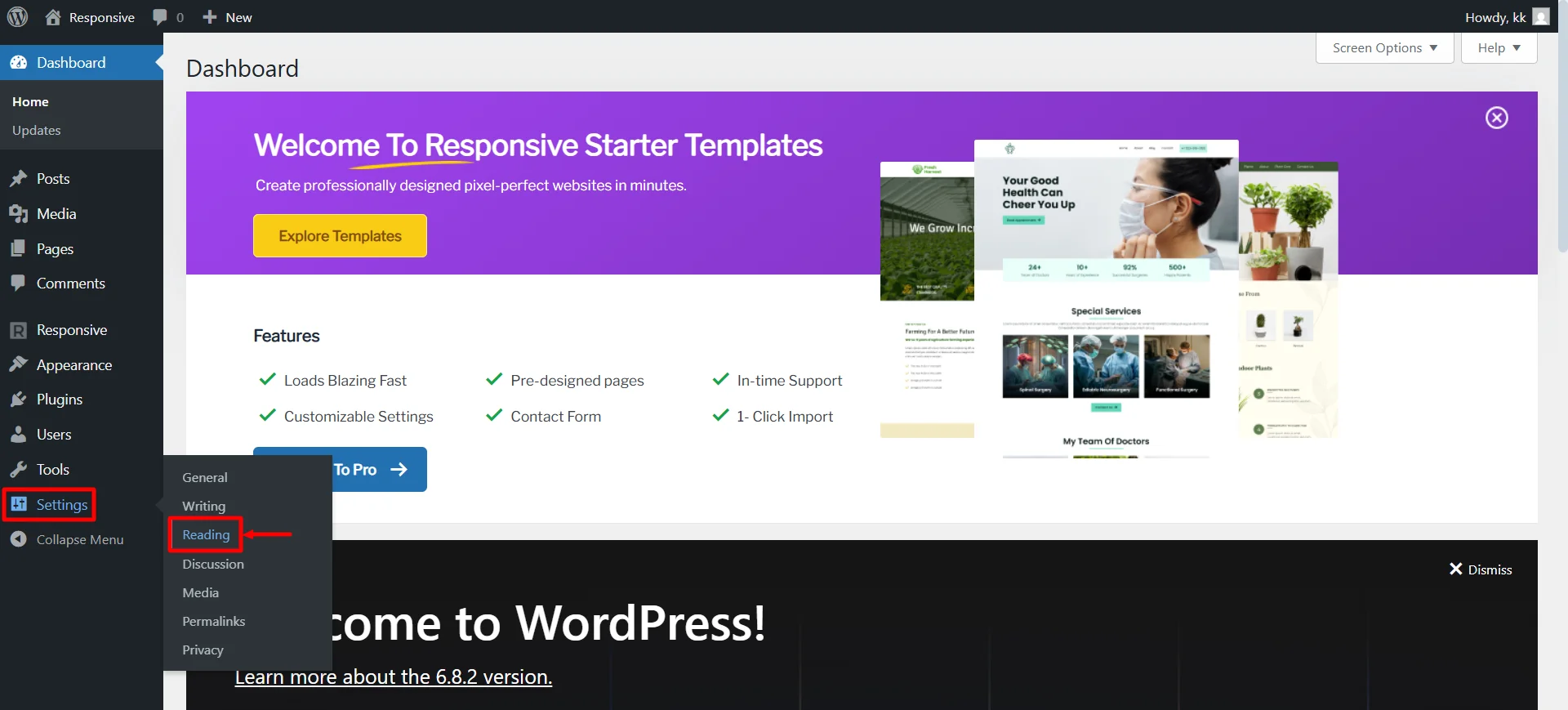
Once you have created a blog page, you’ll need to set the blog page as a static page. To do that, from the dashboard, hover on Settings and click on the Reading menu.
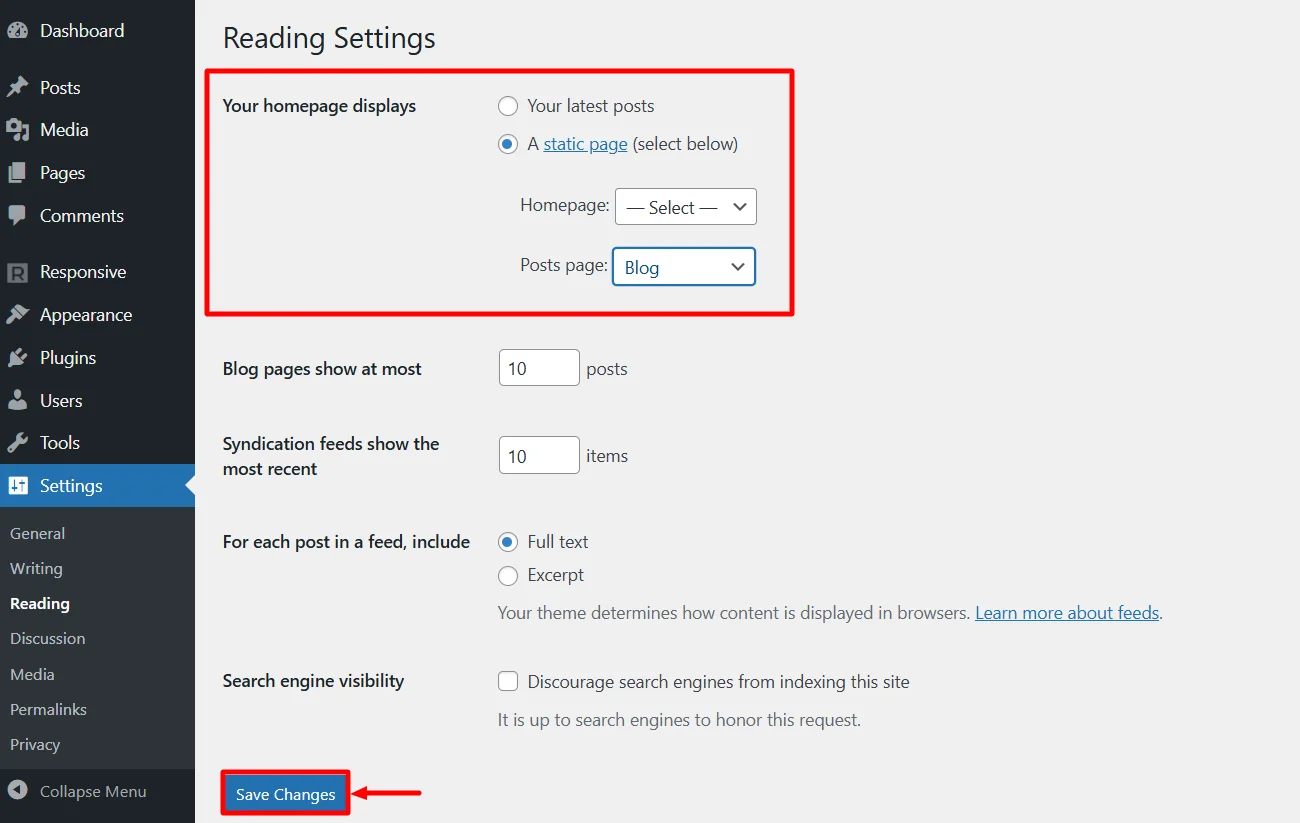
Set the Posts Page as Blog and click on Save Changes.
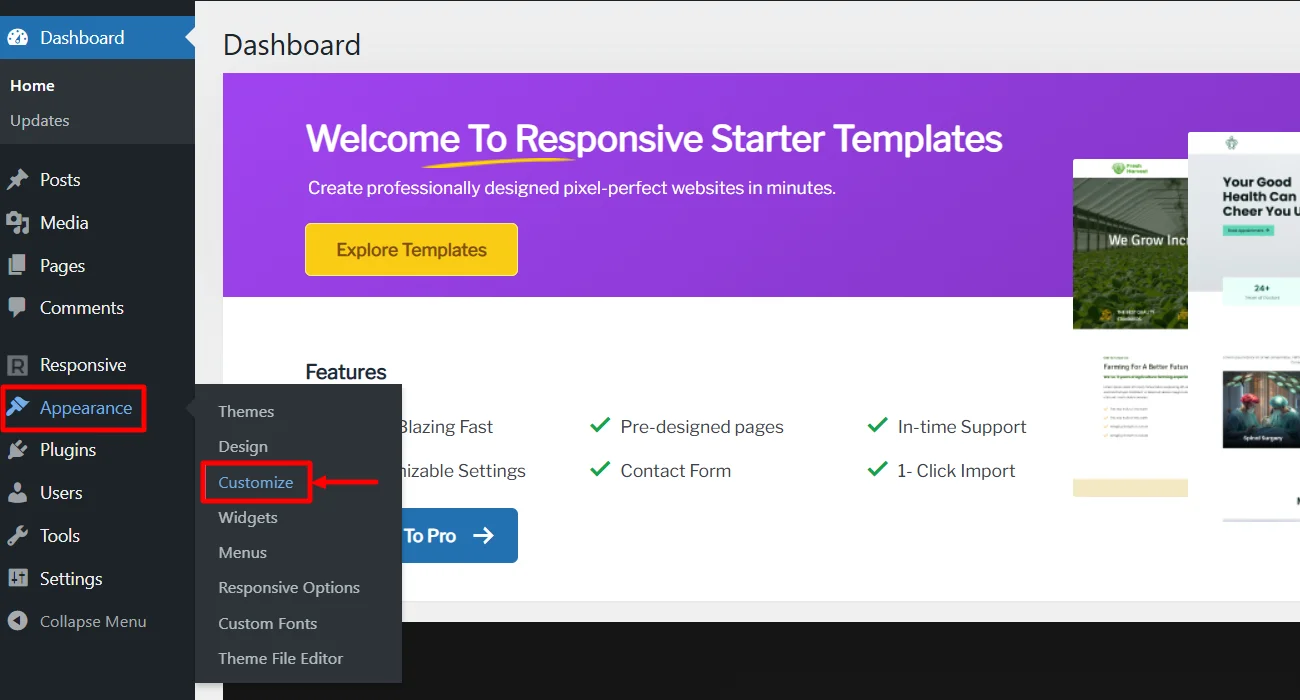
Now, from your dashboard, hover over Appearance and click on the Customize menu option.
Make sure you’re on the Blog page by clicking on the Blog menu in the header.
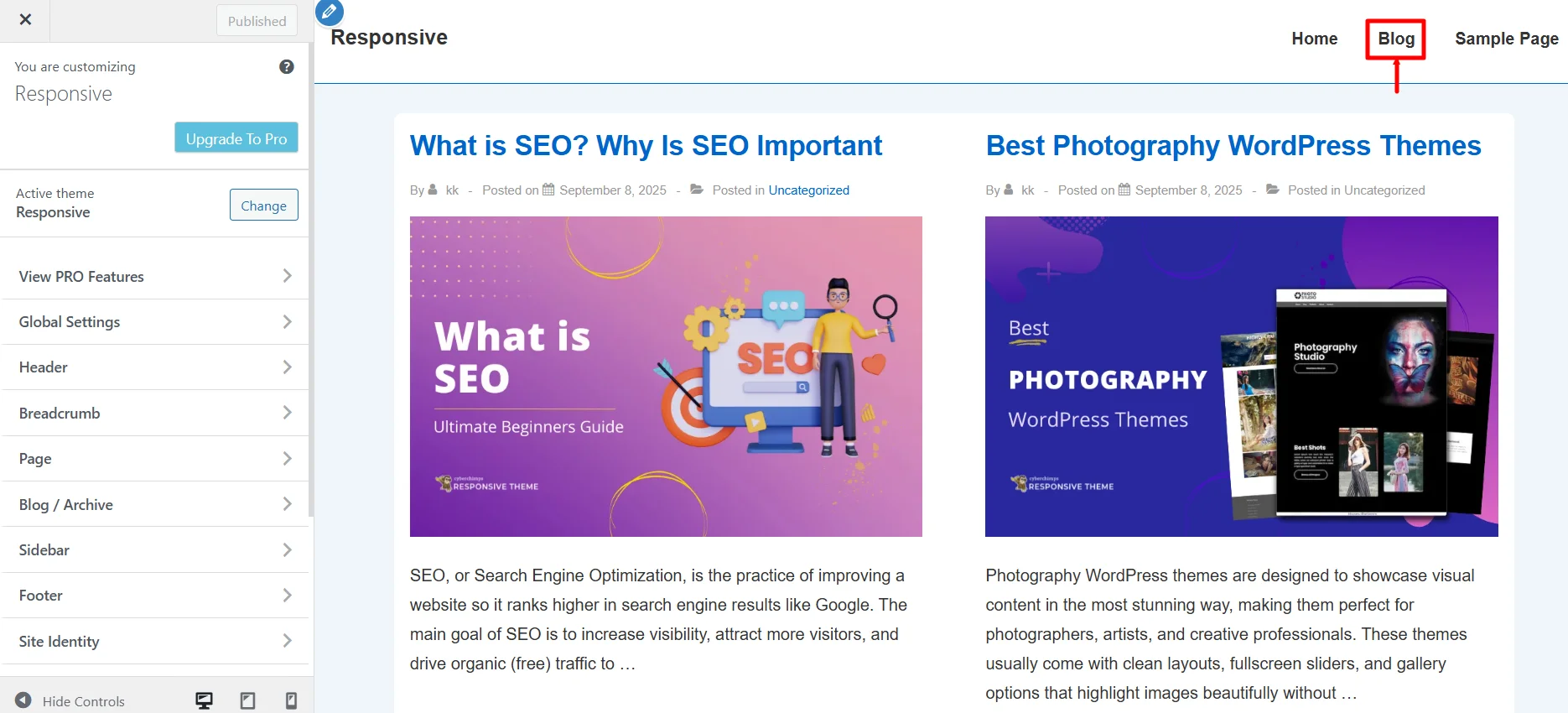
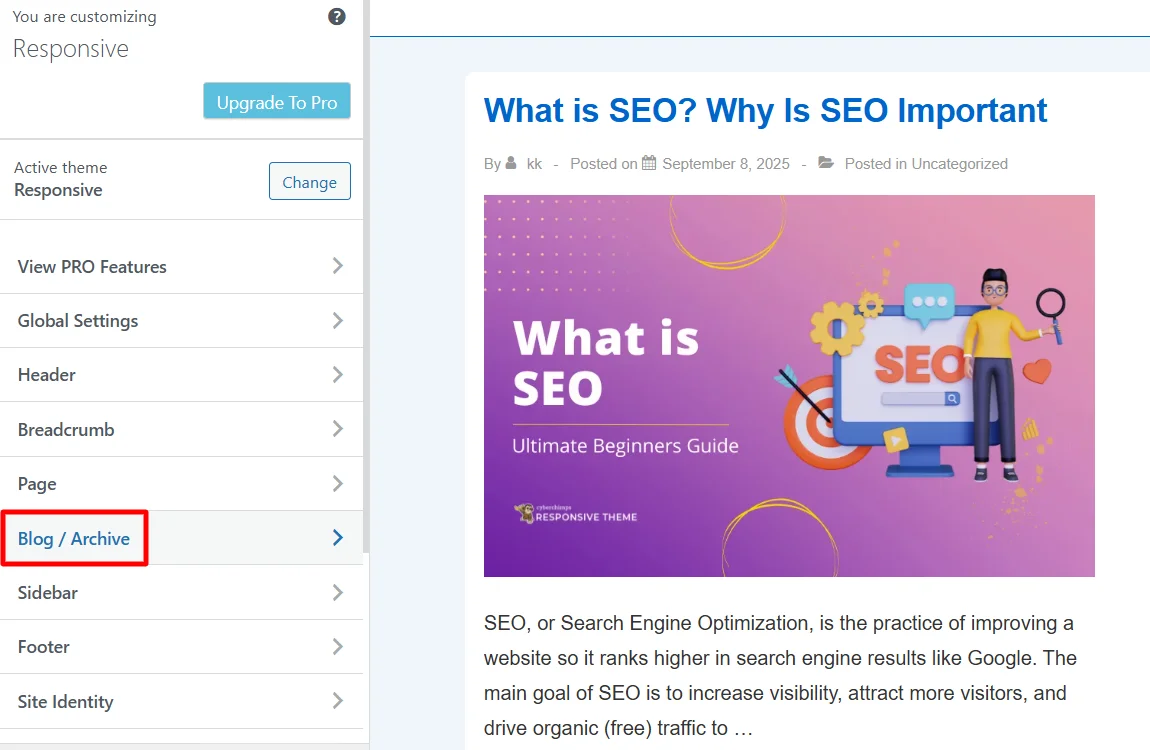
From the various options, click on the Blog / Archive menu.
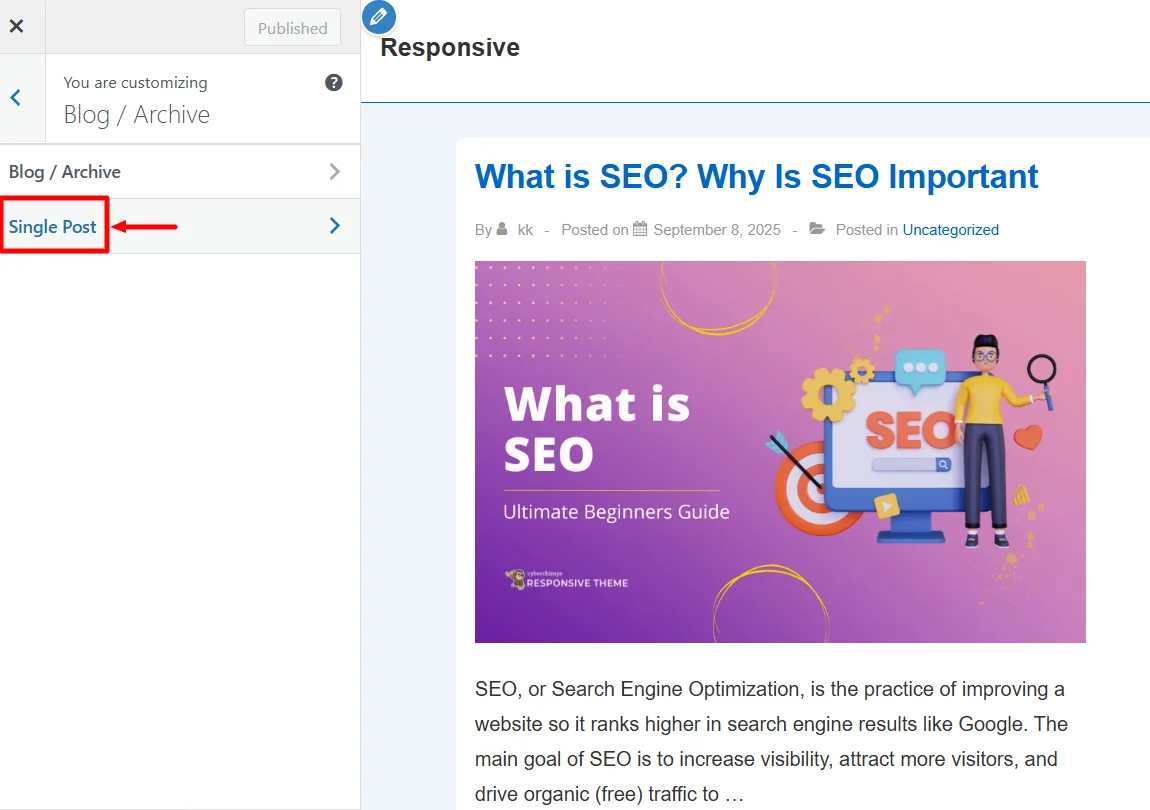
Click on the Single Post option.
Scroll down and find the Related Posts. Toggle on the Enable Related Posts option.
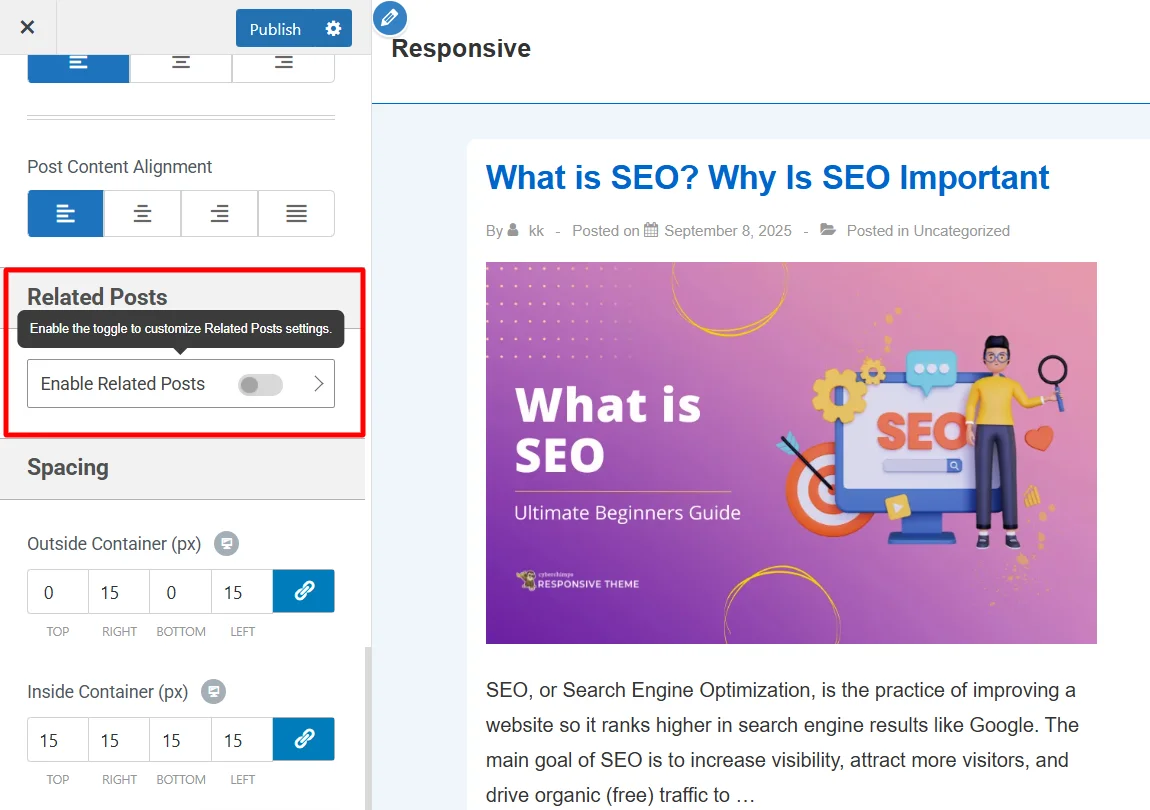
You can now edit all the options and create a customized recent posts section.
Related Posts Customization With Theme
Click on one of the blogs.
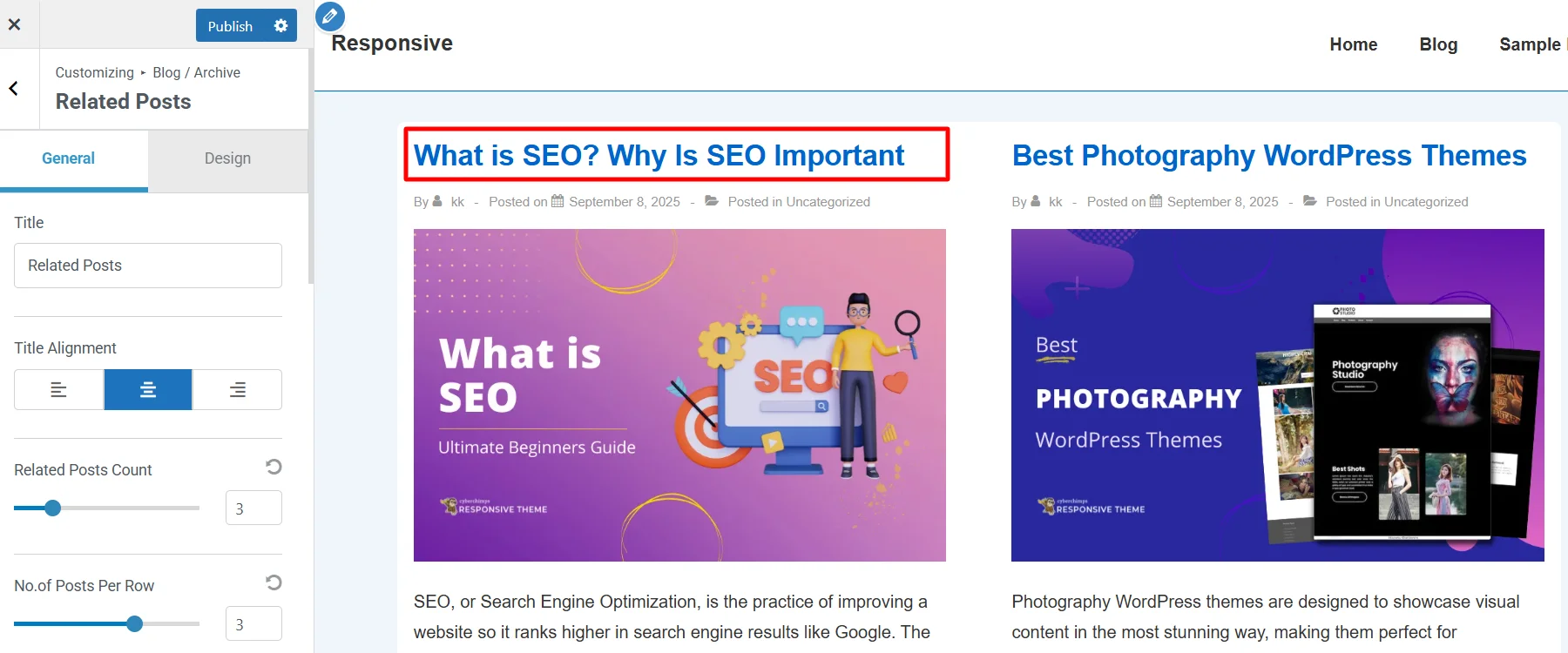
By default, the related posts look like this:
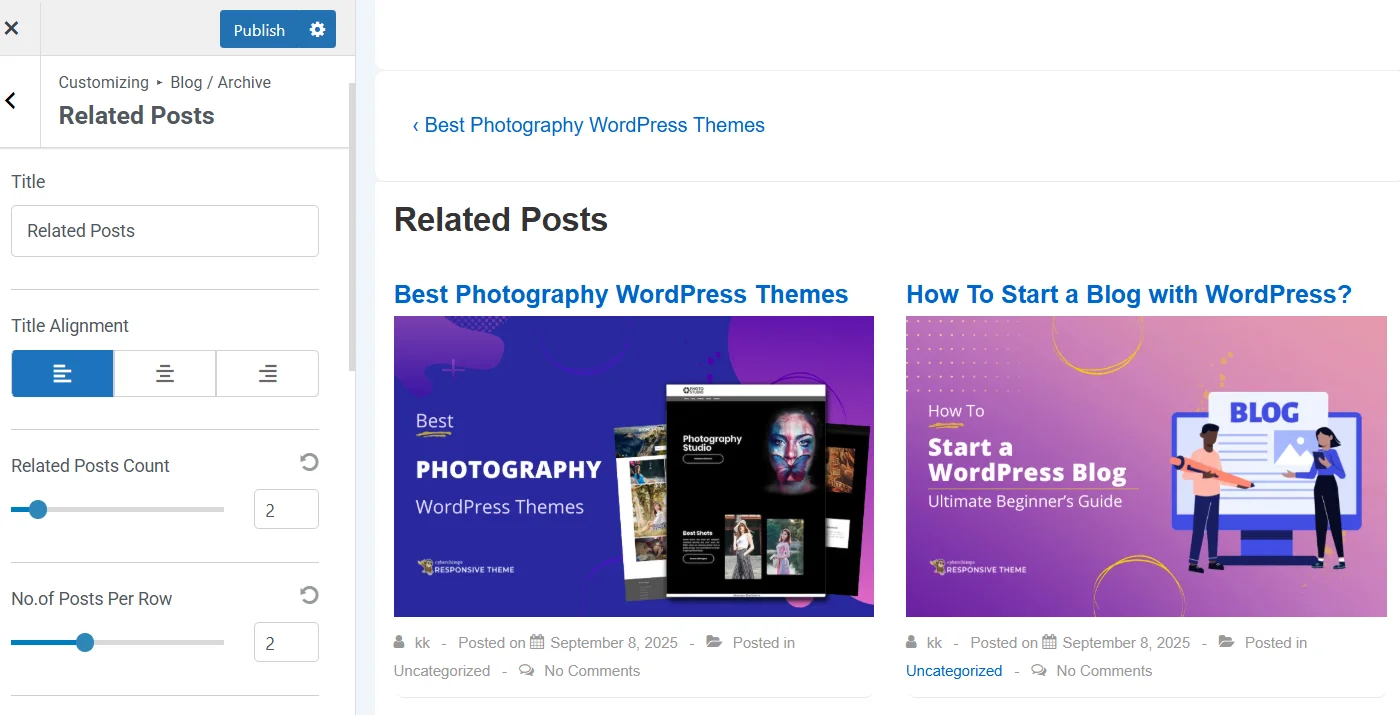
In this section, let’s look at the various customization options available and the ones that I have implemented for my site.
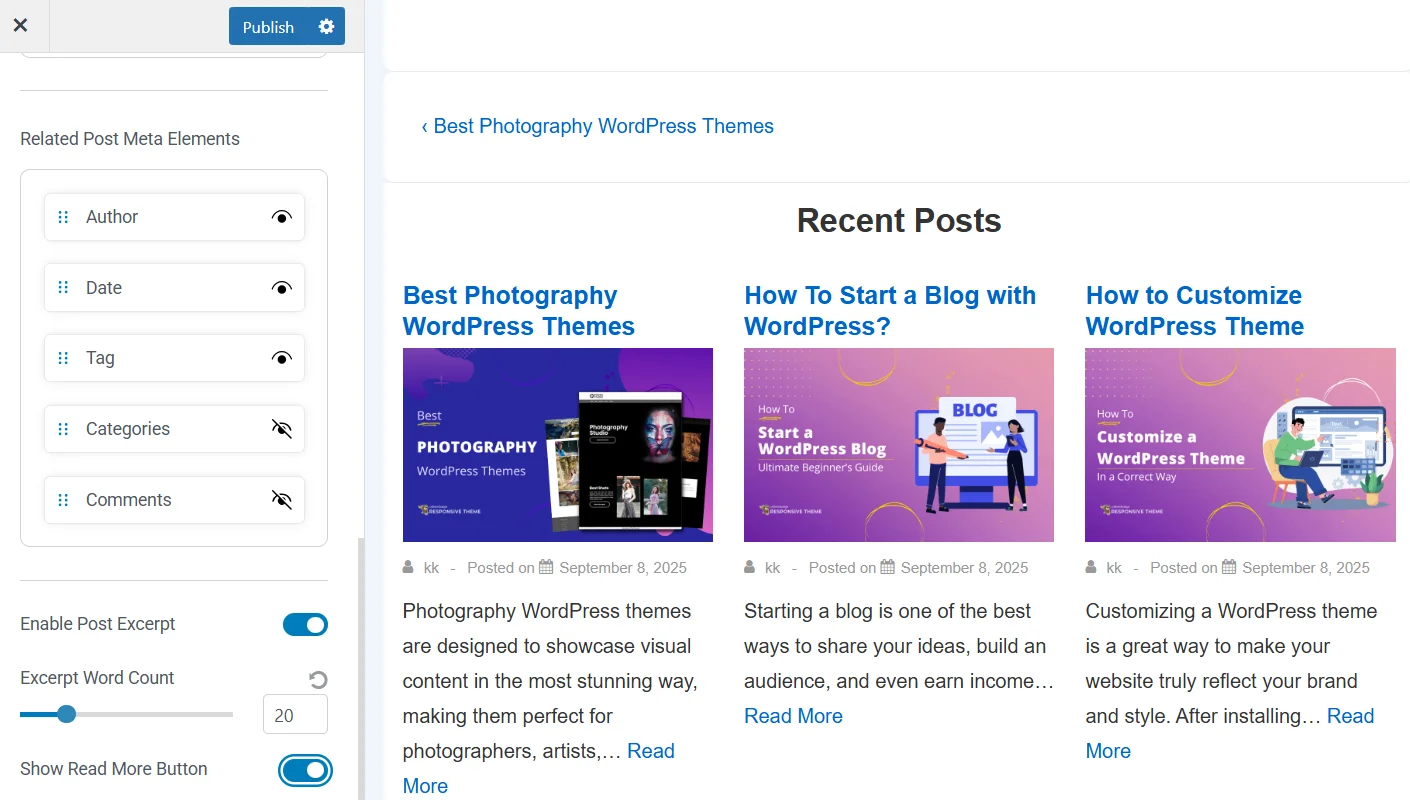
- You can give an appropriate title to the section. For example, I have named it Recent Posts. Next, you can align the title to the right, left, or center.
- You can also align the title to the right, left, or center. I have center aligned the title.
- Related Posts count is the number of posts you want to show in that section. Having 3-4 is ideal.
- Number of Posts per Row is the number of posts that you can have in one row. I’m going with three as it looks good in design.
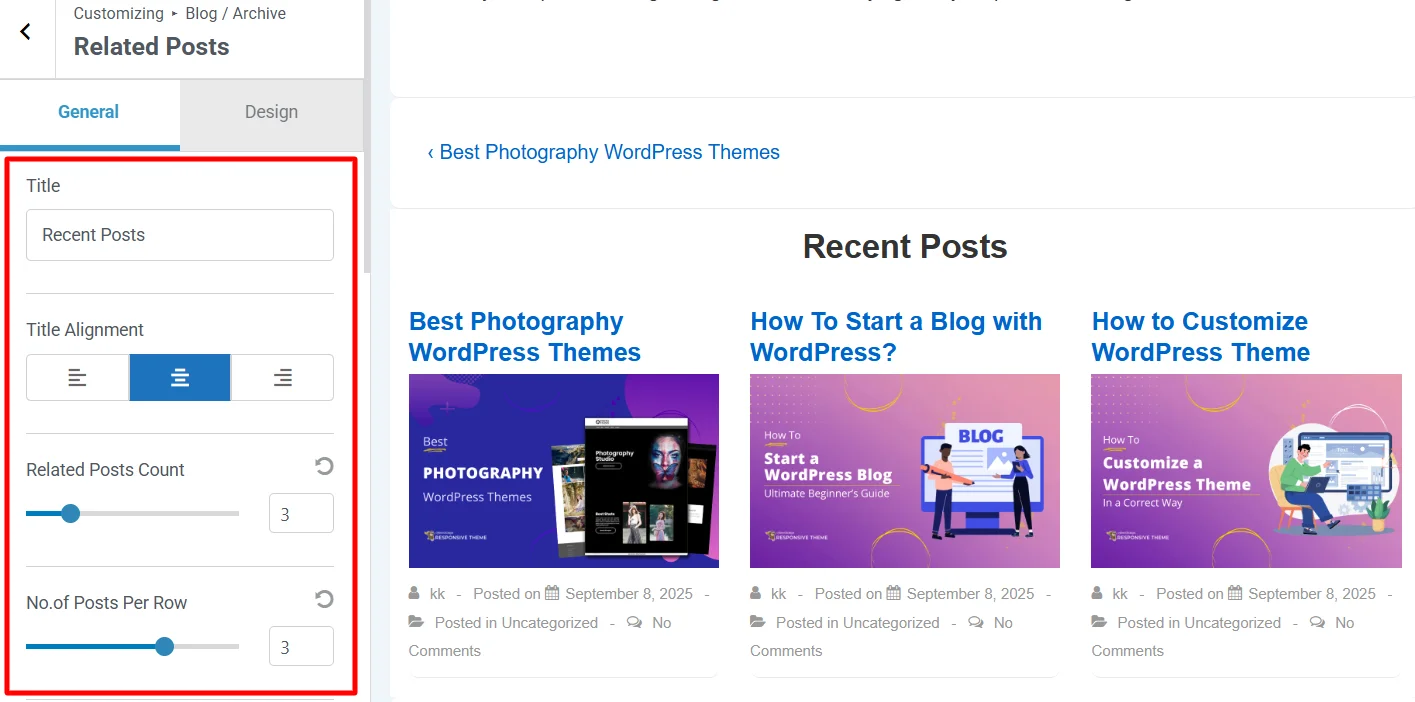
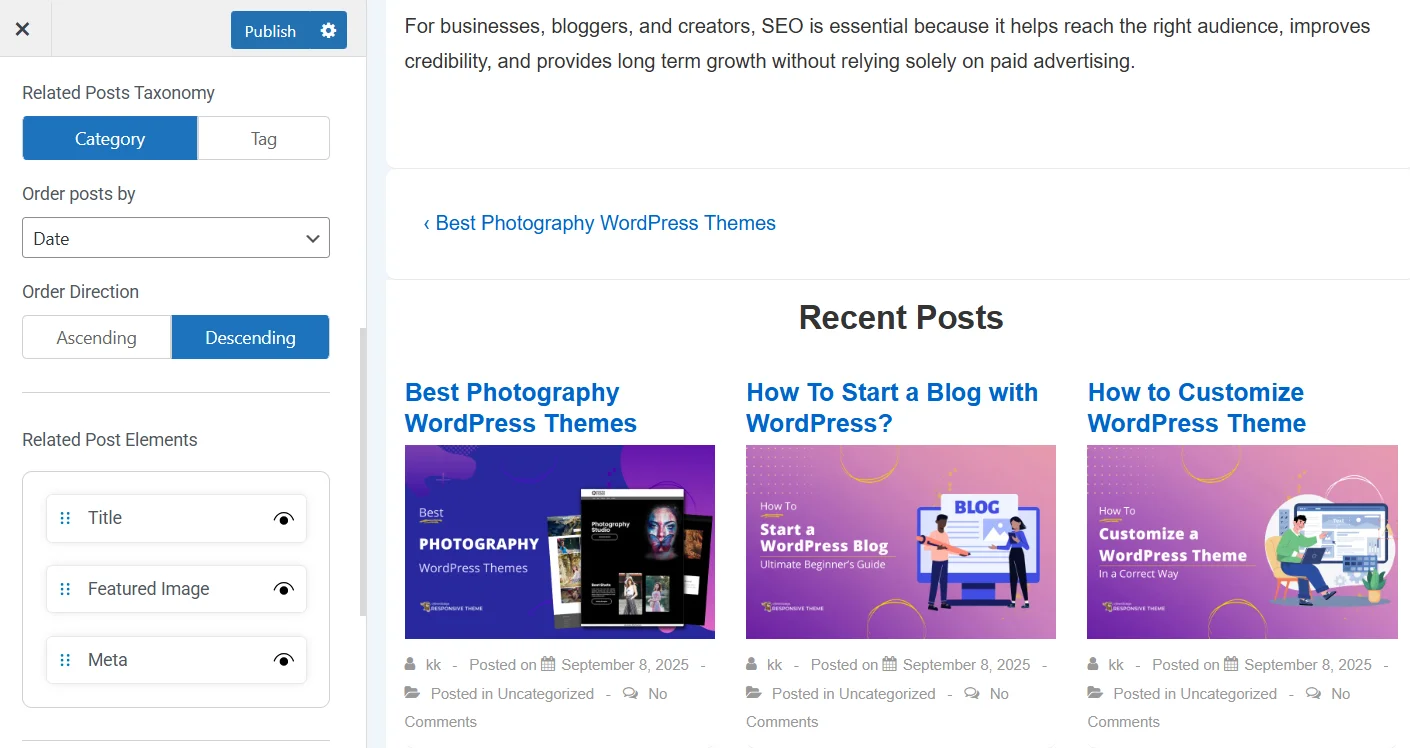
- In the Related Posts Taxonomy, you can display the posts based on Categories or Tags. I’m keeping it default as I haven’t provided any tags.
- You can view the posts in different orders. You have Order Posts by Date, Author, Title, and Comment count. Order by date sounds appropriate for my website.
- You also have the ability to choose if the order should be ascending or descending.
- Next, you have the Related Post Elements, where you can hide or display the title, featured image, and Meta.
- Next, you have the Related Posts Meta Elements like the Author, Date, Tag, Categories, and Comments. You can hide them or allow them to display depending on your brand requirements. I have hidden the categories and comments for my site.
- Further, you’ve the option to display the Post Excerpt, which is nothing but a brief 3 to 4 lines of content from the post. I’ve enabled the option for Post excerpt and also decided to toggle on the Read more option.
That’s it!
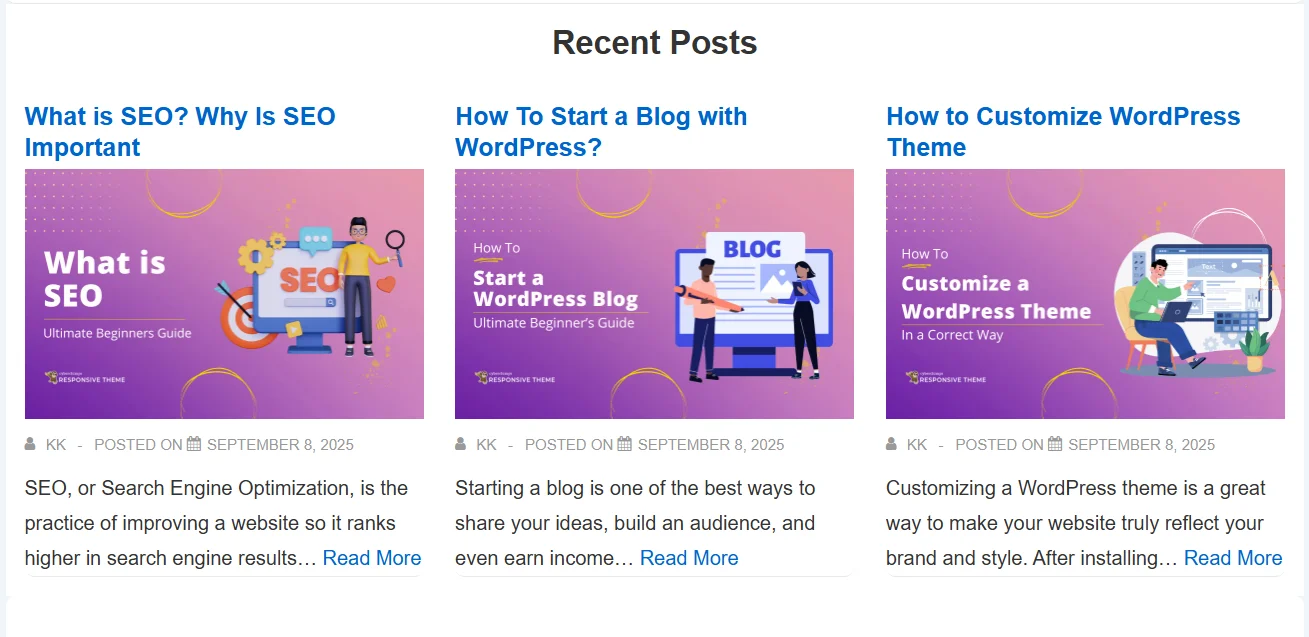
We’ve successfully customized the Related Posts section, and here’s how it looks from the front end.
Method 2: Add Related Posts Using Code
If you don’t want to rely on plugins, you can manually add related posts to your WordPress site with a simple code snippet. This method pulls posts with similar tags and displays them after the content of each blog post.
Here’s how to do it:
1. Access Your Theme Files
- Log in to your hosting account.
- Open the File Manager or connect via FTP.
- Go to your site’s root directory (public_html) and then navigate to:
wp-content > themes > your-active-theme2. Edit the single.php File
- Inside your active theme folder, locate and open the single.php file.
- Paste the following code snippet just after the main content loop:
<div class="related-posts-after-content">

  <h3>You Might Also Like</h3>

  <?php

  $orig_post = $post;

  global $post;

  $tags = wp_get_post_tags($post->ID);

  if ($tags) {

    $tag_ids = array();

    foreach($tags as $individual_tag) $tag_ids[] = $individual_tag->term_id;

    $args=array(

      'tag__in' => $tag_ids,

      'post__not_in' => array($post->ID),

      'posts_per_page'=>4, // Number of related posts to display

      'caller_get_posts'=>1

    );

    $my_query = new wp_query( $args );

    while( $my_query->have_posts() ) {

      $my_query->the_post();

  ?>

  <div class="related-thumb">

    <a rel="external" href="<?php the_permalink() ?>">

      <?php the_post_thumbnail(array(150,100)); ?><br />

      <?php the_title(); ?>

    </a>

  </div>

  <?php }

  }

  $post = $orig_post;

  wp_reset_query();

  ?>

</div>
3. Style the Related Posts
- Open the style.css file of your theme.
- Add this CSS snippet to style the related post thumbnails:
.single .related-posts-after-content .related-thumb {

  display: inline-block;

  width: 32%;

  margin-bottom: 15px;

}
4. Save and Test
- Save all changes and refresh your website.
- Open any blog post, and you’ll see related posts displayed after the content, based on shared tags.
Pro Tip: Always create a child theme before editing theme files. This prevents your changes from being overwritten when the theme updates.
Best Practices for Related Posts Section
A related posts section can keep readers on your site longer. But to make it work well, follow these simple tips:
1. Match Your Theme Design
The related posts box should look like part of your site, not something random. Use the same fonts, colors, and style so it feels natural.
2. Make It Mobile Friendly
Most people read on their phones. Check that related posts show neatly on small screens—no squished text or broken images.
3. Show Only Relevant Posts
Don’t confuse readers with posts that have nothing to do with the article. Use tags or categories to display posts that are truly related.
4. Keep It Fast
Related posts can slow down a website if not set up well. Use caching or lightweight code so your site still loads quickly.
5. Don’t Add Too Many
3 to 4 related posts are enough. Too many links can overwhelm readers.
6. Use Clear Titles and Images
A heading like “Related Articles” or “Recent Posts” makes it clear. Adding thumbnails also makes the section more attractive to click.
FAQ
Yes, you can use related posts in WordPress without a plugin if your theme supports it. For example, the Responsive Theme by CyberChimps has a built-in related posts option that can be enabled from the Customizer. You can also add related posts manually using custom code in your functions.php.
Yes, related posts can improve SEO by creating strong internal links between your blog articles. This helps search engines understand your content structure, keeps visitors on your site longer, and can lead to better rankings.
You can customize related posts in WordPress through your theme’s settings or with custom code. In the Responsive Theme, you can control the number of posts, the number of posts in a row, and whether to show featured images, categories, and more.
The Gutenberg block editor does not include a built-in related posts block. To add related posts in Gutenberg, you can either use a theme that supports it (like Responsive) or install a block plugin that provides a related posts block.
Conclusion
Adding related posts to your WordPress website is one of the easiest ways to keep visitors engaged. Instead of leaving after reading one article, you can offer your readers more article suggestions to make them stay longer on your site.
If you’re using the Responsive Theme, enabling related posts is just a matter of turning on a toggle. You do not need any extra plugins or knowledge of coding to add a related posts section. If you’re a beginner, using the Responsive theme is an ideal choice.
For developers, adding related posts with custom code is also an option. This gives more flexibility, but it takes time and technical know-how.
Furthermore, related posts boost SEO, improve user experience, and help readers spend more time on your website.
If you’ve liked reading this article, here are more similar ones:
- How to Create Sticky and Transparent Headers with Responsive Theme
- How to Add Custom Fonts in WordPress – Best Methods
- How to Customize A WordPress Theme – In A Correct Way
Want to create a stunning free website on WordPress? Grab the Responsive theme now!





