
Summary
The article explains what a WordPress theme is. It defines themes as design templates that control how a WordPress site looks and feels.
It also covers how themes affect layout, colors, and style, and why choosing the right theme matters for site design and functionality.
Looking to understand what exactly a WordPress theme is?
In WordPress, a theme is a set of template files and style sheets used to define the Appearance and presentation of a site’s content.
Choosing a theme is crucial for your website because it affects its performance. A good theme can help you rank higher in search engines because it does not slow down your website.
This guide covers WordPress themes, their components, types, and how to choose the right one.
Cyberchimps Responsive is the Best WordPress Theme – Get it for free!
What Is a WordPress Theme?
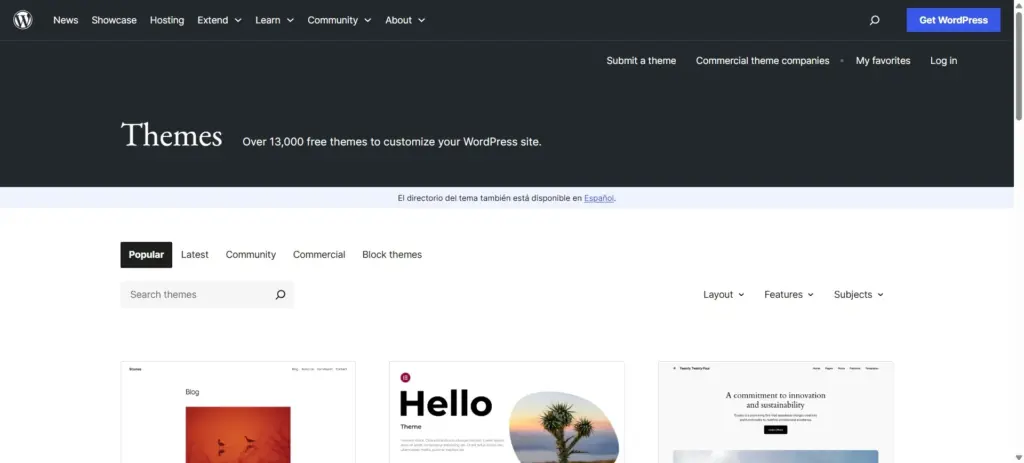
A WordPress theme is a complete package that defines a WordPress website’s overall design and layout. It includes styles, templates, and functions that dictate how the site looks and behaves.
It deals with two things:
- CSS – that decides the way your website looks
- Technical functionality
Regarding functionality, WordPress themes control a website’s aesthetics (colors, fonts, layouts) and structural elements (header, footer, sidebars). They can include additional features and customizations, such as widgets and shortcodes.
A WordPress theme can have its design, layout, and functionality.
Some themes are designed for a specific type of site, such as photographer themes, lifestyle themes, travel themes, and others for niche purposes.
Other themes are created for a generic purpose, meaning you can use them to create any type of website.
WordPress themes can also be divided into different categories. Let’s check the types of WordPress themes available.
Key Components of a WordPress Theme
Let’s look at the key components of a WordPress theme:
Theme Files
These files consist of template files like HTML and php. These files work with styling files like CSS, images, and other essential files.
For instance, index.php is the main template. Similarly, other template files control specific parts of your website, like header.php, footer.php, single.php, page.php, and so on.
CSS Stylesheets
CSS files decide your site’s styling. They control colors, fonts, and layouts. style.css is the main stylesheet; it makes your site look nice.
So if you want to change the look of your site, start by editing the CSS.
Media Files
Media files include images, audio, and video files that contribute to the theme’s look and feel.
Types of WordPress Themes
WordPress has evolved, and so has the WordPress theme repository.
Broadly, there are two types of WordPress themes – Classic and Block Themes. Let’s understand each theme separately.
Classic WordPress Themes
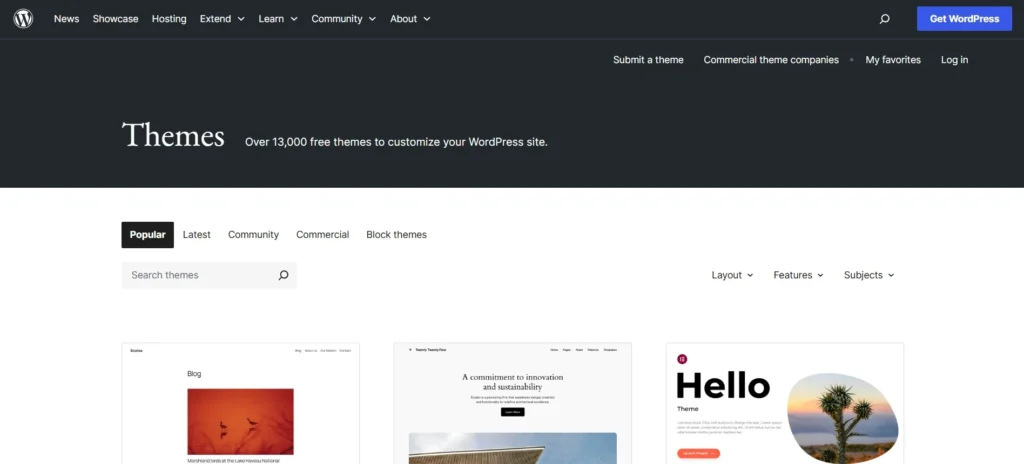
Classic themes are the traditional WordPress themes that were introduced in WordPress 1.5.
They rely on the PHP template system and are customized using the WordPress Customizer, widgets, and theme settings.
Key Features of Classic Themes:
- Uses PHP templates (e.g., header.php, footer.php) to structure pages
- Customization via the WordPress Customizer (Appearance → Customize)
- Works with Classic Editor & Page Builders (Elementor, WPBakery, Beaver Builder)
- Supports widgets & shortcodes for additional functionality
- Relies on CSS & functions.php for design and features
Examples of Classic WordPress themes are:
- Cyberchimps Responsive theme
- Astra theme
- GeneratePress
Classic themes depend on page builders for advanced design changes. It’s a good choice if you prefer the traditional WordPress workflow.
Block Themes
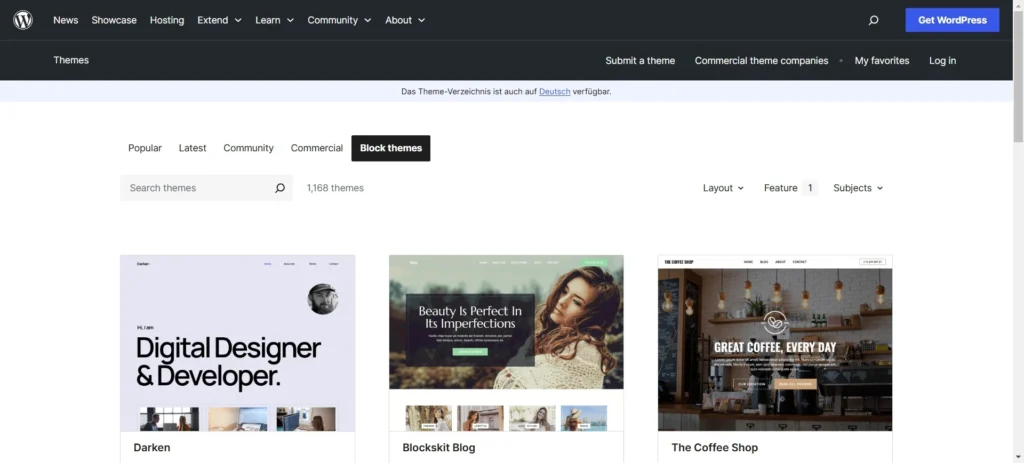
Block themes are a newer WordPress theme designed for Full Site Editing (FSE).
Using the names, Block themes use the block editor (Gutenberg) to control the entire website, including headers, footers, and layouts. This means you can edit everything visually without touching code.
Key Features of Block Themes:
- Uses WordPress’s Full Site Editing (FSE) for complete visual control
- No need for PHP templates – everything is built using WordPress blocks
- No reliance on widgets or customizer (Customization is done in Site Editor)
- Styles are controlled via global styles (theme.json) instead of CSS
- Lightweight & fast-loading due to minimal code dependencies
Examples of Block Themes:
- Twenty Twenty-Four (Default WordPress theme)
- Key Differences: Classic Themes vs. Block Themes
Difference Between Classic Themes and Block Themes
Let’s look at the difference between a classic theme and a block theme in the table below.
| Feature | Classic Themes | Block Themes |
|---|---|---|
| Editing Method | WordPress Customizer, Widgets, Page Builders | Full Site Editing (FSE) with Gutenberg Blocks |
| Template System | PHP template files (header.php, footer.php, etc.) | Block-based templates (no PHP templates) |
| Customization | Requires CSS, widgets, and shortcodes | Uses block editor for everything (visual editing) |
| Page Builders | Works well with Elementor, WPBakery, etc. | No need for page builders (built-in block editing) |
| Performance | Can be heavy due to extra scripts | Lightweight and optimized for speed |
| Learning Curve | Familiar for traditional WordPress users | New experience, but more flexible |
Free WordPress Themes Vs. Premium Themes
Free WordPress Themes
- Free means you do not need to pay anything
- Available in the WordPress.org theme library
- Offers basic design customization options like fonts, colors, layouts, etc.
- Basic plugin integrations
- Premium features are generally available in upgradable plugins
As the name suggests, Free WordPress Themes do not cost you money. These are available in the official WordPress Theme Directory.
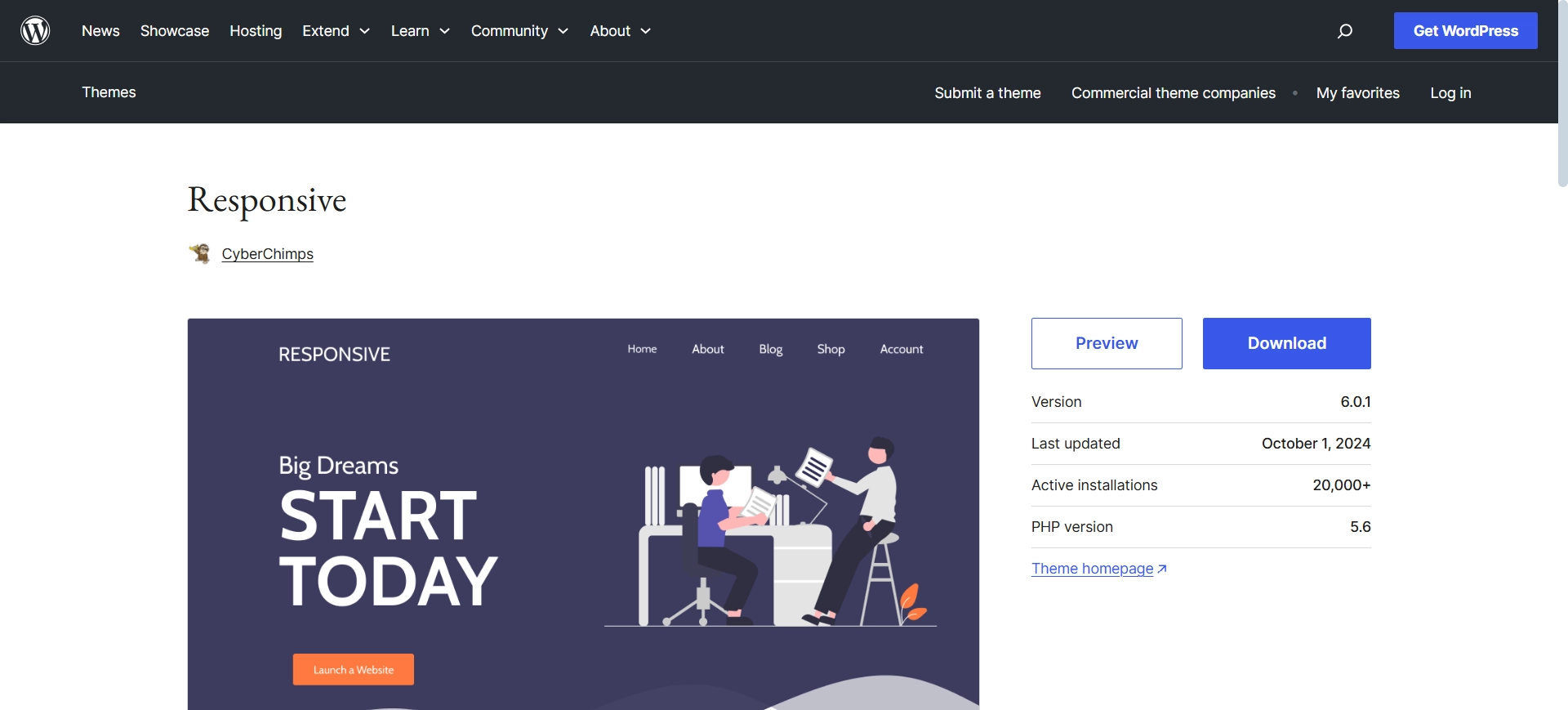
Free WordPress themes are an excellent choice for beginners and small websites. While free themes offer basic design and functionality, they may have limited customization options and lack premium support.
Here are some key features of free WordPress themes:
Here are some things that you should check before using a free theme for your WordPress website:
- Number of reviews on WordPress.org
- Number of active installations
- Number of resolved tickets on WordPress.org
- Integrations with WordPress plugins
- Compatibility with page builders and other popular plugins
Premium WordPress Themes
These are the paid themes that come with the following:
- Advanced features,
- Customization options, and
- Dedicated support.
Premium WordPress themes are typically sold on marketplaces like ThemeForest and personal product websites, such as https://atlas.cyberchimps.com/ for Responsive themes.
???? My Real World Test Results:
- Load time on shared hosting: 0.78 seconds
- GTmetrix Performance score: 100%
- Total theme size: Under 80KB
- Mobile PageSpeed score: 99/100
- Save design time with 100+ Premium-grade Starter templates
Paid themes offer professional designs and regular updates, making them ideal for businesses and professional websites.
Here are some things that you should check before buying a premium WordPress theme:
- The developer or company that built the theme
- Number of 5-star ratings on WordPress.org
- Future roadmap
- Ticketing system
- Documentation on the website about the product.
Parent Themes Vs. Child Themes
Understanding the relationship between parent and child themes is essential for effective WordPress theme management.
These two types of themes work together to create a stable, customizable, and flexible foundation for your website’s design and functionality.
| Parent Themes | Child Themes |
| Parent themes are fully functional themes that contain all the files, including template files, cascading stylesheets, and JavaScript, required for the theme to work independently. | A child theme is used to save the custom modifications to theme files. It is basically a theme version that inherits all the parent theme functionality without affecting its core files. |
| It has everything you need, including the core functionality, layouts, and all the new features in the theme’s latest version. | Child themes allow users to modify specific aspects of the parent theme without altering its core files. |
| The only drawback with parent themes is that if you have made any custom changes to their files, they will get overwritten when you update the theme. | This ensures that custom changes remain intact even when the parent theme is updated. |
| This could lead to losing your customizations, making it essential to use a different method to preserve your site’s personalized design. | Child themes are designed specifically to preserve your site’s custom design and functionality during updates. |
How is a WordPress Theme Different from a Plugin
It’s common to get confused about understanding a WordPress theme and a plugin.
Well, not more. Here’s how you should remember the difference:
Theme – WordPress themes control the presentation of your website. They are related to looks and performance. A theme is basically a skin for your WordPress website.
Plugin – Plugins add functionalities to your WordPress website. For example, if you want to back up your website, you need a backup plugin. They’re like apps on your mobile. You can install an application from the Play Store whenever you need it.
Here are some things you should know about a WordPress theme:
- Do not choose a WordPress theme that includes site-critical functionality; otherwise, you will lose it if you change the theme.
- Choose themes that follow the standard coding practices set by the WordPress codex.
- Choose themes from developers or companies with a good reputation and a presence in the WordPress industry.
How to Choose the Best Theme for Your Site
Up until this moment, we’ve understood what a theme is, how a theme works, and also different types of themes. Now, let’s look at how we can choose the best theme for your site.
It all starts with understanding your website goals. Think about what kind of site you want to build. Have a clear thought of what you want: blog, business website, portfolio, or online store.
The theme you’re choosing should match your purpose, and it should also support the features you need. Most importantly, always choose a theme that is lightweight and well-optimized for performance. Because speed plays a big role in user experience and search rankings.
Also, ensure the theme works well with the latest version of WordPress. Obviously, it would be a waste if you choose an old theme that’s not even supporting the current version of WordPress and is not compatible with the popular plugins you plan to use.
Check for reviews and ratings to see if others are facing an issue with the theme you are yet to purchase. Also, keep an eye on active installations.
Last but not least, responsive design is utmost important. This is the one that makes your site look good across devices.
How to Use WordPress Themes
Here is the step-by-step process:
Step 1: Installing a WordPress Theme
Installing a WordPress theme is simple and doesn’t require any technical knowledge.
To get started, log in to your WordPress account.
From your admin dashboard, navigate to Appearance> Themes.
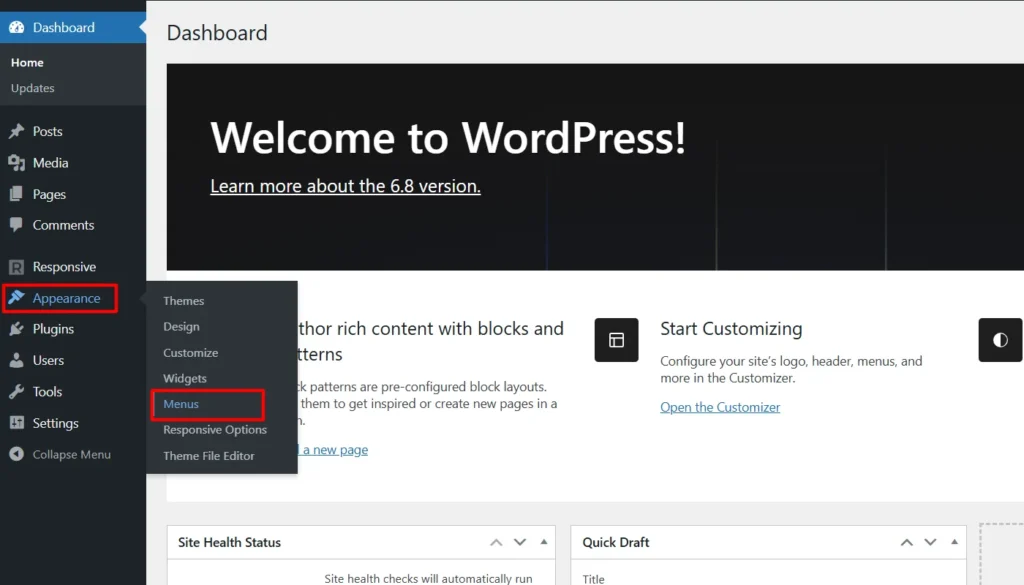
Click “Add New” on the Themes page.
Enter the theme name you wish to use in the “Search theme” field.
For example, we looked for our Responsive theme.
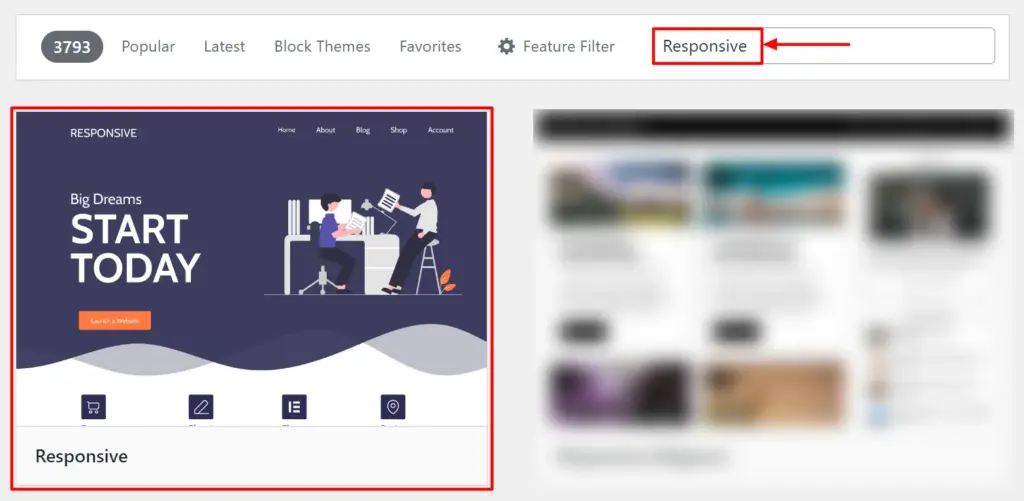
Click Install to begin the installation process. Next, click “Activate” once completed.
Step 2: Customizing Your Theme with the Customizer
You can use the WordPress customizer once the theme is installed and activated.
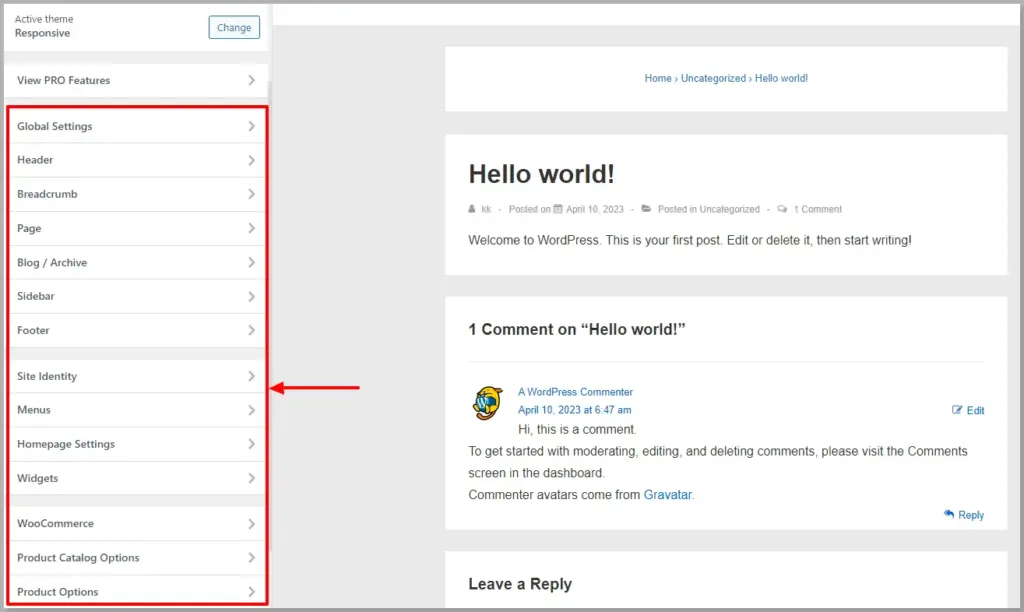
The theme customizer provides controls and settings to design the look and feel of your WordPress website.
To access your WordPress theme’s customizer, navigate to Appearance> Customize
You’ll be taken to the customizer screen. Here, you’ll find all the settings for managing your website’s layout, fonts, colors, link stylings, and more.
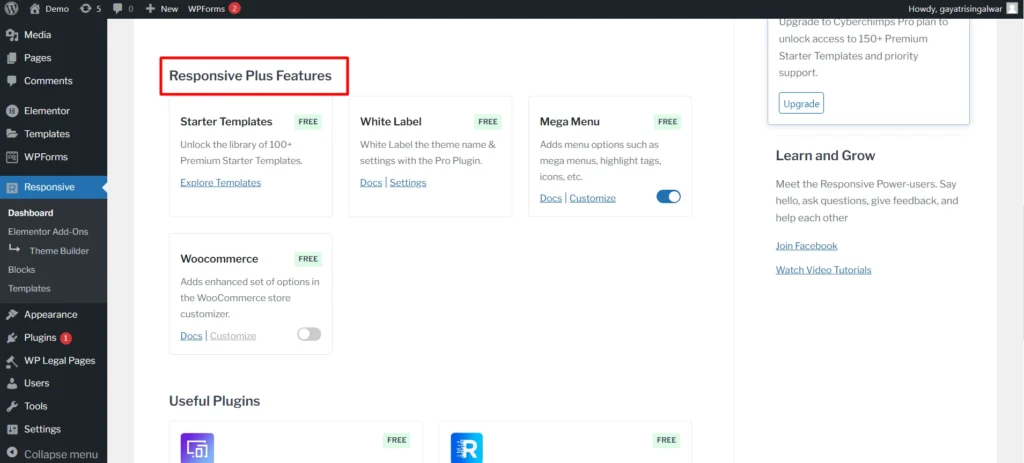
Many premium themes include extra customization options or built-in plugin builders, giving you more flexibility and control over your site’s design.
For example, the Cyberchimps Responsive theme provides many features to extend the functionality of the free Responsive theme in the Responsive Plus plugin.
Updating a WordPress Theme
WordPress theme authors and developers keep providing timely updates, including bug fixes and feature improvements.
Additionally, regular theme updates improve security, fix bugs, and improve compatibility with the latest WordPress products.
WordPress notifies you of updates, which you can install from Appearance> Themes.
Here are a few steps you can take to prevent issues from theme updates:
- Always back up your site before updating to prevent data loss.
- Document the changes you have made in the theme’s file.
- Check if any specific instructions were provided by the theme author before
- Back up your website before updating themes and plugins.
- Set up a staging site and test updates on a staging site.
Changing a WordPress Theme
Switching to a new WordPress theme can refresh your website’s look and improve functionality. However, changing themes requires careful steps to avoid data loss or design issues.
Before switching, pick a theme that suits your site’s needs and is compatible with your plugins and WordPress version.
Use the Live Preview option in Appearance> Themes to check how the new theme looks without activating it.
Go to Appearance> Themes, select your new theme, and click Activate.
After activation, review your site’s layout, menus, and widgets. Fix any missing elements or formatting issues.
Note: Before making changes, create a full backup of your website (files and database) using plugins like UpdraftPlus or BackupBuddy.
FAQs
Yes. WordPress themes can be used on multi-site networks. You can use the same theme across all the sites on a multi-site network, and network-activate/deactivate a theme to increase productivity.
Installing WordPress themes from a zip is simple. Here are the steps:
From your admin dashboard, go to Appearance.
Click on Themes> Add New > Upload theme.
Upload the theme zip and click on the Activate button.
You can also refer to this guide on installing themes using different methods
Responsive is a popular blogging WordPress theme because it’s lightweight and easy to customize. It’s also SEO-friendly, free, and integrates seamlessly with the WordPress block editor, Elementor, WooCommerce, and many other popular plugins.
A WordPress theme is responsible for defining the visual Appearance of your website. As mentioned, it’s a bundle of CSS stylesheets and php files that style your website and provide dynamic content capabilities.
A WordPress theme is a complete package that defines a WordPress website’s overall design and layout. It includes styles, templates, and functions that dictate how the site looks and interacts.
Templates are pre-designed layouts imported into WordPress to set up a website or individual pages quickly.
Conclusion
We have made it to the end of this article.
In conclusion, a WordPress theme is a crucial part of a website that determines the styling elements like layout, buttons, and template functionality.
Users can select a theme from WordPress.org or any other market source based on their requirements.
Whether you’re looking to start a blog, run a business website, or build your portfolio, choosing a well-coded and optimized theme is an essential decision that will make your website stand out from the competition.
If you liked this article, you might want to read these as well:
- How to Add Shape Dividers in the WordPress Editor.
- How to Build a Finance Consulting WordPress Website.
- Learn How to Disable Comments in Your WordPress Site.
Are you ready to start building a WordPress website? Get the Responsive theme right away!





