
Summary
The article explains how to add an audio player to an Elementor website.
It shows why audio players are useful for podcasts, music, or voice content.
Guiding you through inserting the audio widget, uploading audio files, and setting playback options.
It also covers styling and customizing the player to match your design. The steps help you add a working audio player without coding.
Are you looking to add an audio player to your Elementor website?
An audio player is a feature that allows you to play sound files such as music, podcasts, or voice recordings directly on your website. It helps you deliver content in a more engaging and interactive way, improving the overall user experience.
Integrating an audio player into your website is a simple yet effective way to connect with your audience and enrich your content.
One of the easiest ways to add this functionality is by using an Elementor audio player widget.
In this article, we’ll cover everything you need to easily add an audio player widget to your site.
So, without further ado, let’s get started.
Responsive Addons for Elementor is the Best Elementor Addons plugin – Get it for free!
What Is Audio Player Widget?

Before we delve into the technicalities to learn how to add the audio player widget to your website, let’s break down some basics about it.
Basically, it’s an interactive widget that helps you to seamlessly integrate audio content into your website.
This widget enhances the user experience on your website by incorporating audio, creating an engaging and immersive environment for your visitors. Additionally, it also offers customization options, allowing you to tailor the widget’s appearance to match your website’s design.
Things You’ll Need To Setup an Audio Player
Before you can start adding an audio player to your Elementor website, there are a few key essentials you must consider having.
First, you’ll need the Elementor Page Builder for customizing and editing various elements. Next, you’ll need a third-party Elementor Addons plugin that offers free audio player widget.
One such Elementor Addons plugin which we recommend you to use is Responsive Addons for Elementor.

???? My Real-World Test Results:
- Number of widgets: 80+
- GTmetrix Performance Score: 100%
- Includes Cross-site Copy-paste feature
- 5+ Extensions like Scroll animations, Sticky Section, Page Duplicator, & more.
- Save design time with 100+ Premium-grade Starter templates
Responsive Addons for Elementor is a free and easy-to-use Elementor addons plugin that expands the functionality of the Elementor page builder. It offers more than 80 powerful widgets, including various advanced and theme builder widgets that let you easily create an interactive and feature-rich website.
Among the various widgets offered, the plugin includes an Elementor audio player widget that simplifies adding music content to your website. Furthermore, this widget is easy to use and offers various advanced customization options.
Now, let’s understand how you can use the Responsive Addons for Elementor plugin to add the widget.
How to Add an Audio Player to Your Elementor Website

[Note: To use the Elementor audio player widget, you must have a website or a website template built with the Elementor page builder. Check out Responsive’s 150+ Elementor templates, if you need one].
To Add the audio player widget to your Elementor website follow these simple steps:
Step 1: Install and Activate Responsive Addons for Elementor
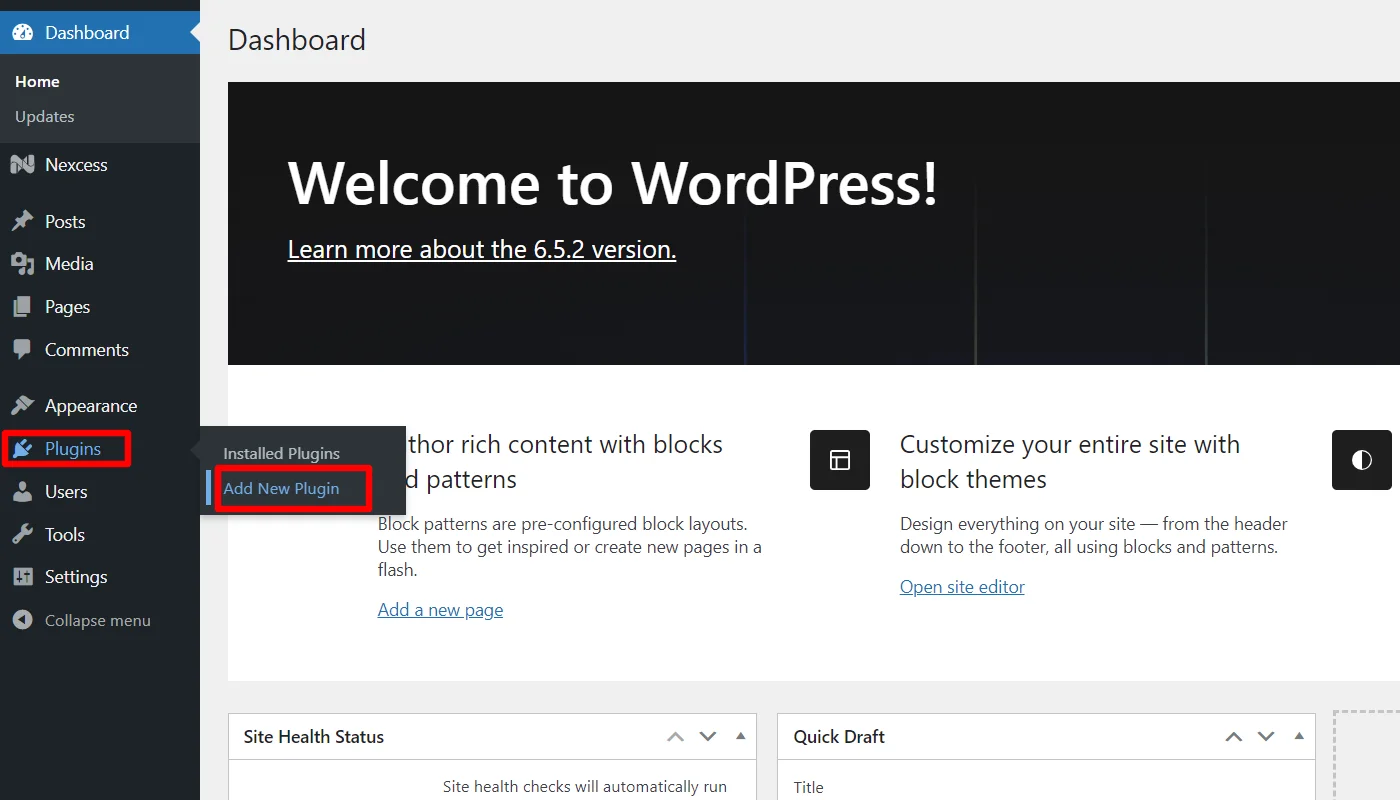
Navigate through your WordPress Admin dashboard and go to Plugins > Add New Plugin.
Go to the search bar and search for responsive addons for elementor.
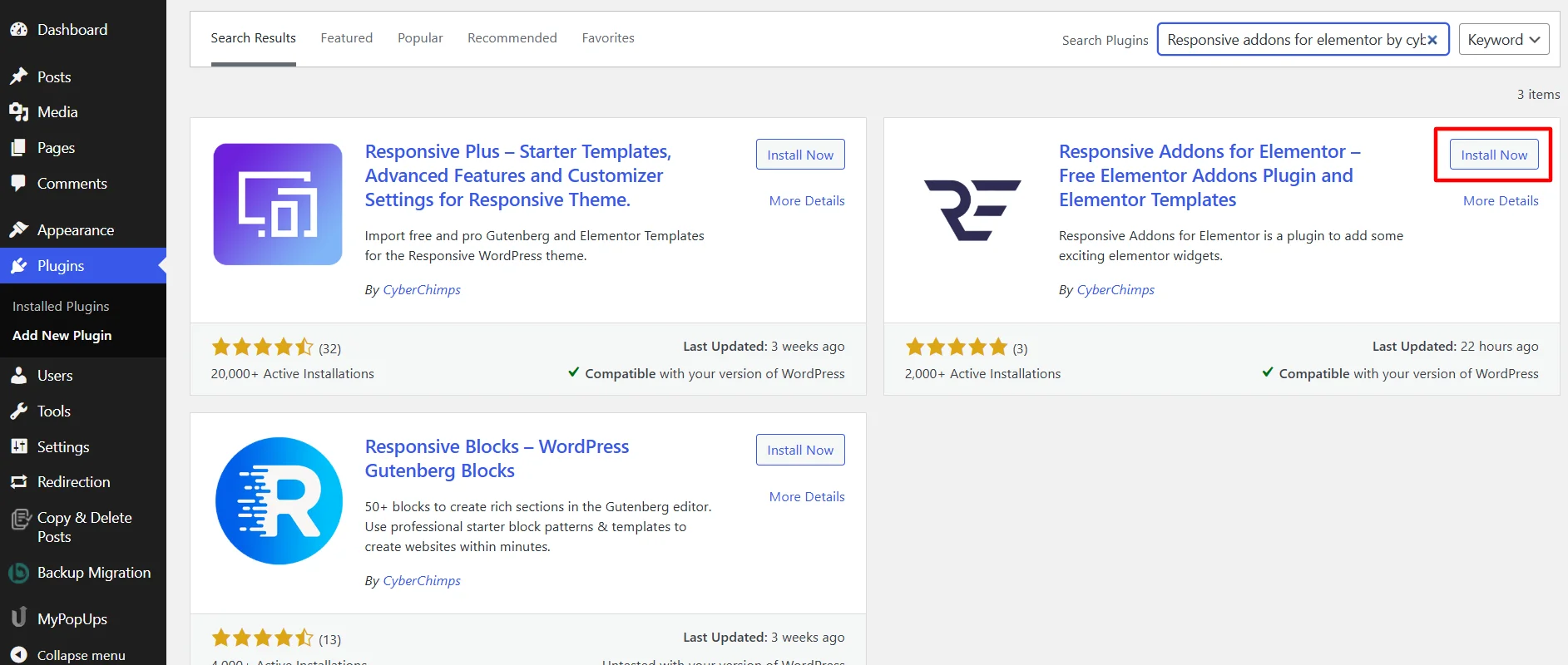
Next, click on Install Now.
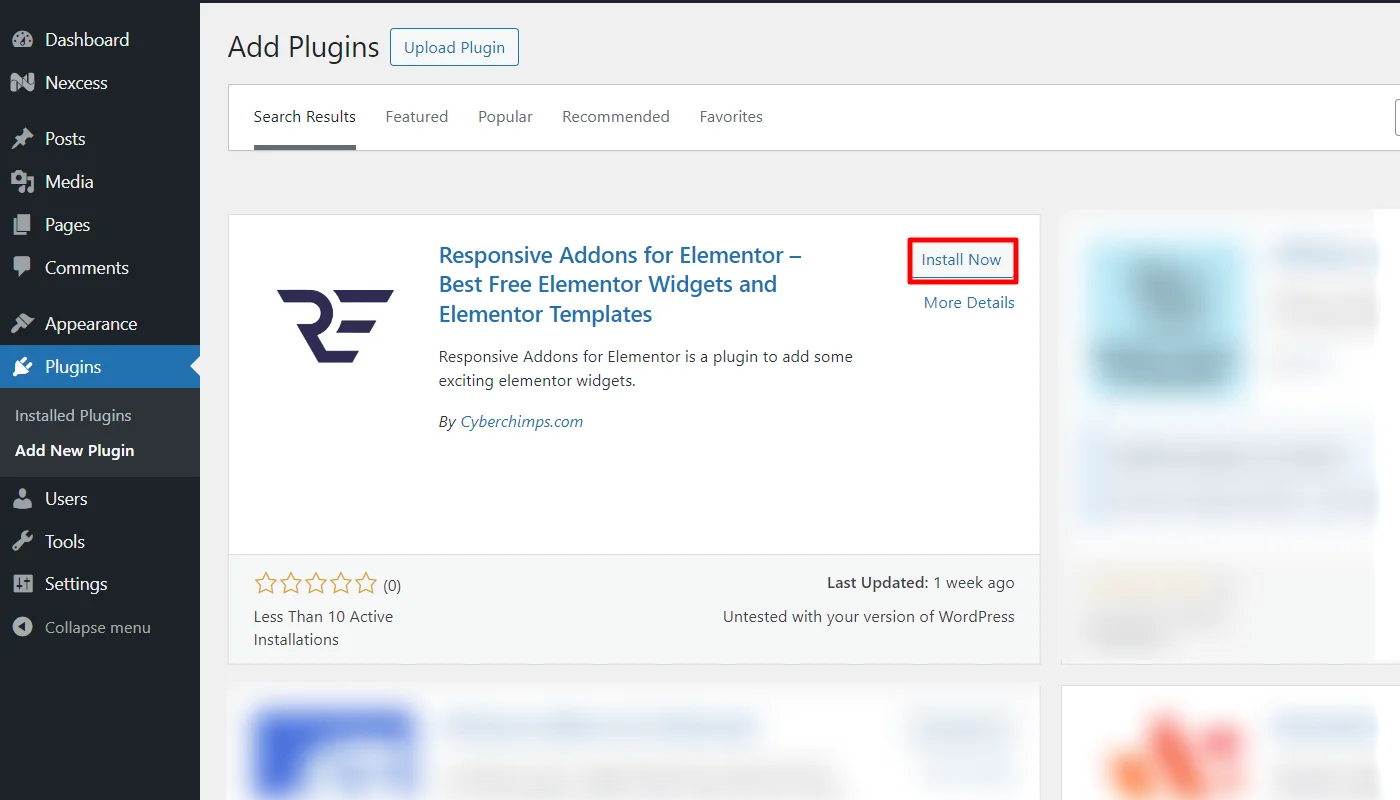
Once the plugin is installed, click on Activate to activate the plugin.
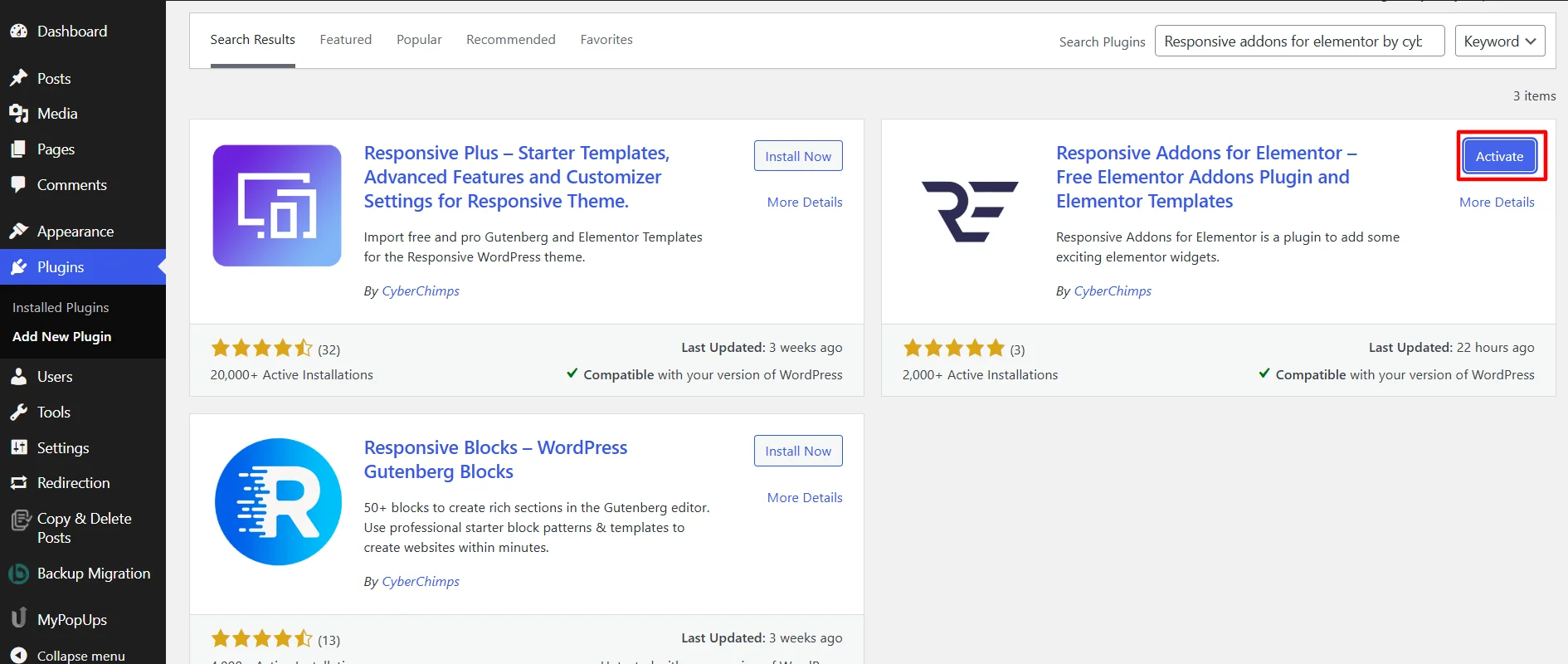
Once you activate the plugin, open the page where you want to add the audio player. For tutorial purpose we’ll be using Music School website Template.

Step 2: Adding The Audio Player Widget
Click on Edit With Elementor, on the page you want to edit.

Next, on the search widget tab, search for RAE Audio Player.

Drag and drop the RAE Audio Player Widget in the section where you want to add the audio player.
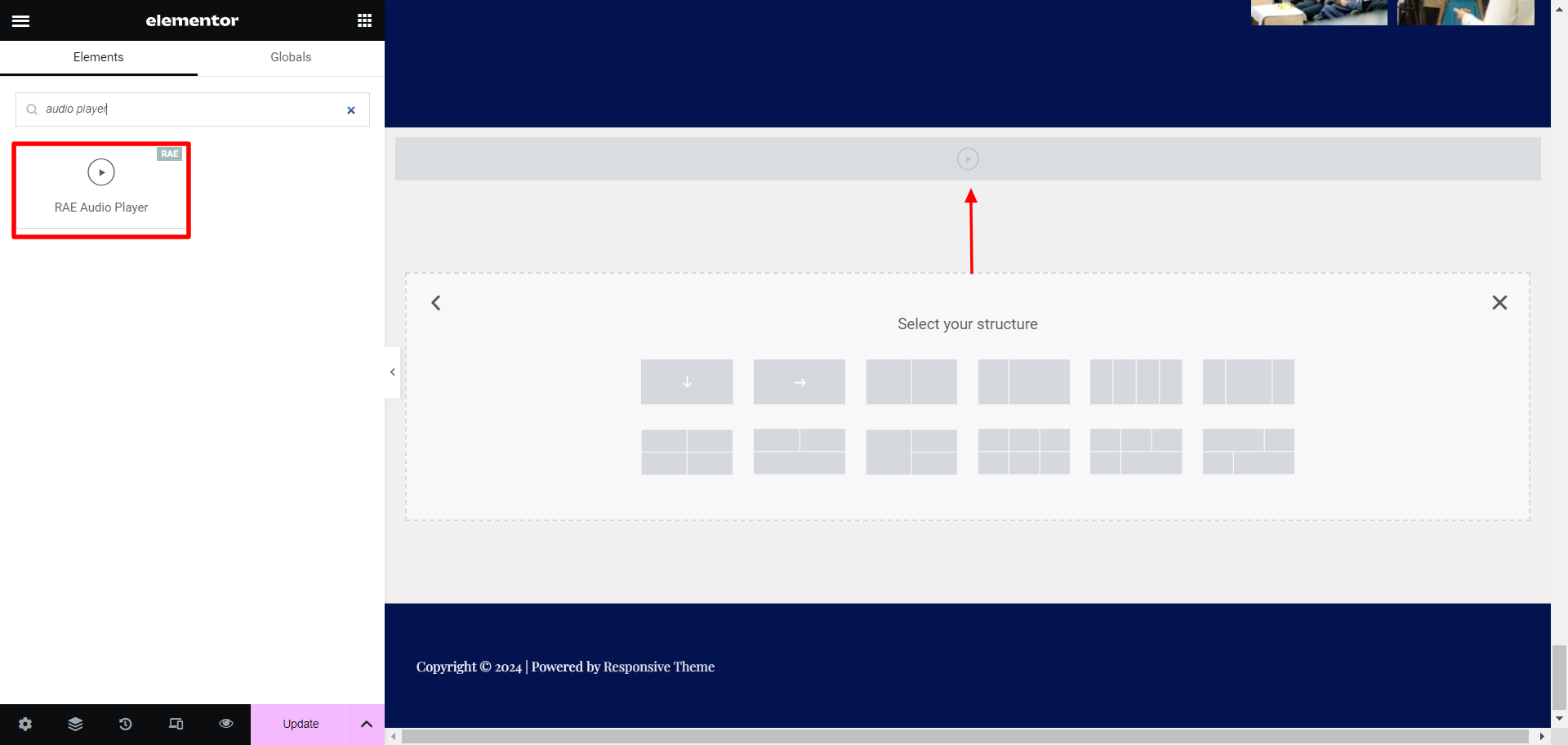
With this, you have successfully added the audio player widget. Now, let’s understand how to customize it.
Step 3: Customizing the Audio Player Widget
The Audio player widget allows you to customize:
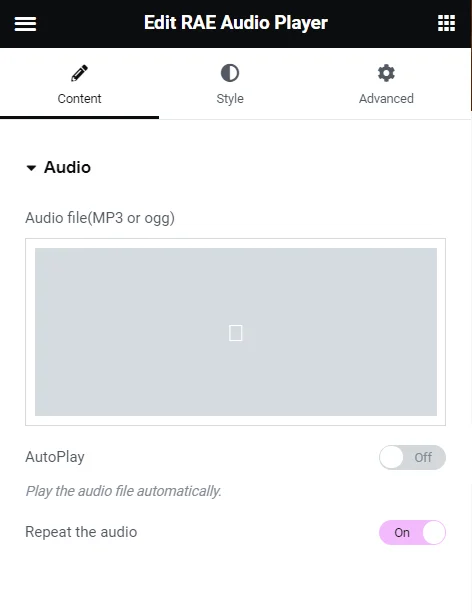
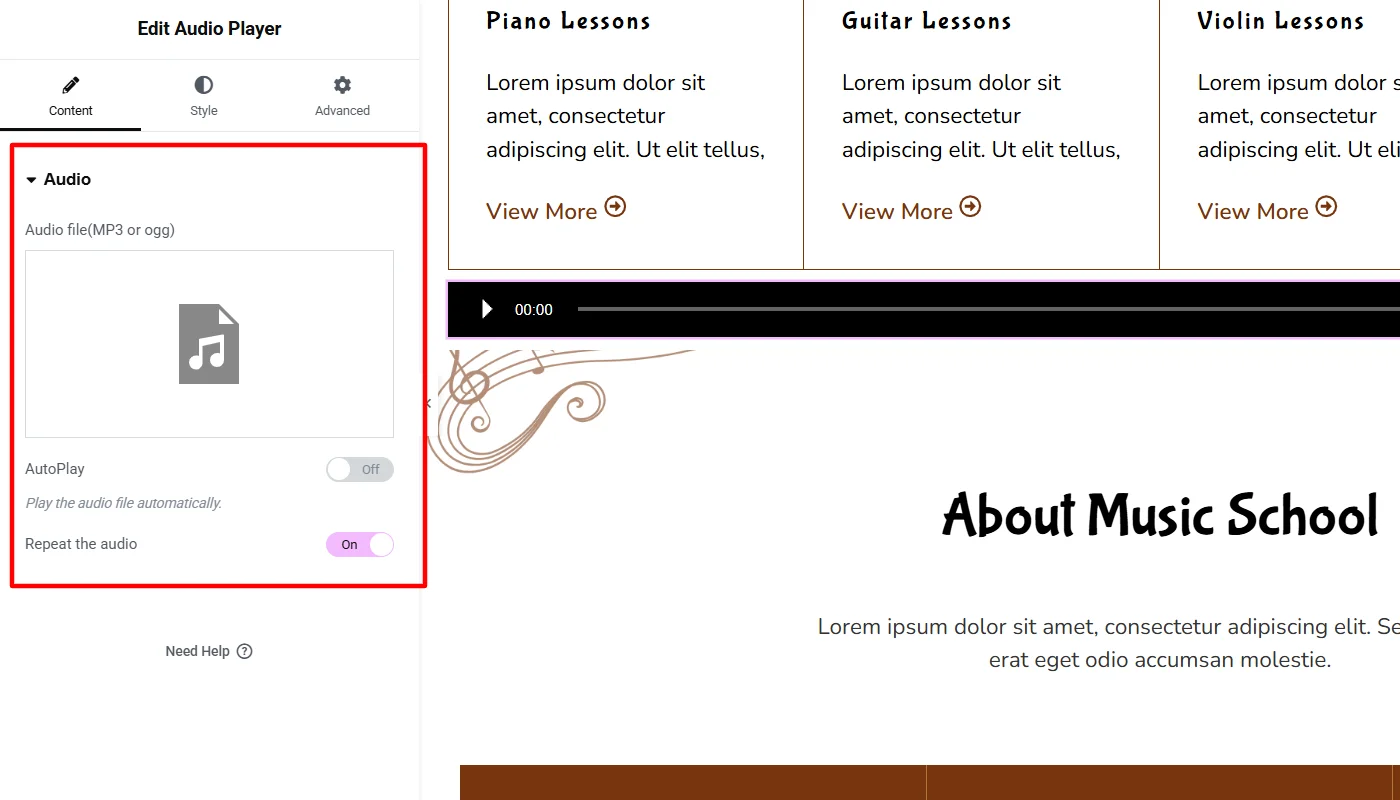
Editing Audio Settings
You can add your audio file in this section and edit the following:
- Audio File: Select and upload an audio file in MP3 or OGG format.
- Autoplay: Toggle to set on or autoplay of the audio file.
- Repeat The Audio: Toggle to set the audio to repeat.
That’s it! Using these options, you can easily customize your Elementor audio widget.
Step 4: Styling the Audio Player Widget
The widget allows you to style various options to suit the website design.
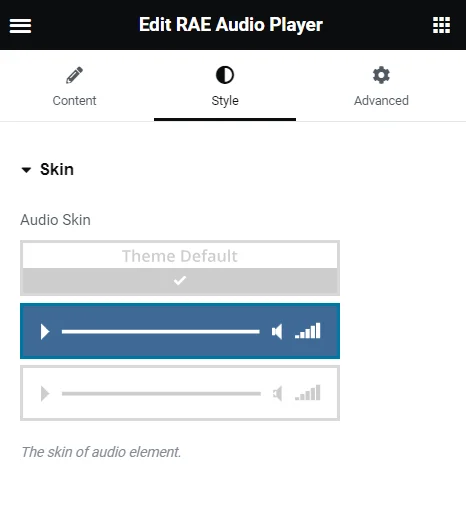
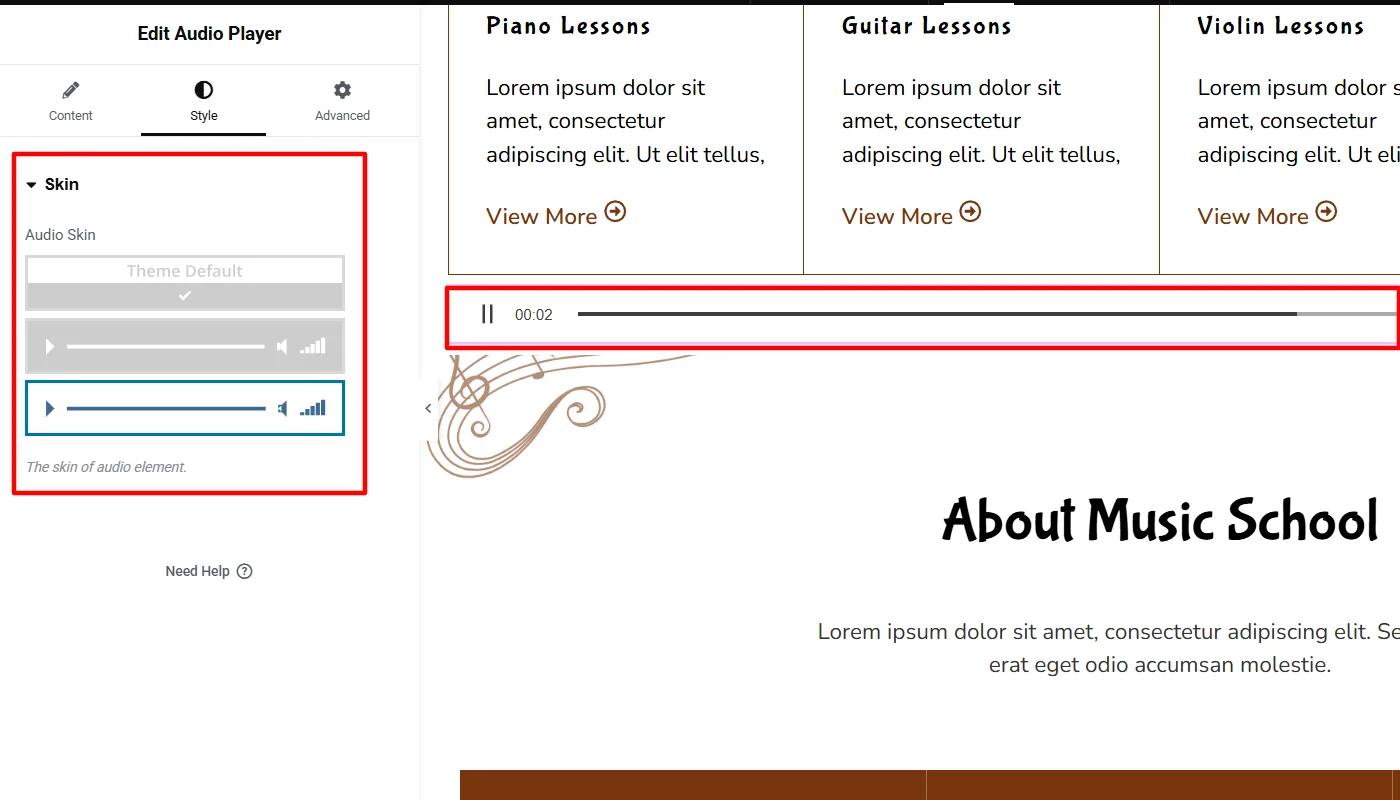
Styling Skin
You can specifically set the skin of the widget as per your requirement.
- Audio Skin: The skin of your audio box can be Dark, Theme Default or Light.
This is how you can easily style your Elementor widgets using this plugin.
How To Use The Audio Player Widgets?
Now that you know the customization and styling options available to you with the Elementor audio player widget. Let’s understand how to use them to add functionality to your website.
For the tutorial, I explained how I used the widget to add the feature to my dummy website. You can also follow the same steps or tweak settings according to your needs.
Customizing Audio Player Widget?
To customize the widget, I began by adding and editing its content, where I uploaded a sample MP3 file and toggled the setting to repeat audio.
However, I kept the setting to autoplay off.
Styling the Audio Player Widget?
Further, the styling options offered by the audio player widget are basic. I styled the widget using a light theme that complements the website.
Final Appearance of Audio Player Widget?
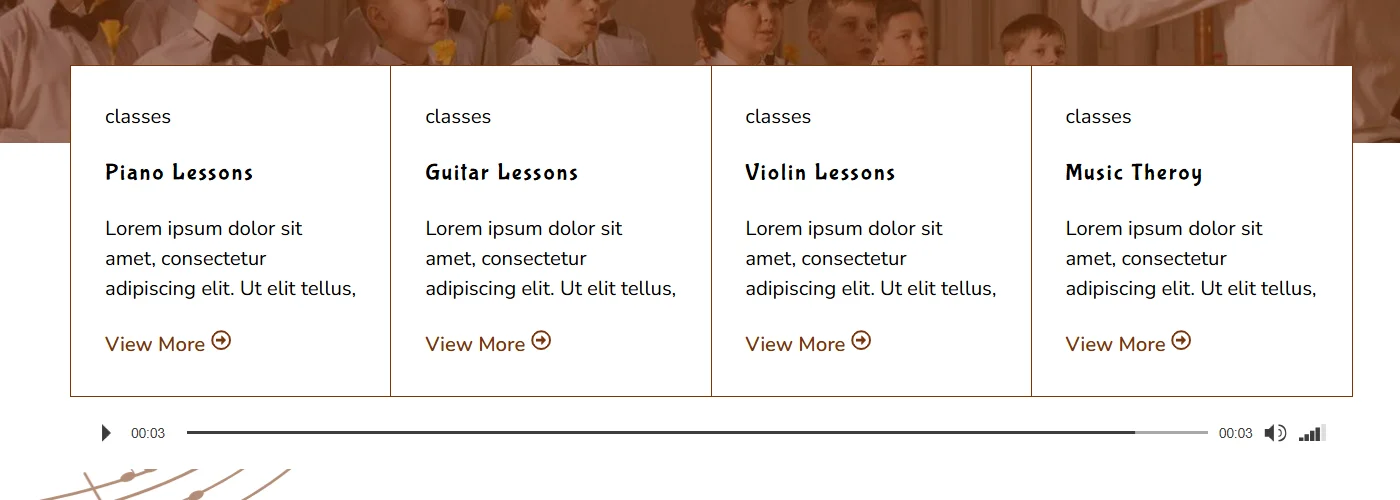
After all these edits, the widget looked like this:
Other Advantages Of Using Responsive Addons for Elementor Plugin
Alongside providing powerful widgets, Responsive Addons for Elementor can greatly enhance your Elementor website-building experience. Here are the key benefits of using this plugin:
Responsive Design: The plugin ensures your website looks great on any device using its widgets. It also allows you to create layouts that automatically adapt to different screen sizes, providing an optimal experience for your visitors.
Customization Options: The plugin offers endless possibilities for customizing the appearance of its Elementor widgets, enabling them to match your brand’s style and website design.
Fast Loading: The plugin is optimized for lightning-fast loading, ensuring your pages load quickly and deliver a smooth user experience.
Free Templates: The plugin seamlessly integrates with its sister plugin which provides you access to a collection of over 150 pre-designed templates that you can use to build impressive websites quickly. These assets integrate seamlessly with Elementor.
Regular Updates: The plugin receives frequent updates, so you’ll always have access to the latest features and improvements to enhance your website-building experience.
To learn more about the plugin, check out the Responsive Addons for Elementor Review.
FAQ
Yes, you can stream audio by embedding links from platforms like SoundCloud or by hosting audio files on your website and connecting them to the player.
A WordPress music player is a widget that allows you to add audio playback functionality to your WordPress website easily. It lets you upload, manage, and embed music directly within your WordPress pages and posts.
Yes, Responsive Addons for Elementor plugin offers free Elementor audio player widget to easily add audio content to your WordPress website.
Conclusion
Overall, an audio player widget is an interactive and easy to use widget that can help you to add music content to your website.
Responsive Addons for Elementor is one such plugin that offers 80+ widgets for free. It’s powerful and free WordPress plugin that allows you to add and customize audio content to your website.
If you’ve liked reading this article, check out our other engaging articles as well:
- How to Create a Portfolio On Your Elementor Website
- How to Create an Image Gallery in WordPress
- How To Create Flip Box Overlays And Hovers In WordPress
Add an audio player to your site with Responsive Addons for Elementor and get started for free today.





