
Summary
The article explains how to create a Halloween website for free. It defines the steps to set up a festive site using WordPress without cost.
It also highlights choosing themes, adding spooky content and graphics, and customizing designs. Helping readers build an engaging Halloween-themed website easily.
Are you looking for an easy way to create a Halloween website?
October is already here, and businesses have started running their promotional marketing campaigns. And why not? It’s the time of the year when people wait for exciting offers.
It’s Halloween! A perfect time of the year to get creative with your marketing campaigns and offer huge discounts to your customers.
If you’re using WordPress for your business, Halloween-ifying your website for the holiday season is a great way to stand out from the competition. You don’t need to revamp your entire website, but simple changes give your personal Halloween touch to your customers.
Before we jump into the exact steps of creating a Halloween website, here are some of the best Halloween tips that are guaranteed to get your visitors frightened chills.
Responsive Starter Templates is the best plugin to import Website Templates – Get it for free.
7 Tips to Make Your Website Halloween Ready!
Here are some tips on how to make your WordPress website ready for the Halloween season.
Let’s get started.
1. Add a Deadly Halloween Landing page to your website
Halloween is the best time when people organize parties and dress up to enjoy their good times. It’s also one of the peak times when people buy online to avail the Halloween offers. Why not join the fun time and add a dedicated Halloween landing page to your business website?
Creating and adding a Halloween landing page to your WordPress business website is the best way to generate new leads and increase your business sales.
2. Choose Halloween Themed Spooky Fonts
A super easy way to send a Halloween chill pill is to use Halloween-themed fonts on your business website.
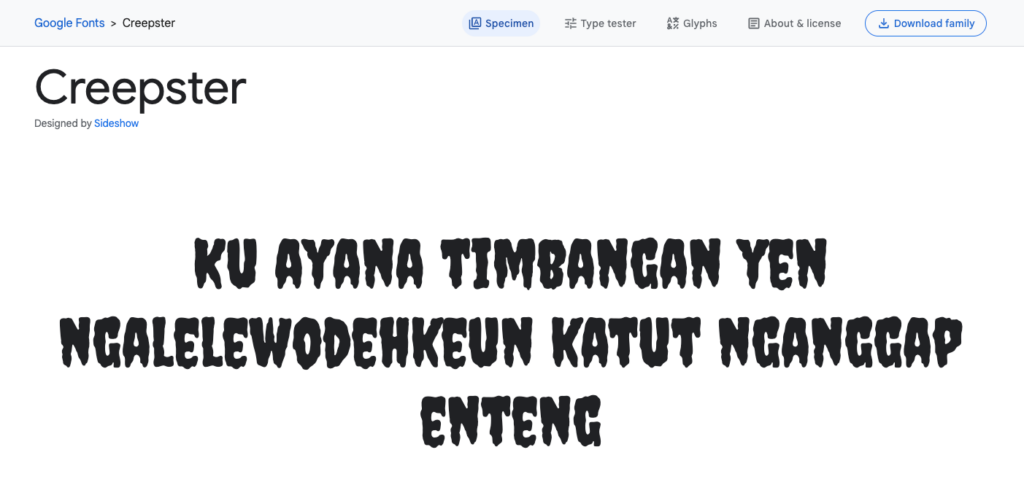
Just Google for “Best Halloween fonts,” and you’ll find many free Google fonts for adding a Halloween effect to your headings and titles. Some of the most popular Halloween fonts to get started with are:
Make sure you only use these fonts in your main headings, popups and titles. Most Halloween-style fonts are display fonts and are not meant to be used in content because it’s hard to read paragraphs using them.
3. Choose Haunted Images for Banners
Images can make or break your website; there’s no better occasion than Halloween to flaunt your graphic designing skills to your customers.
Don’t possess the graphic skills to create a perfect Halloween image for your website? Don’t worry. You can easily create a free account on Canva and download free Halloween-themed images for your Business website.
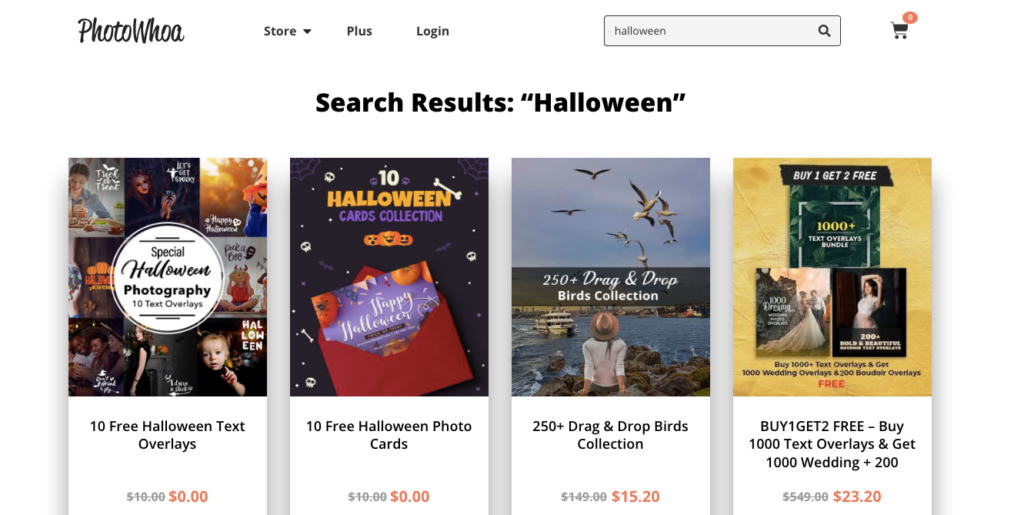
Another excellent place for getting Halloween-themed pictures is PhotoWhoa. Check out their expert collection of free Halloween text overlays and Halloween Photo cards to treat your website visitors with their eye-catching images.
Bonus: Use SPOOKY20 to get an additional 20% discount on your payment checkout.
4. Experiment with Background Colors
It’s Halloween, and now is the perfect time to experiment with dark colors on your business website. Instead of adding images everywhere on your website, you can change the background color of your website using the theme customizer settings.
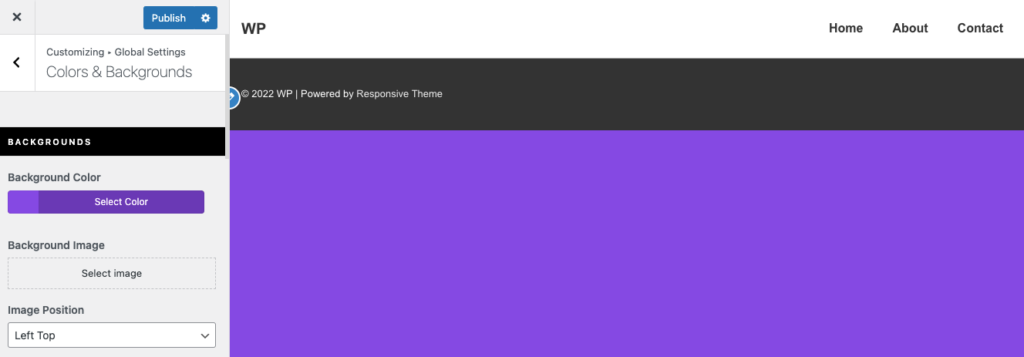
For example, suppose you’re using the Responsive theme on your website. In that case, you can go to Customizer and navigate to Global Settings > Color & Backgrounds > Background Color to easily change the background color of your website.
5. Use Animations and Videos
Just like images, adding different animations and videos will spark the essence of your Halloween landing page template.
However, adding a large self-hosted video might affect the loading speed of your WordPress landing page template.
Focus on embedding YouTube or Vimeo videos to increase engagement among your customers. You can also boost these videos on social media platforms to get more traction and clicks on your website.
6. Create Urgency using a CountDown Timer
If you’re thinking of running a Halloween offer on your website, a good idea would be to add a countdown timer to create a sense of Urgency for your customers.
Luckily, you can add a countdown timer using the Responsive Elementor Addons plugin that comes bundled with the Responsive Pro plugin.
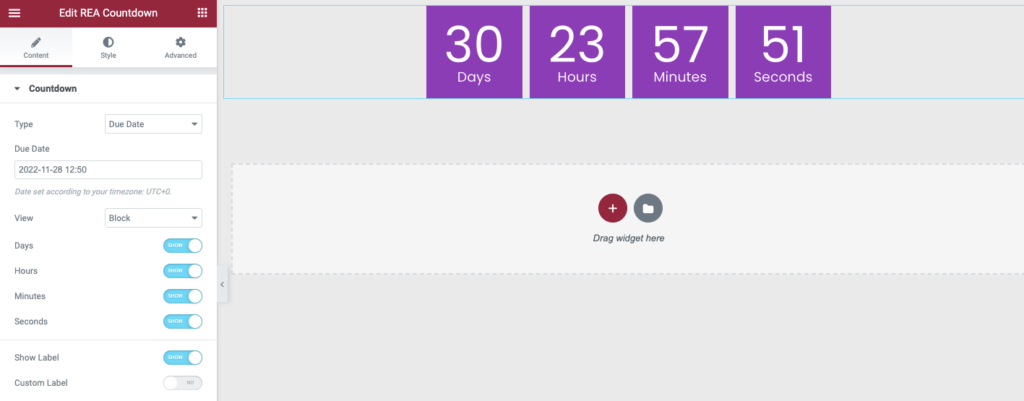
Once you drag and drop the Countdown timer into your page, you can easily customize the countdown styling and typography to match your Halloween page design.
7. Modify your Contact Form Style
One of the crucial aspects of your WordPress website is a contact form. Your customers use it to get in touch with you and how boring it would look if your contact form looked dull.
Thankfully, with Responsive Elementor Addons form widgets, you can easily style your form designs in order to complement your Halloween-themed website.
How to Create Your Halloween Page with Responsive Theme
Creating a Halloween page for your WordPress website should not be a tough job!
With Responsive theme’s Starter templates plugin, you can easily import the free Halloween-themed landing page template and add it to your website.
With that said, let’s begin with the actual steps:
Step 1: Install the Responsive Starter Templates Plugin
The first step is to install the Responsive Starter Templates plugin on your website.
From your WordPress dashboard, navigate to the Plugins menu and click the Add New button.
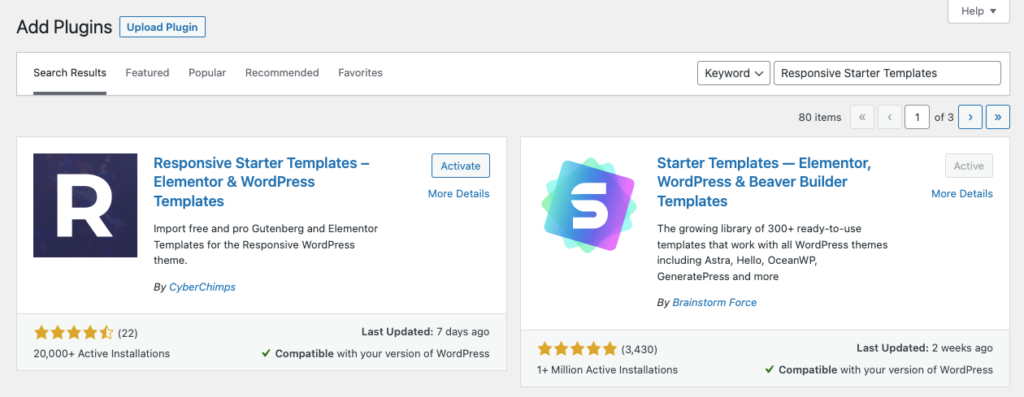
On the plugin’s page, search for “Responsive Starter Templates,” and you’ll see the Responsive Starter Templates – Elementor & WordPress Templates plugin.
Click on Install Now and activate the plugin.
Step 2: Search and Select the Halloween Template
After activating the plugin, go to the Responsive menu and click on the Website Templates submenu to view all the Responsive Starter Templates.
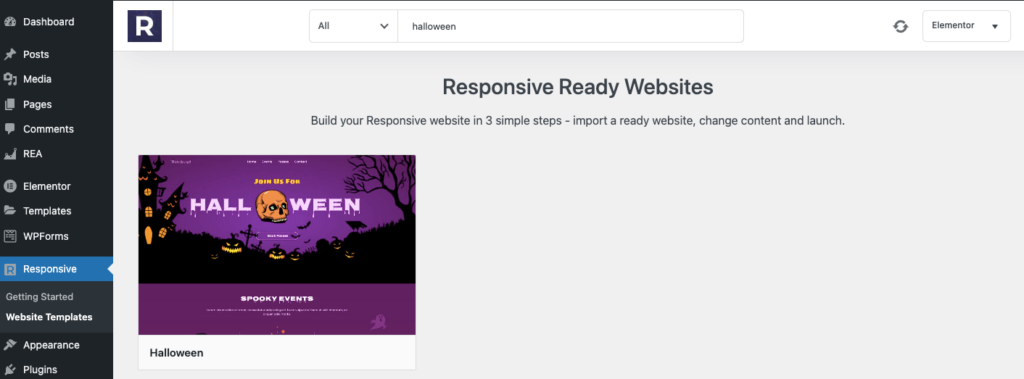
Type “Halloween” in the search bar widget and click on the Halloween template.
Step 3: Click on Import Site
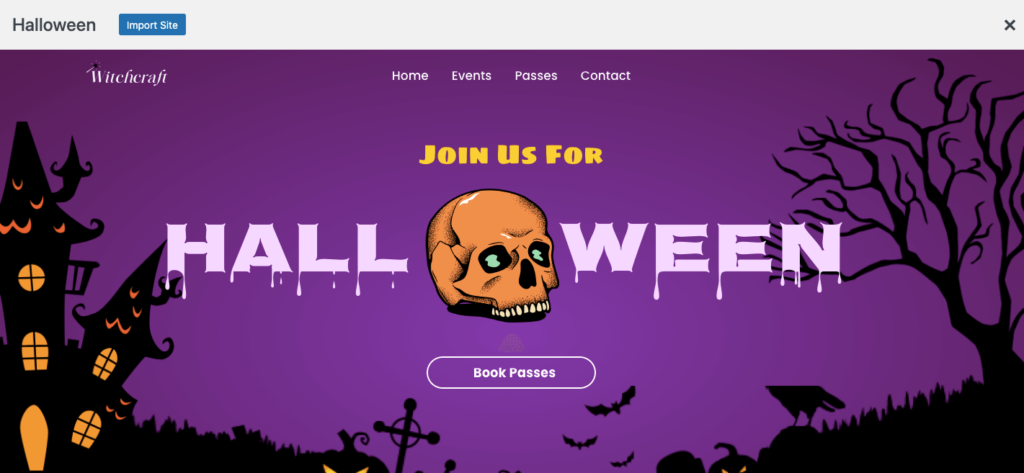
The last step is to import the Halloween template on your WordPress website. Click on the Import Site button to finish the website importing process.
Now, you can quickly modify the template text content to match your Halloween needs.
That’s it; now you can access a beautiful Halloween template for your business website.
Halloween Website FAQs
Responsive Halloween Starter template can be used as a landing page or a separate page in your existing WordPress website. You can also create your own pages and attach them to the Halloween Starter template menu links by removing HTML jump Id’s.
Yes, Responsive Halloween Starter template comes bundled with the free Responsive Starter Templates plugin. Besides, the plugin also offers 100+ one click demo imports of ready-to-use Elementor & block templates that help you go live with your website in just 5 minutes. Easy Peasy!
No! You don’t need any coding skills to import the free Responsive Halloween template on your WordPress website.
Wrapping Up!
It would help if you did not refrain from adding a spooky Halloween-themed template to your WordPress website to attract new customers. Especially now that you know adding a Halloween template is just a 3-click process and comes absolutely free with the Responsive Starter Templates plugin.
So what are you waiting for? Install the Responsive Starter Template plugin now and excite your customers with your terrifying Halloween page.
If you liked this article you might also consider reading How To Build A Premium Halloween Party Website & Sell Tickets
Don’t forget to share your spooky Halloween website with us in the comments section below.
Happy Halloween!





