
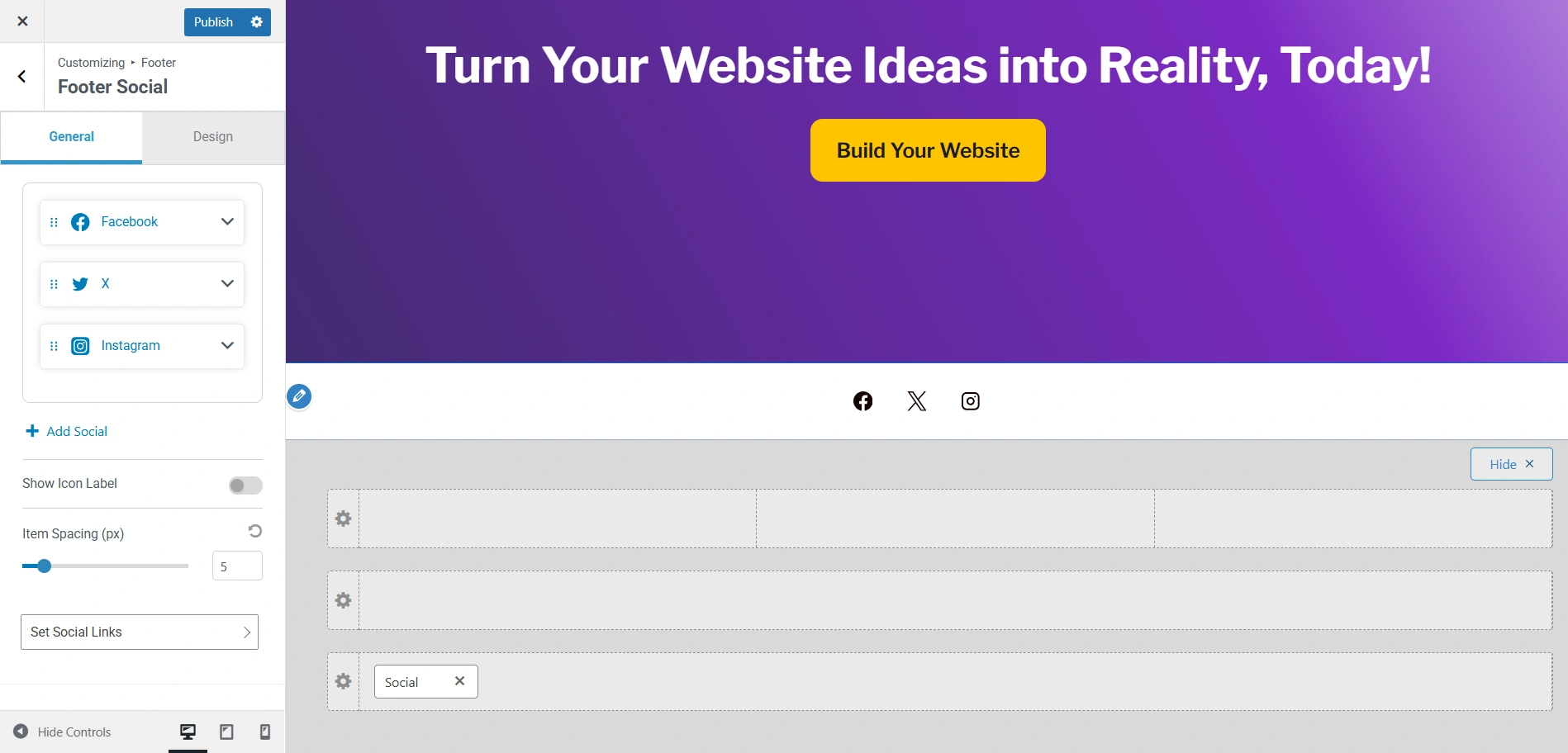
The Social sections allow you to add social icons to your footer and customise it. Let’s learn more about the settings to add your own social icons.
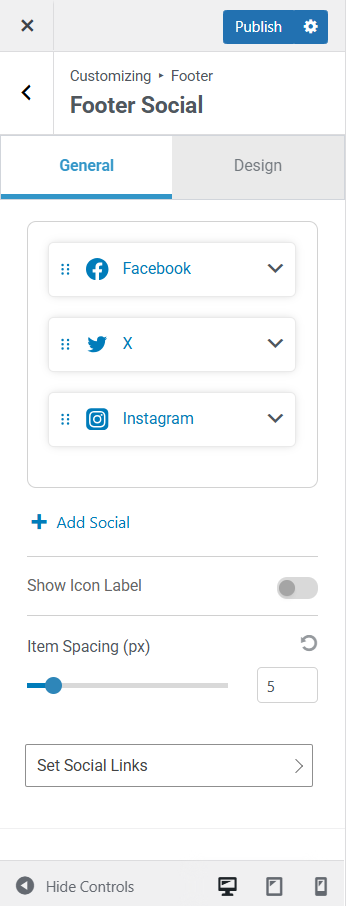
General Settings
- Add New: With this option, you can add social icons to your footer.
- Show Icon Label: If you want to show the name of the social icons, you can toggle the Show Icon Label button.
- Item Spacing: You can control the spacing you want between two social icons using the slider provided, or you can manually enter the pixel size.
- Set Social Links: Once you add your social icons, you can click on this tab to add the links to your social icons.
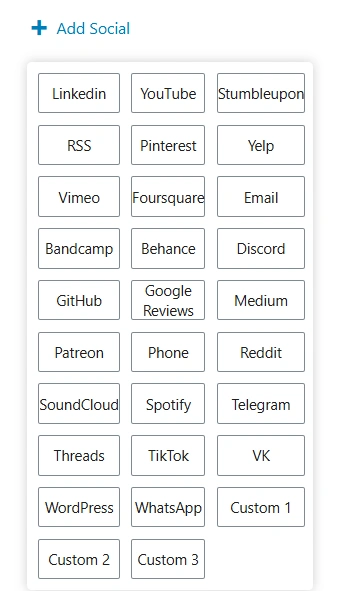
If you want to add more social icons to your footer, you can click on Add Social, which opens a drop-down to multiple social icons.
Once you click on it, it gets added to your footer.
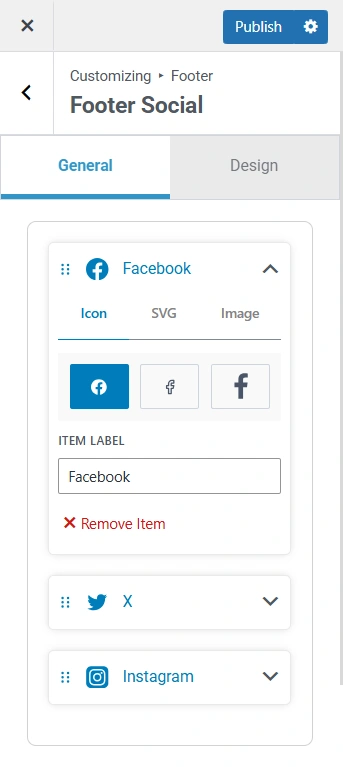
You can also customise the look of every social icon by clicking on the arrow on the right.
Additionally, you have the option of choosing an icon, SVG, or an image for your social media icons.
The label of your icon can also be changed by adding it in the Item Label box.
You can also remove the social icon by clicking on Remove Item.
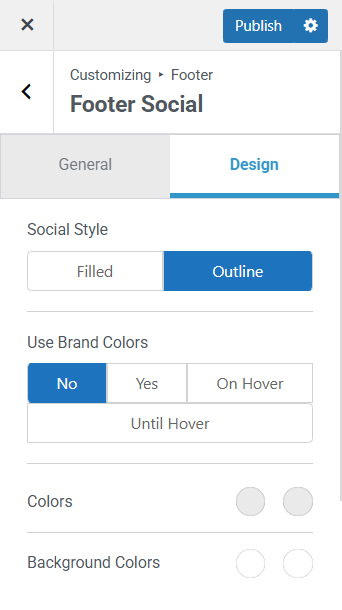
Design Settings
- Social Style: You can customise your icons to be filled or outlined by selecting from the options here.
- Use Brand Colours: Using this option, you can add your brand colours to the social icons. You can choose when these brand colours are visible by selecting between the options that are On Hover and Until Hover.
- Colours: If you want to customise the colours of the social icons, you can select from the colour gradient or add a HEX code.
- Background Colours: To add a background colour to your social icons, you can select a colour from the colour gradient or add a HEX code.
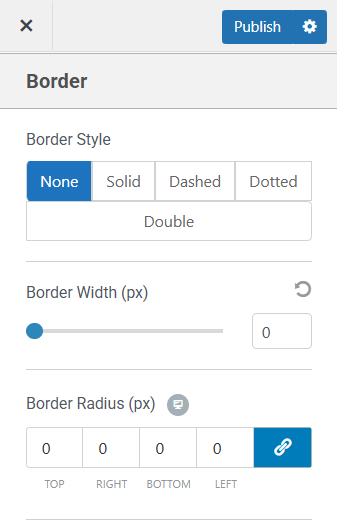
- Border Style: To add a border style, you can choose from the four options that are Solid, Dashed, Dotted, and Double, and if you want to remove the border, you can simply select None.
- Border Width: You can adjust the border width of the social icons up to your liking, using the slider. Additionally, you can also add it manually.
- Border Radius: To set the border radius
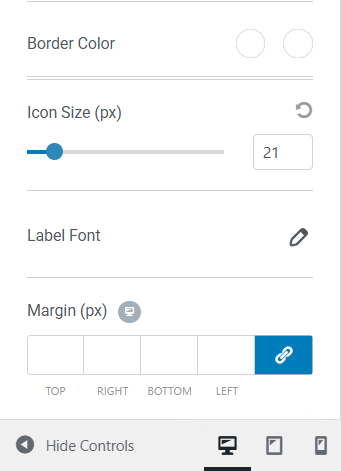
- Border Colour: You can simply select the border colour using the colour gradient or add the HEX code.
- Icon Size: Using the slider, you can increase or decrease the size of your social icon. You can also enter the pixel size manually.
- Label Font: In this setting, you have the option to customise the font family, font weight, and font size of the label by clicking on the Pen icon. Additionally, you can change the font to uppercase, lowercase, or capitalise in the Text Transform section. If you want an italicised label, you can select the option here. Using the slider, you can also adjust the line height and letter spacing.
- Margin: If you want to add a margin to your social icon, you can do so by adding the pixel size in the Margin setting. You can either link all values together or enter them manually by clicking on the link icon.


