
After installing Responsive Theme, from the WordPress dashboard navigate to Appearance > Customize > Blog/Archive > Single Post.
Let’s see the different post design options you get with Responsive Theme:
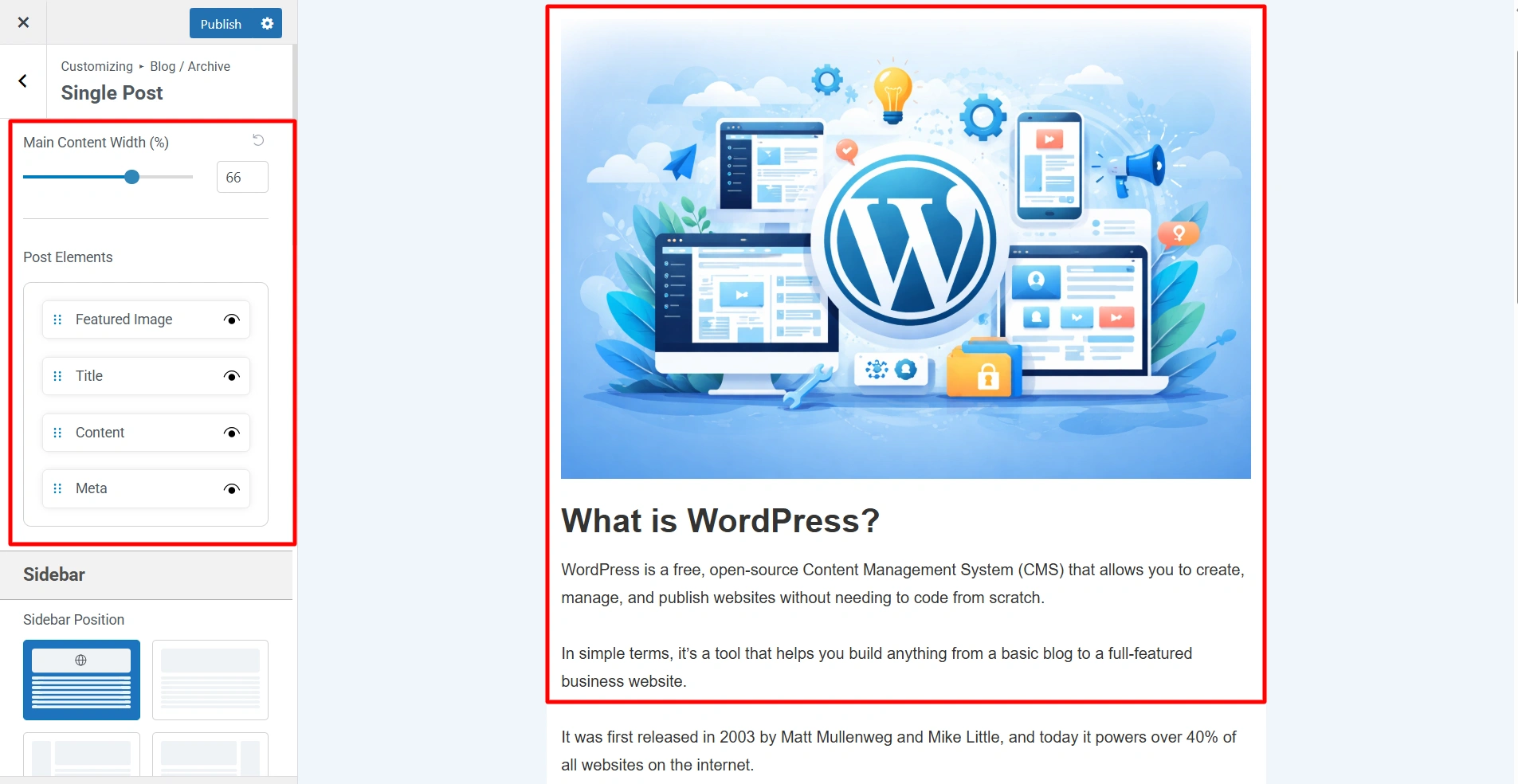
Main Content Width – You can select the width of the content here for a single blog post.
Post Elements – Here you can set the order of Title, Meta, Featured Image and Content in which they appear. You need to drag the elements to change their order. Also you can toggle click on the eye icon in front of each element to show / hide that element on the page.
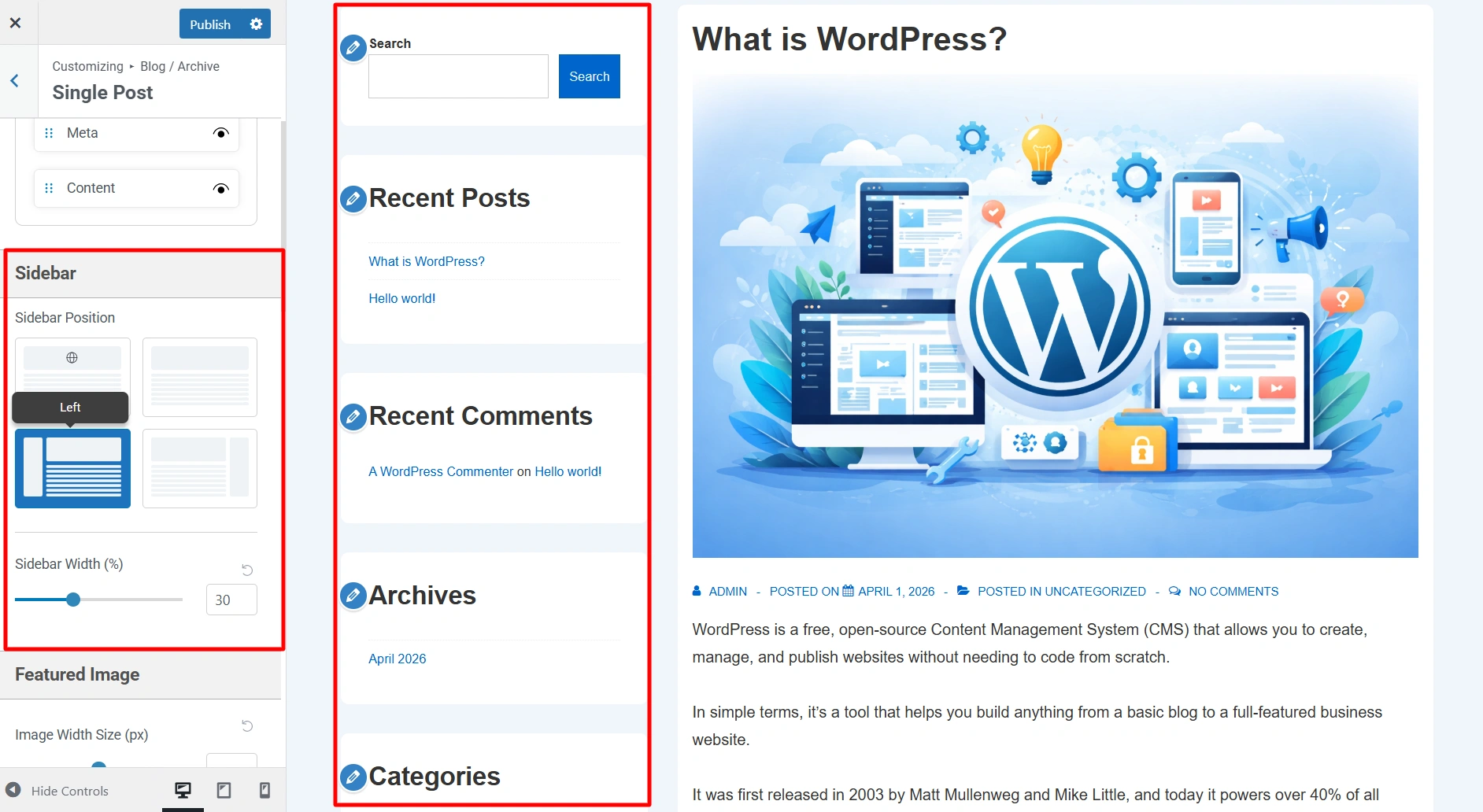
Sidebar – You can select a layout for single post pages from following options
- Right Sidebar – Sidebar will appear on the right side. This is the most traditional way to show sidebar content.
- Left Sidebar – Sidebar will appear on the left side and the main content will be on the right side.
- No Sidebar – Sidebar will not be present and the content will span across the entire container width.
Featured Image
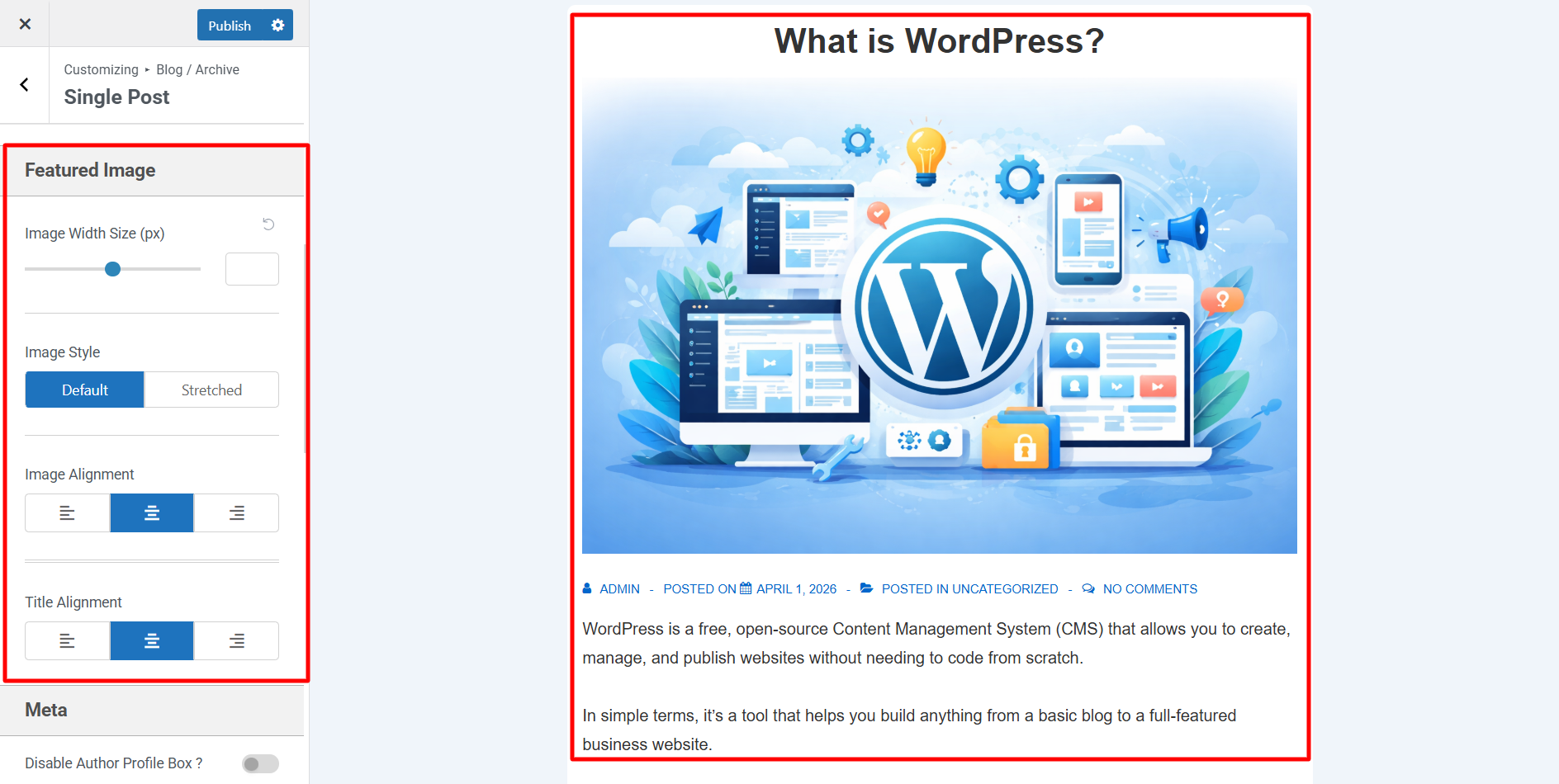
- Image Width Size (px) – Update the Featured image width size by slider. Default value will be used when the slider is in the middle. Dragging the slider to left or right will decrease or increase the image width respectively. You can click the reset button next to the input field to get the default value.
- Image Style – Here you can choose if you want to display the featured image of the blog as default or stretched.
- Image Alignment – Here you can choose if you want to display the image at left, right or center.
- Title Alignment – You can choose if you want to display the page title at left, right or center.
Meta
- Disable Author Profile Box – Enable or disable the author’s biographical info after posts. Author biographical info can be added/updated from the user update page.
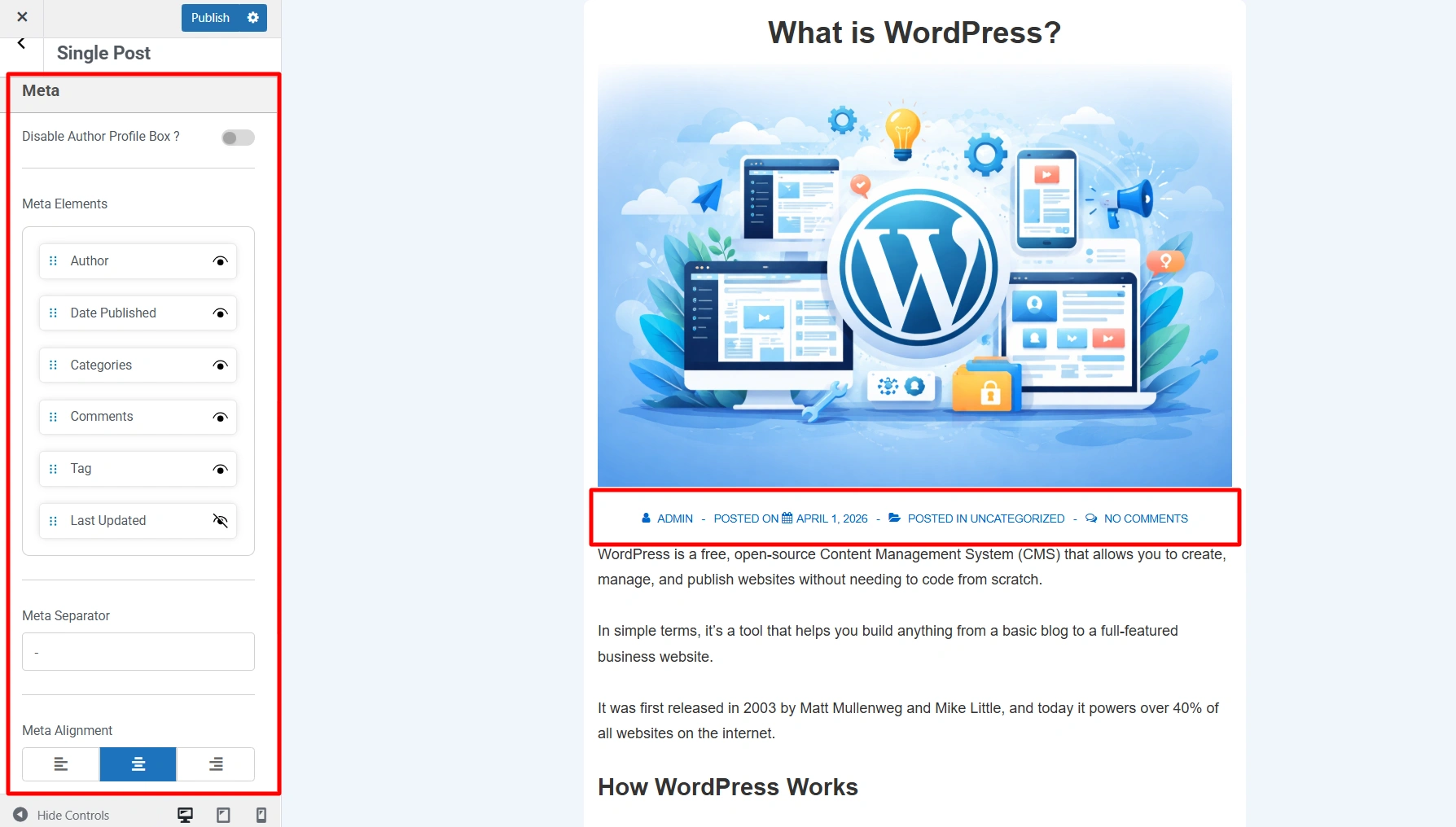
- Meta Elements – If you have kept Meta elements visible in the above Post Elements options then you can decide the order and visibility of individual Post Meta including Author, Date Published, Categories, Comments, Tags, Last Updated.
- Meta Separator – Here you can edit the separator that will be present in between different meta elements
- Meta Alignment – Here you can choose if you want to display the meta of the blog page at left, right, or center.
- Post Content Alignment – Here you can choose if you want to display the blog page content at left, right or center.
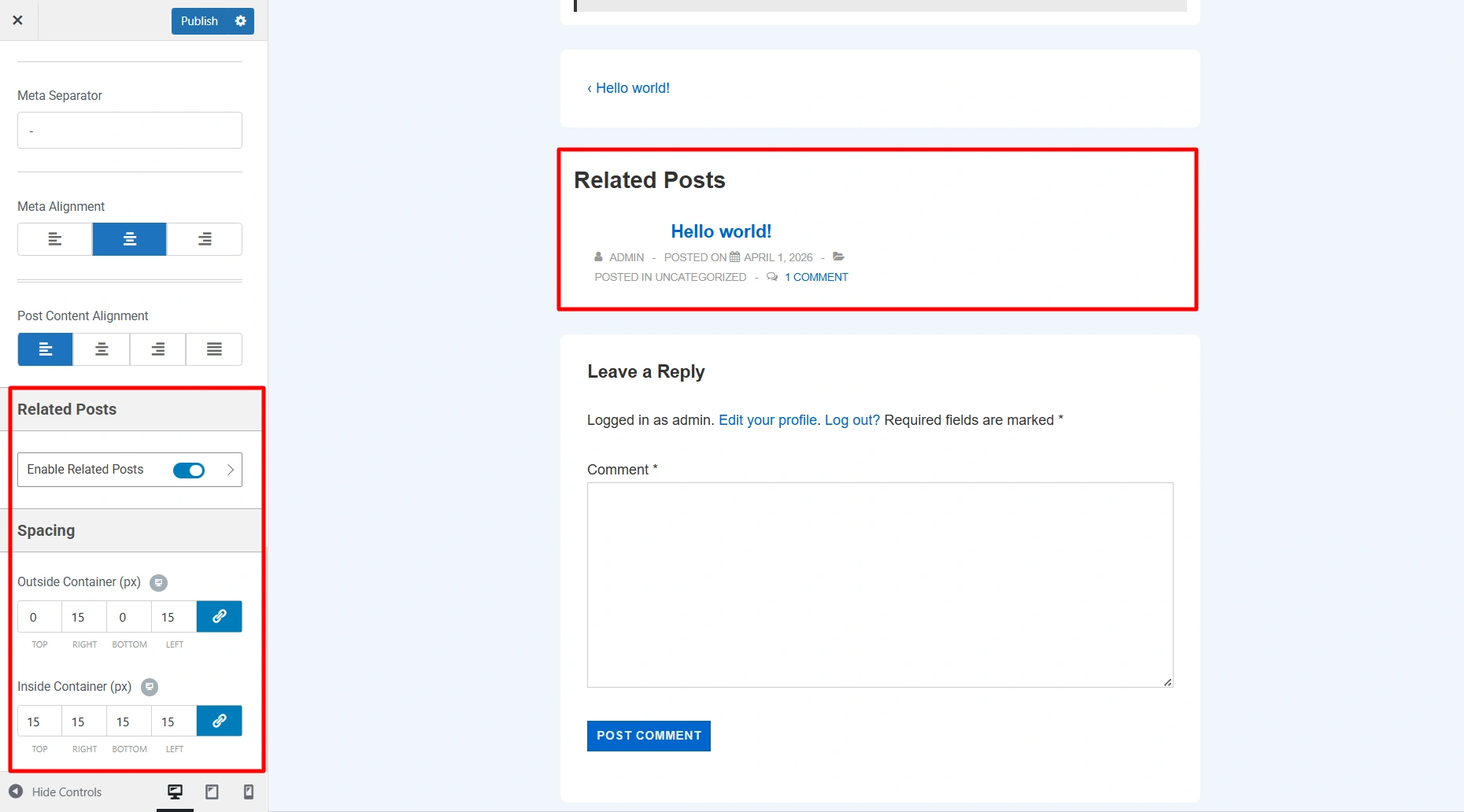
Related Posts
- Enable Related Posts – Toggle it on to display related posts at the end of each blog post.
- Spacing – It lets you set the spacing around and within the related posts section. You get two options to do so:
- Outside Container (px)
- Inside Container (px)
This option allows you to add sidebar across your entire website.
By using these design options you can customize the single posts on your website as per your brand requirements. Happy Designing!


