
A Sidebar is an area of your website (typically positioned to the left or right side of the main content area) with widgets such as a search bar, recent posts, categories, advertisements, or custom menus.
It can aid in navigation, provide important information, and improve the user experience.
To enable the sidebar. Navigate to Customize > Sidebar.
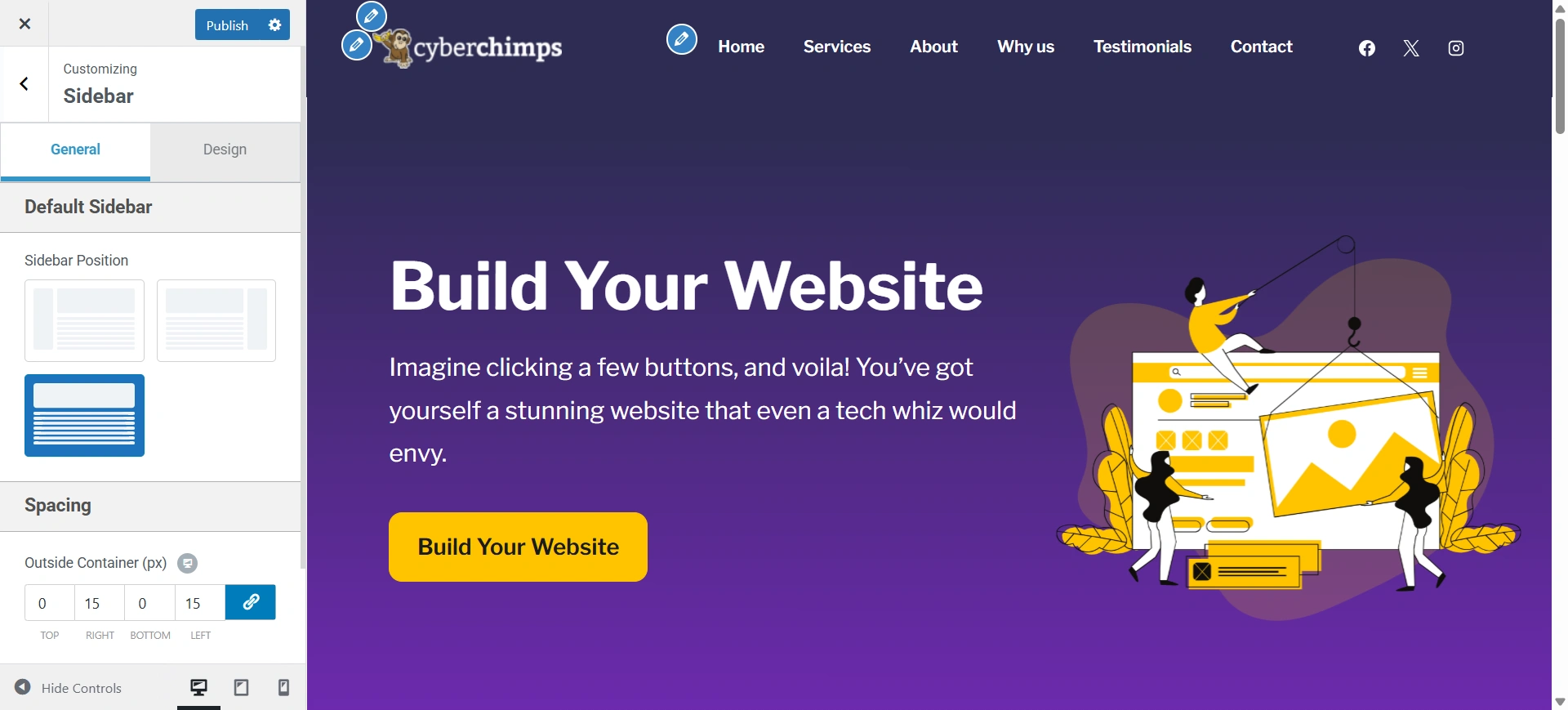
Enable Sidebar for the Entire Website
The Sidebar option in your Customizer allows you to add sidebar across your entire website by setting the Default Layout.
Here are a few options that you get.
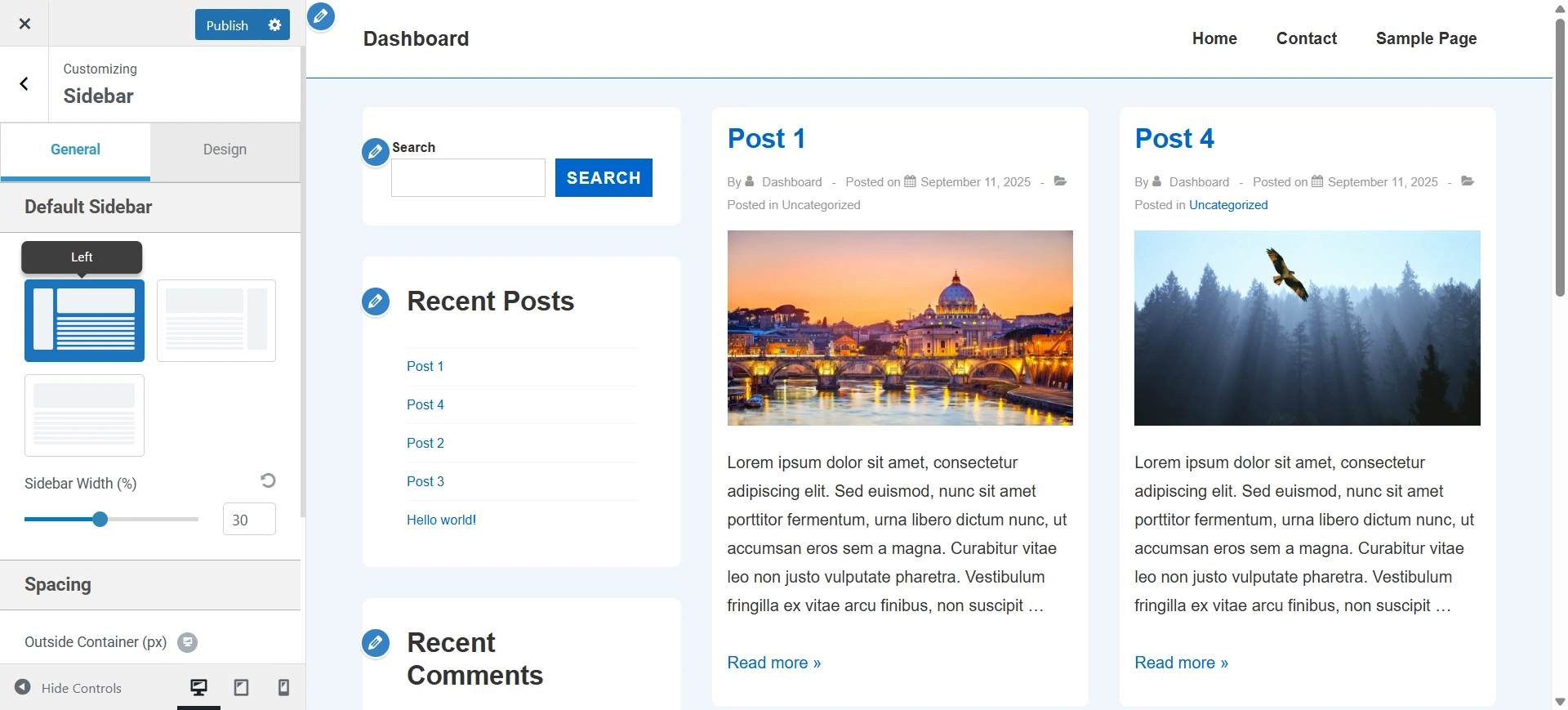
1. Left Sidebar
You can choose this if you want to show the sidebar on the left side.
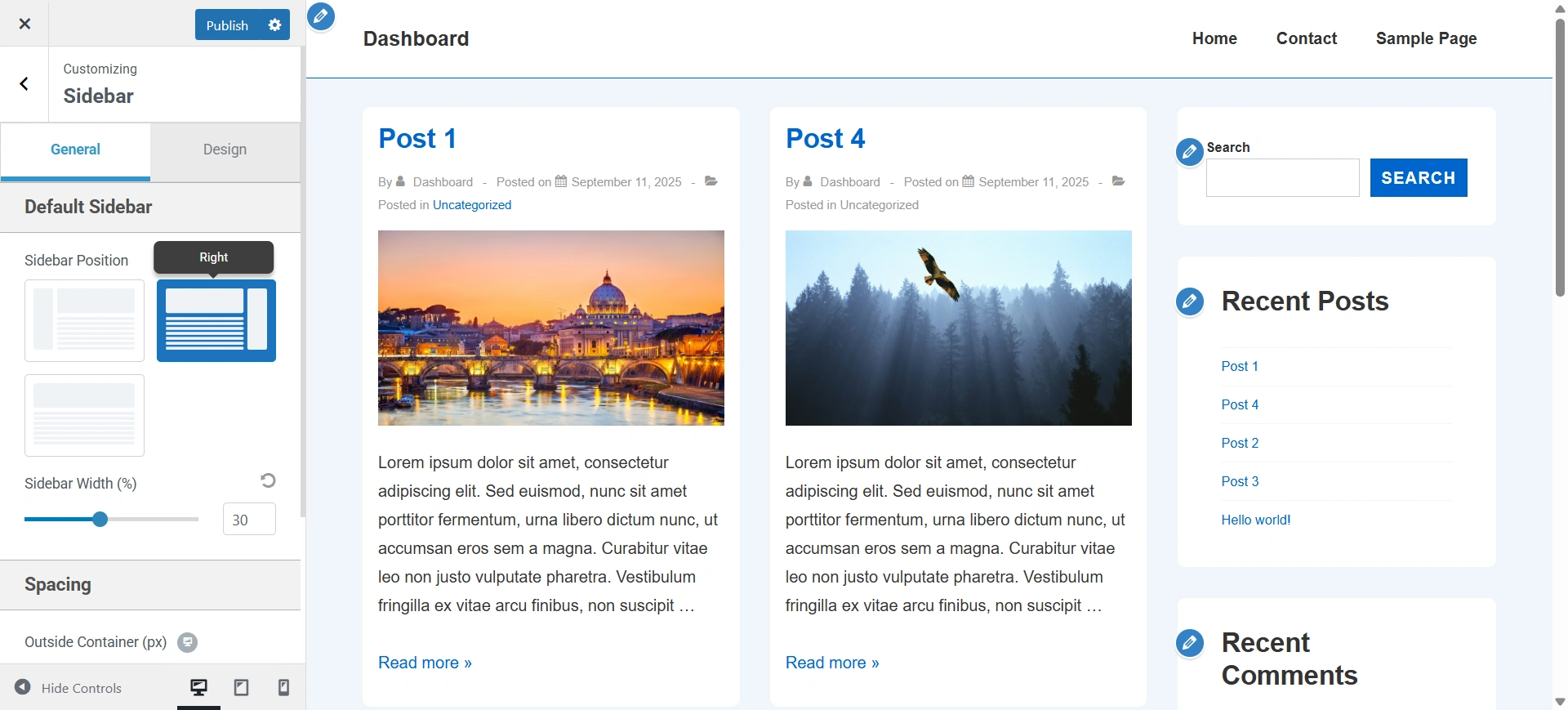
2. Right Sidebar
You can choose this if you want to show the sidebar on the right side.
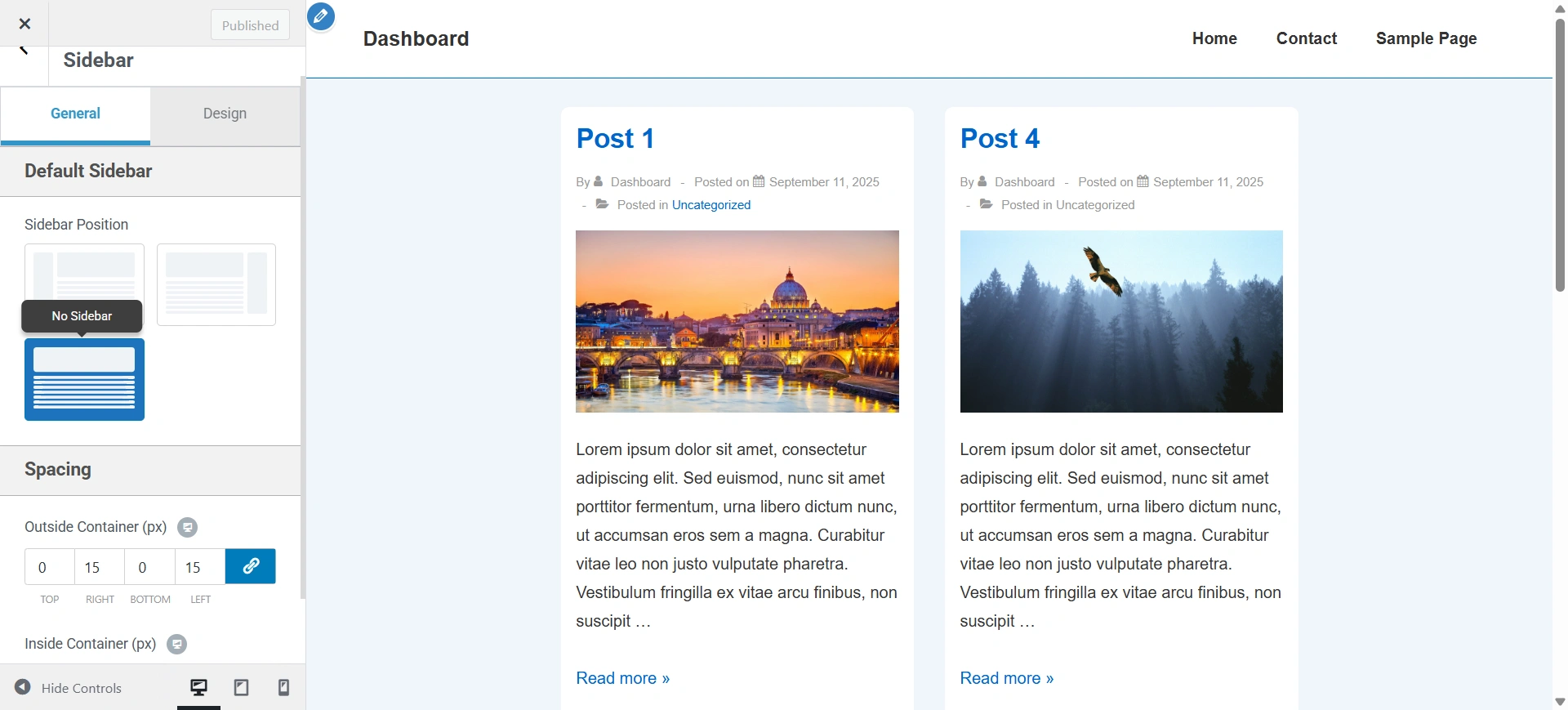
3. No Sidebar
This is the default selected option. Choose this if you do not want to display a sidebar on your website.
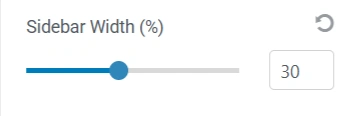
4. Sidebar Width
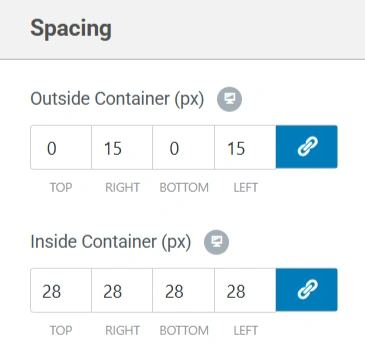
5. Sidebar Spacing
Enable Sidebar for Blog Archive Page
You can set a different sidebar layout specifically for your blog archive pages (category pages, tag pages, author pages)
Go to Cutsomizer > Blog/Archive > Blog/Archive.
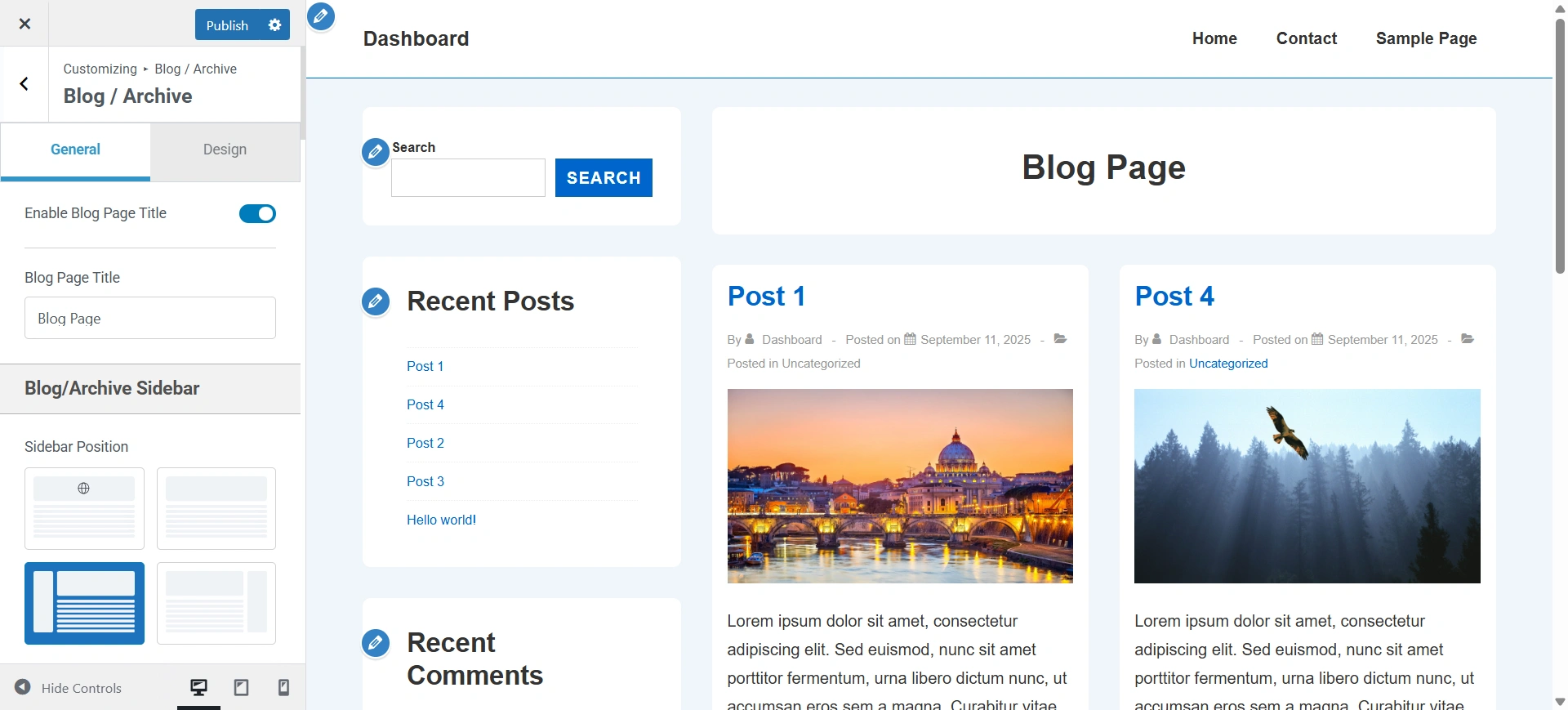
Here you can choose how the sidebar appears on your blog/archive pages. Let’s break down the four sidebar layout options you see:
1. Default Sidebar
This option follows the sidebar setting from your theme (whatever is set in general layout settings). It is a good option if you want to maintain consistency across your pages.
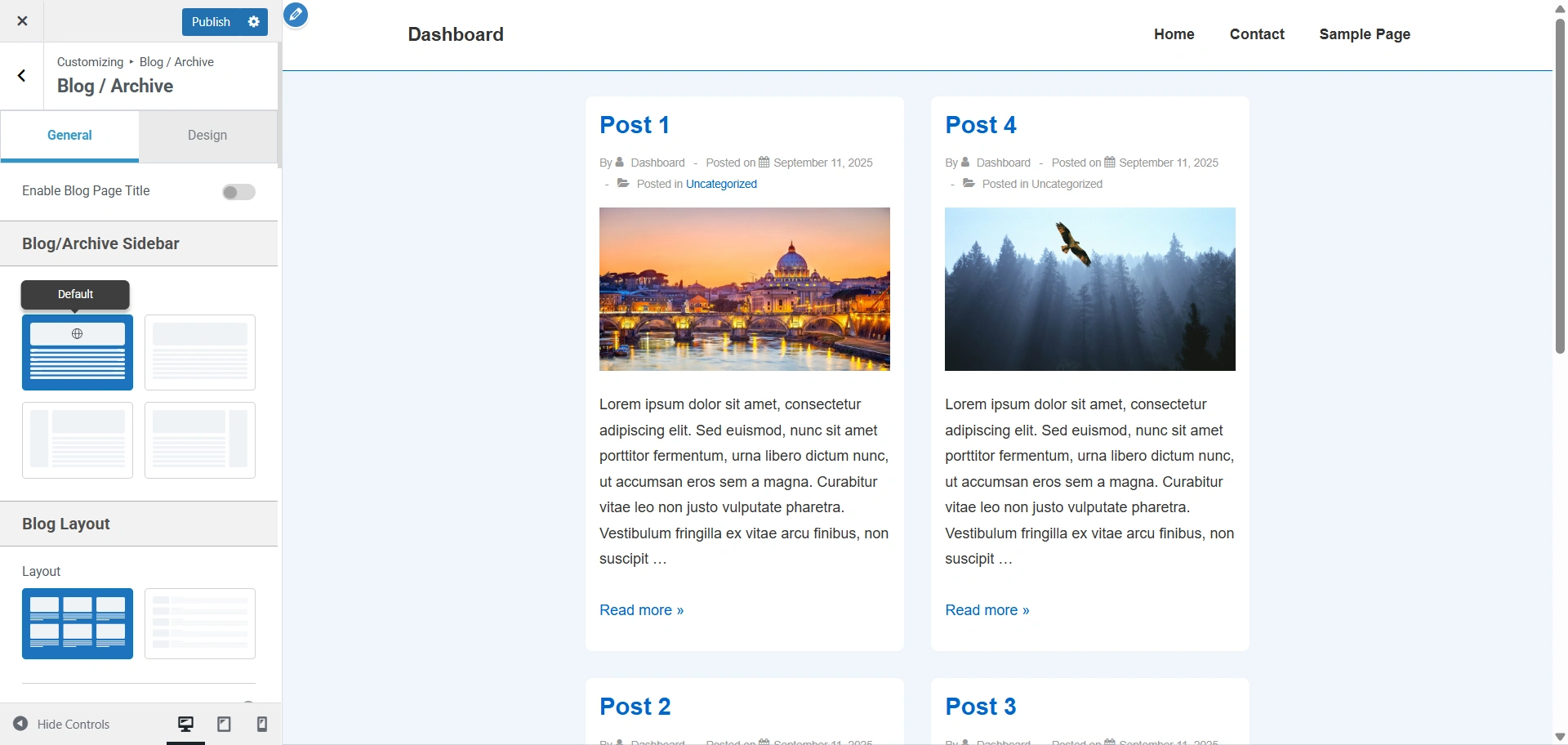
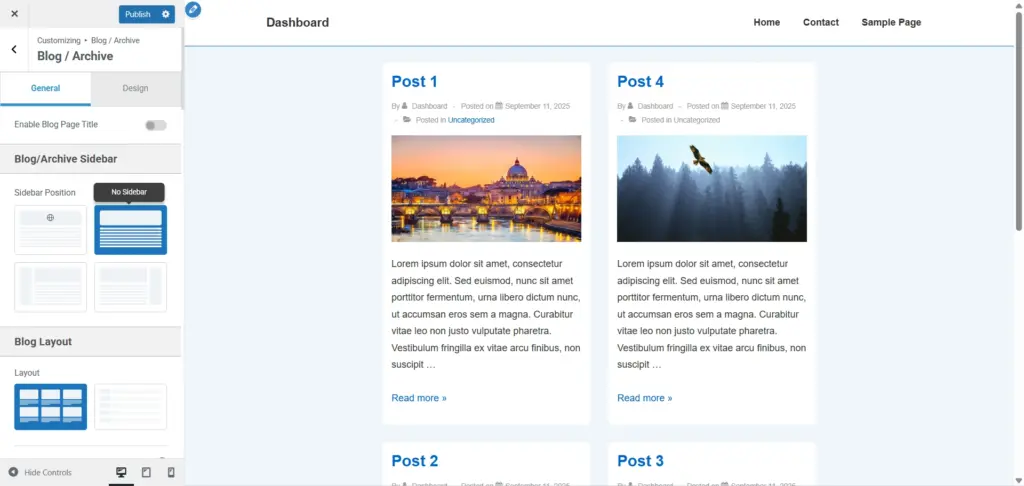
2. No Sidebar
Completely hides the sidebar. Your blog/archive page becomes full-width, making posts stand out more.
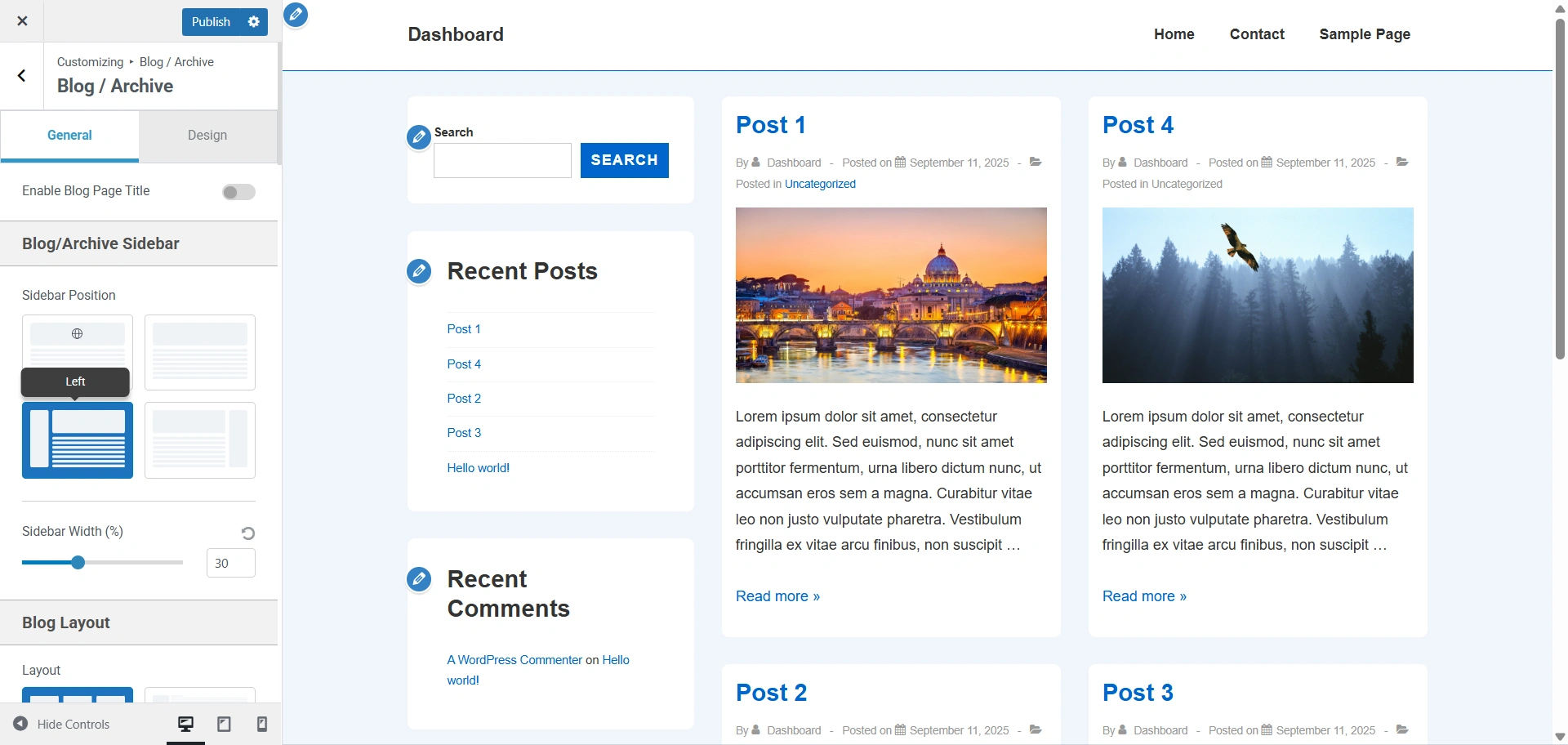
3. Left Sidebar
Displays the sidebar on the left side of the posts.
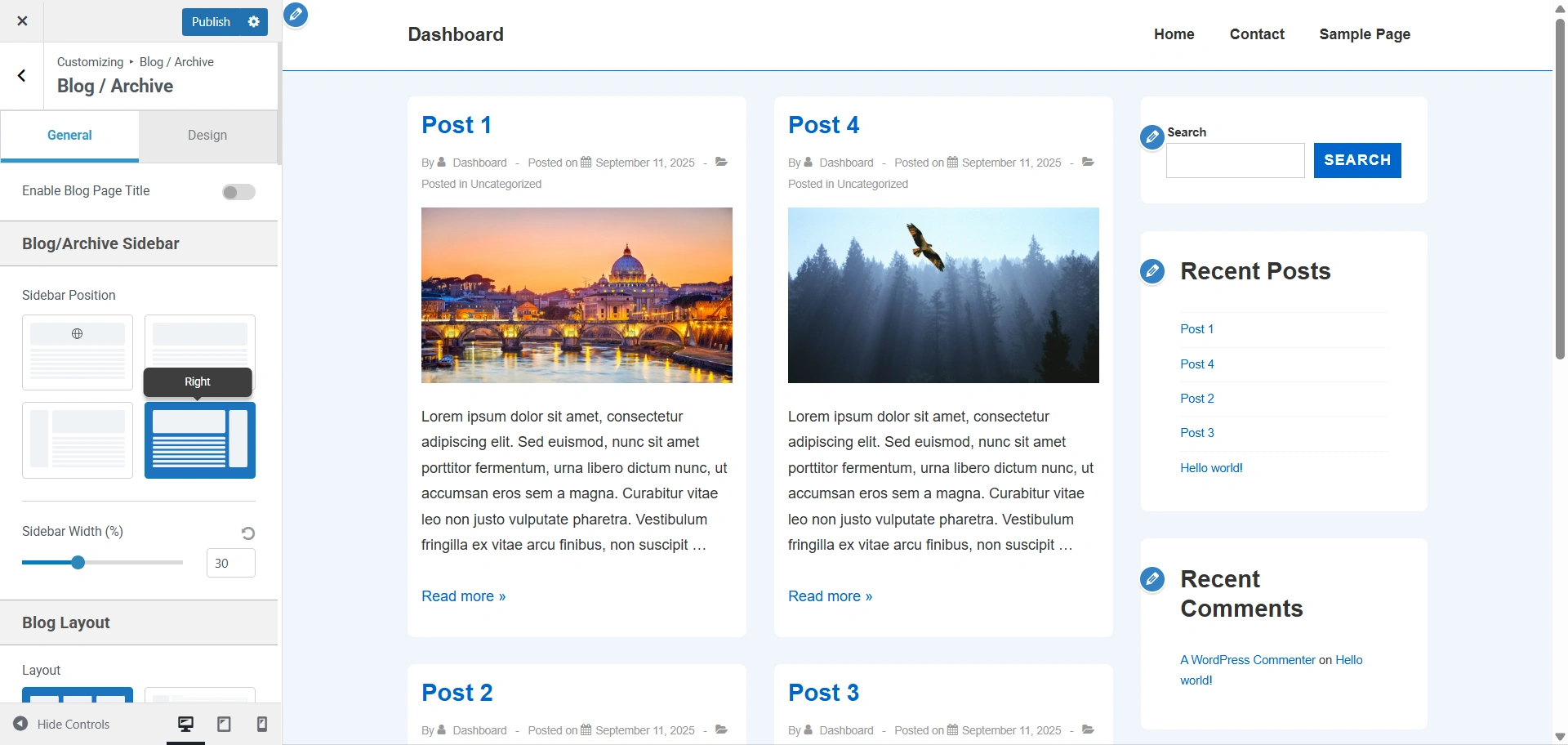
4. Right Sidebar
Displays the sidebar on the right side of the posts.
Enable Sidebar for Single Post Page
For individual blog posts, you can enable or disable the sidebar separately.
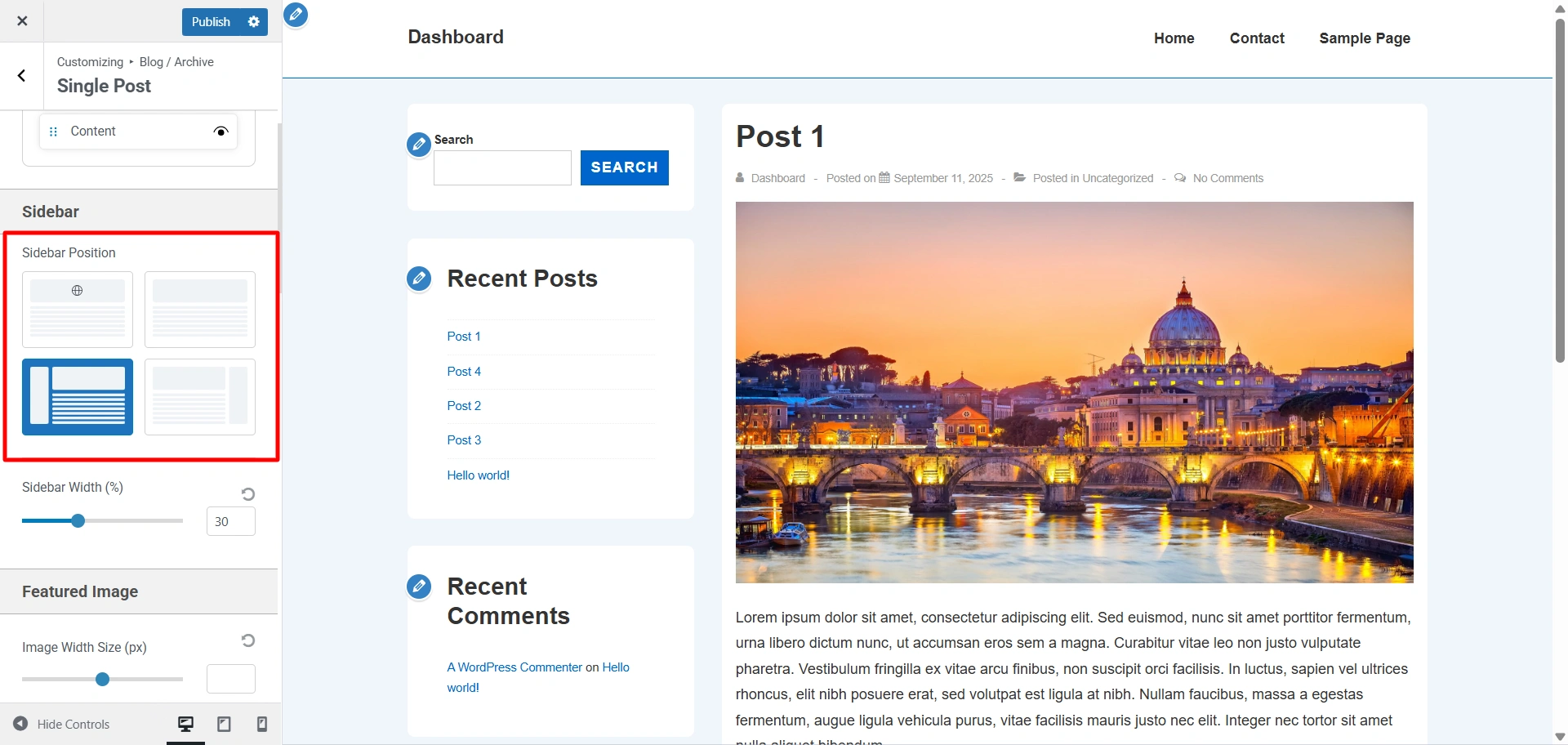
Navigate to Customize > Blog/Archive > Single Post. You get access to all the same settings that are available for other sidebar.
In this, you get an option, like a default sidebar, in which you can decide whether you want a consistent sidebar in your selected single post or not.
Then a no sidebar option, to decide whether or not to display the sidebar in the single post.
And a left and right sidebar option.
Enable Sidebar for Single Page
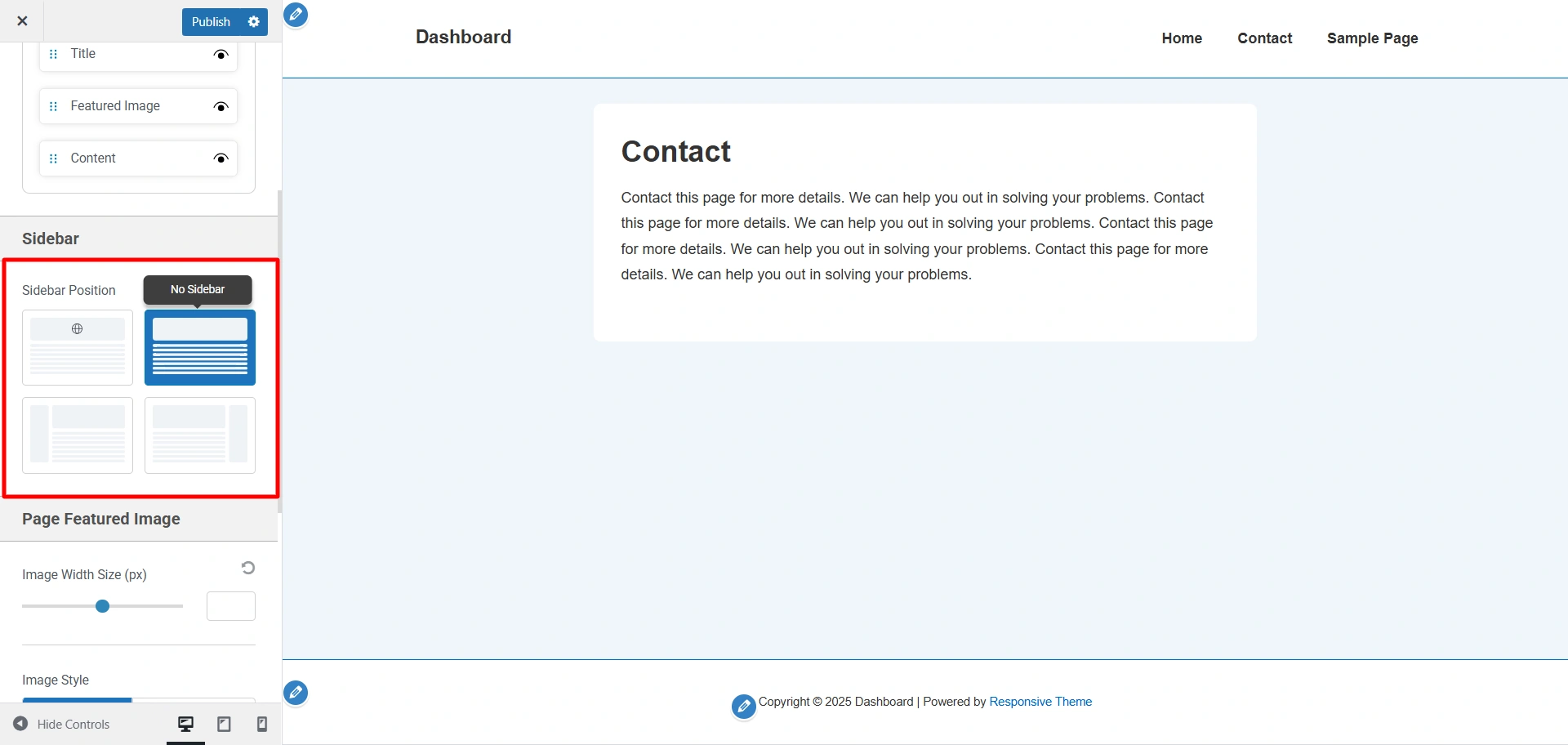
Similarly, for standalone pages (like About, Contact, Services). If you wish to display a sidebar there, you can show it.
Navigate to Customize > Page. Select the sidebar placement as per your preference.
That’s all about adding sidebars in the Responsive theme.


