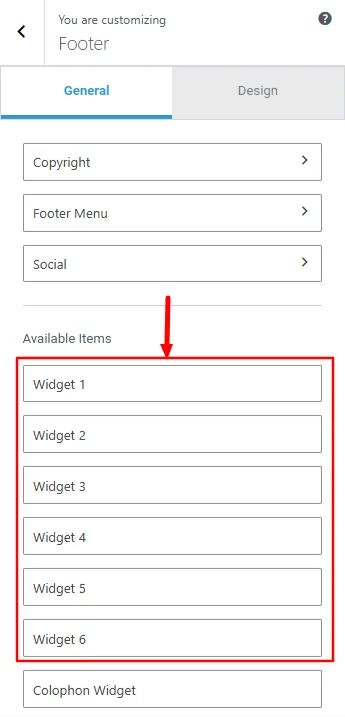
Footer Widgets gives you the ability to add widgets in your footer and customise them the way you want. Footer widgets are customizable content areas that are located at the bottom of your website.
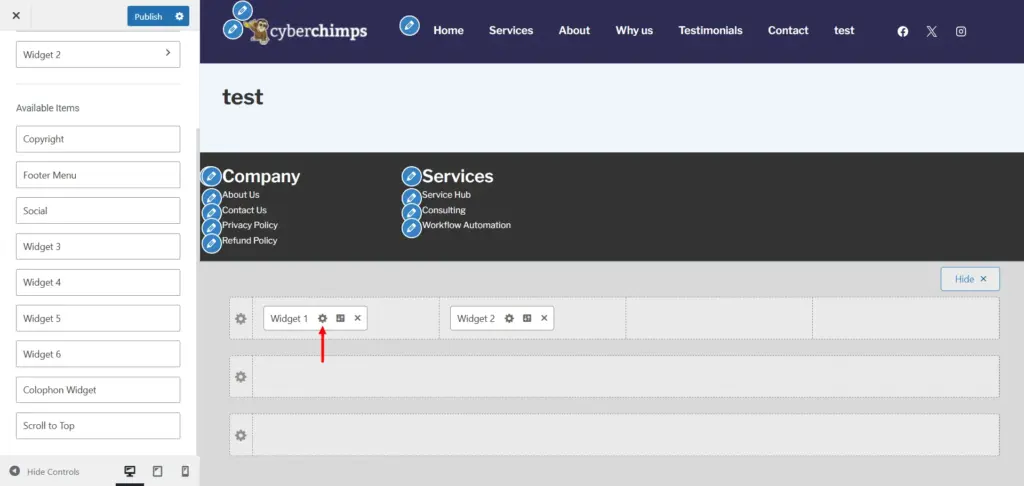
You’ll see the widget elements inside the footer customizer. You can simply drag and drop them into the footer area and adjust them however you like.
Each widget gives you access to two panels: general settings and design settings.
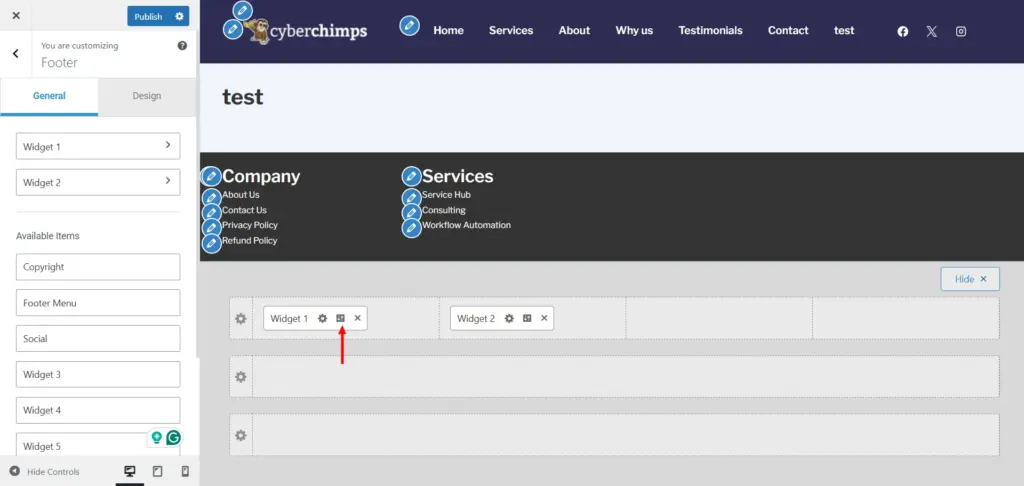
When you click the gear icon, you’ll open the general settings. From there, you can pick from more than fifty Gutenberg blocks to add to your footer, including text blocks, embeds, and many others.
You can add multiple widgets like Heading, Paragraph, Image, and Buttons, and align them in such a way that they add functionality to your site.
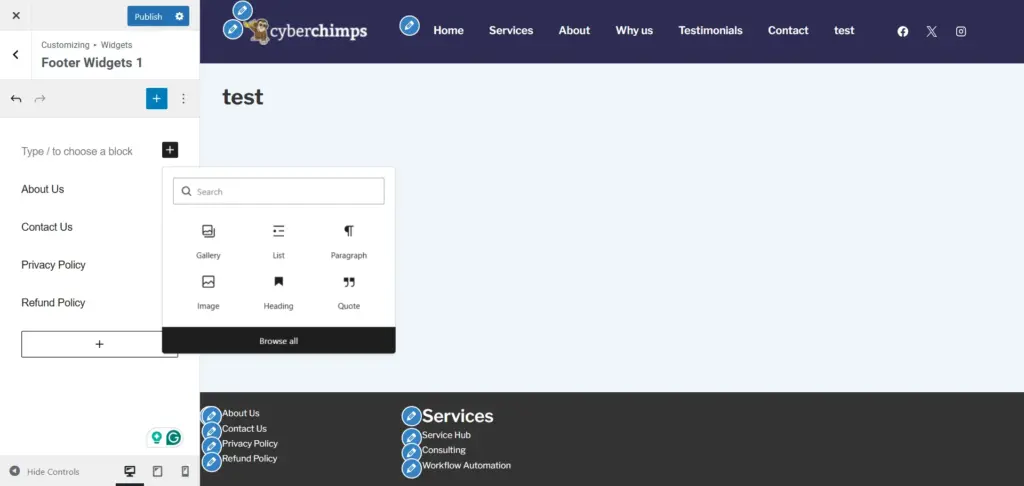
You can also add links to various pages from your site that you might want visitors to navigate to, which helps improve navigation for users.
And then, if you want to style the widget, click the design icon.
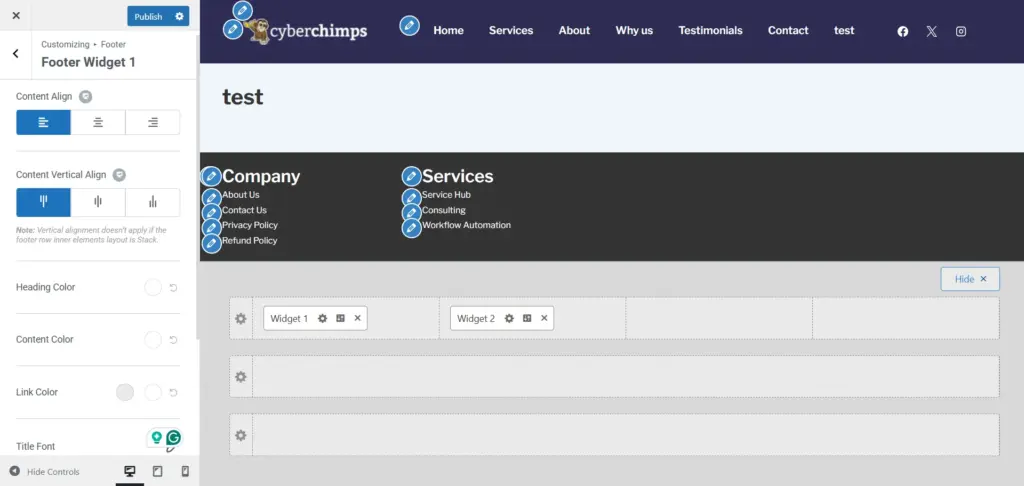
In this section, you can change alignment, apply colors to the heading, text, and links, select fonts for both content and headings, and control spacing with margin settings.
You can add up to 6 Widgets to your footer.
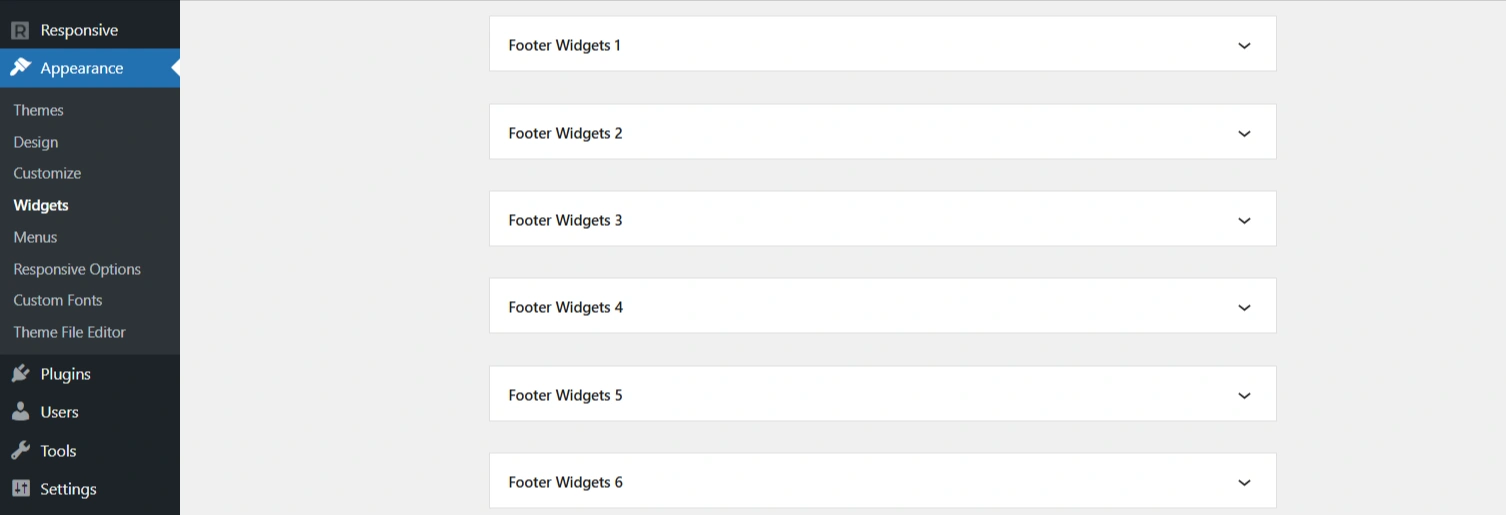
Go to the WordPress dashboard and click on Appearance > Widgets. There, you’ll find 6 Footer widgets, where you can add widgets into each and align them as desired.
- Footer 1 → Widget 1
- Footer 2 → Widget 2
- Footer 3 → Widget 3
- Footer 4 → Widget 4
- Footer 5 → Widget 5
- Footer 6 → Widget 6