
While searching for the right design, it’s common to install multiple WordPress themes.
Although inactive themes may seem harmless, they can negatively impact your website. Unused themes consume server storage and may pose security risks if they are not regularly updated. Deleting unnecessary themes helps keep your site clean, secure, and efficient.
Why Delete Your WordPress Theme?
You should never delete the active theme, as it will break your website. A WordPress site can only have one active theme, but it may contain multiple inactive themes.
1. Security Vulnerabilities
Themes are a common source of security issues. Hackers can exploit outdated or faulty theme code to inject malware or backdoors. Even inactive themes can be targeted if they are not updated.
Instead of maintaining unused themes, deleting them reduces security risks and limits entry points for attackers.
2. Storage Issues
Themes consist of multiple files that consume server space. Keeping unused themes increases storage usage and can affect performance, backups, site migrations, and security scans.
Removing unnecessary themes helps keep your dashboard organized and your server clean.
Uninstalling vs Deleting a WordPress Theme
WordPress allows multiple installed themes, but only one can be active. Installed but inactive themes remain on the server and continue receiving updates.
Deleting a theme permanently removes all its files from the site.
How to Delete a WordPress Theme
Before deleting any theme, it is recommended to take a backup of your site. This allows you to restore your site if anything goes wrong.
There are two ways to delete a WordPress theme:
- Via the Admin Dashboard
- Via FTP
Deleting a WordPress Theme via Admin Dashboard
With unrestricted access to the administrator dashboard, you can effortlessly delete any of the WordPress themes in your site. To do so, follow these steps:
- Log into your WordPress dashboard
- On the left side panel, hover your cursor on ‘Appearance’ and choose ‘Themes’ from the list
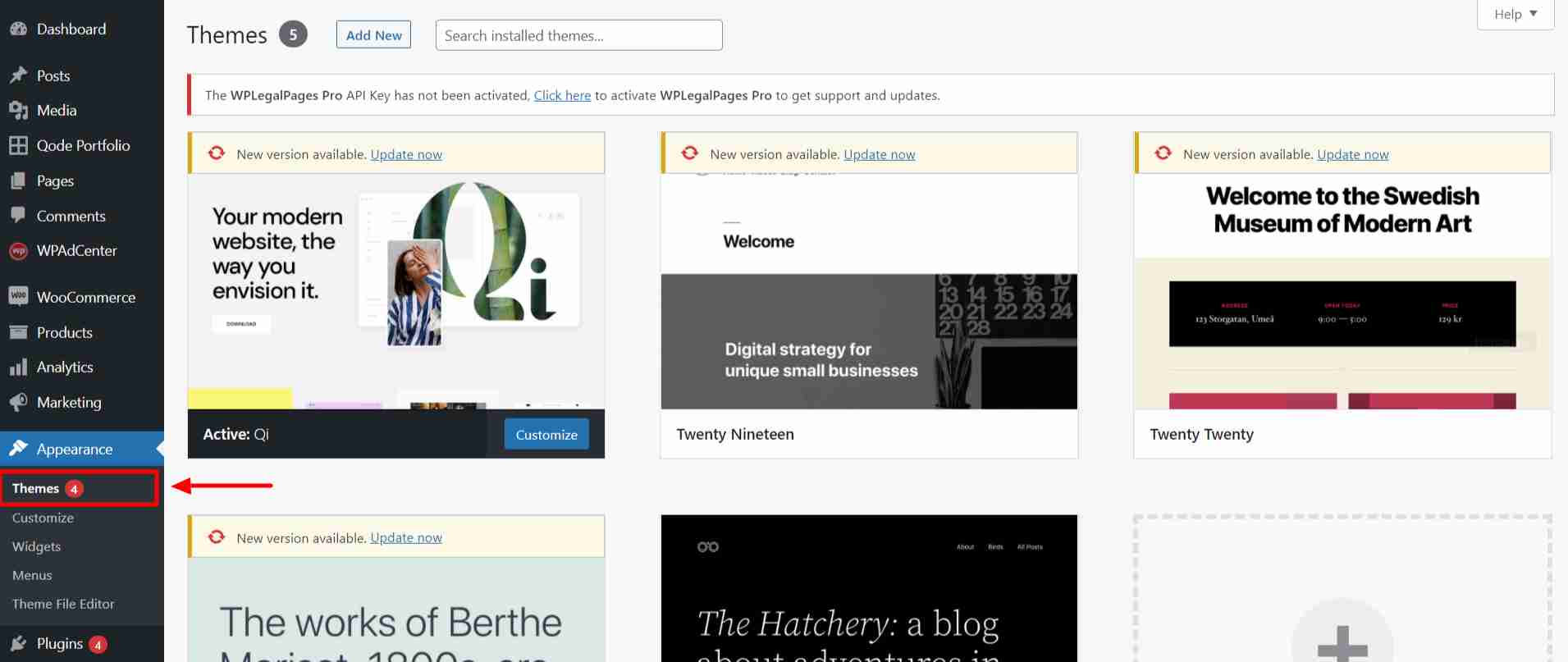
- On the next screen, you will see all the themes installed on the site
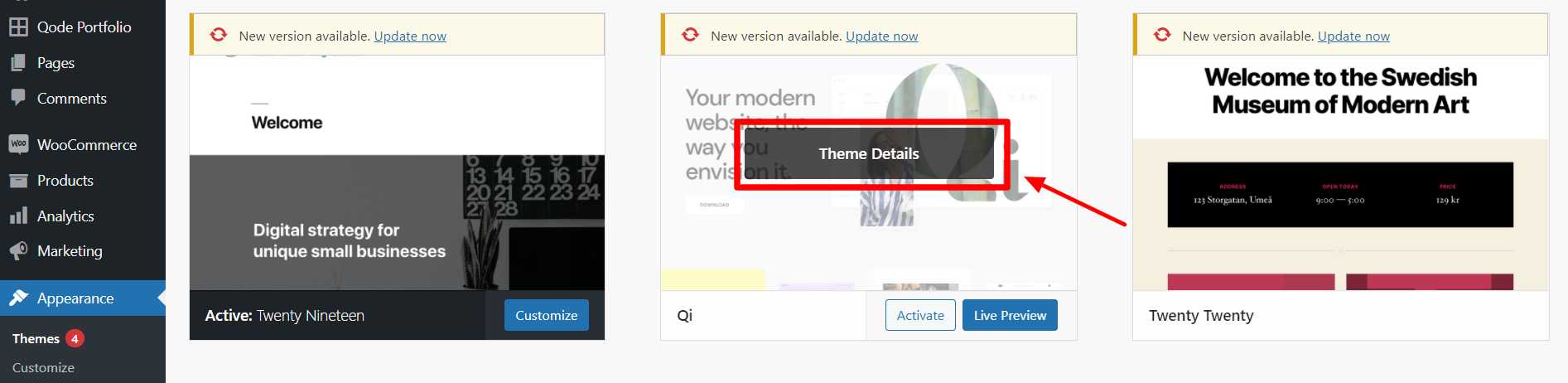
- Hover the cursor on a theme that you wish to delete and click ‘Theme Details’
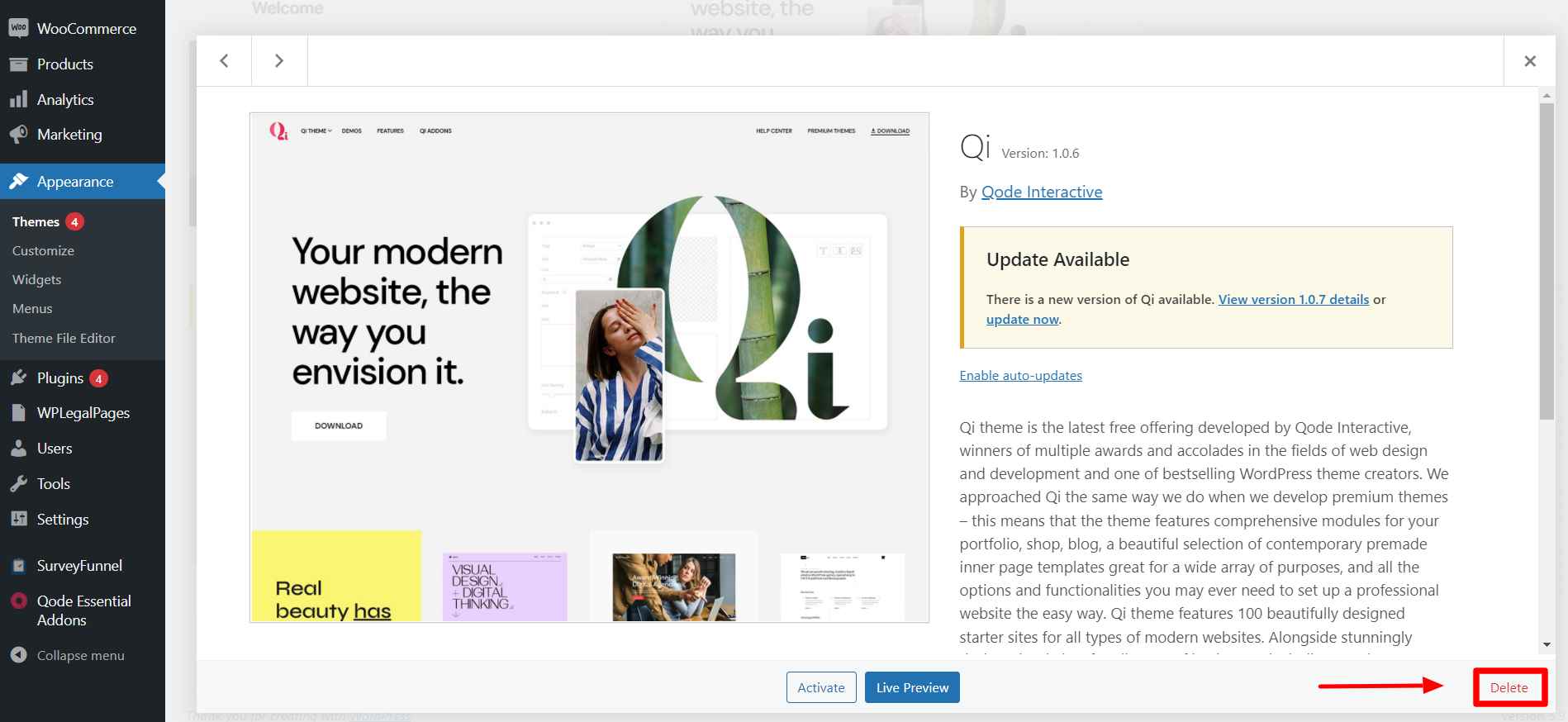
- In the next window, click the Delete option in the bottom right corner
- A warning message will pop up asking you whether you really wish to delete the theme; click OK
This will now delete the theme from your site and the server.
If you see an error such as “Deletion failed, the theme requested does not exist”, WordPress may not have removed all files. In that case, use the FTP method.
Deleting a WordPress Theme via FTP
If you do not have admin access, you can delete a theme using FTP.
- With the FTP client, as per your preference, connect to the web hosting server
- Discover and open the wp-content folder
- Then, open the folder of Themes
- Inside this folder, look for a folder of the theme that you wish to delete; keep in mind it is not the active theme on the site
- Now, right-click on the theme’s folder and click Delete
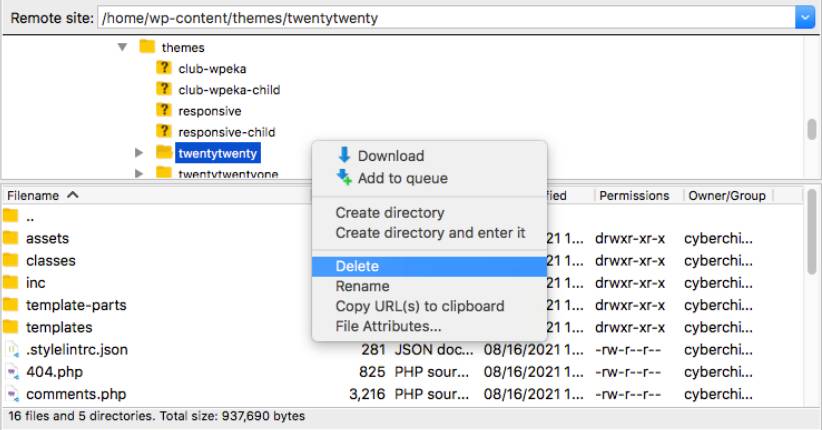
- The FTP client may show you a warning regarding this deletion
- Click Confirm
The selected theme is deleted from your WordPress site.


