The Copyright section enables you to showcase your copyright information in the footer of your website and customise it.
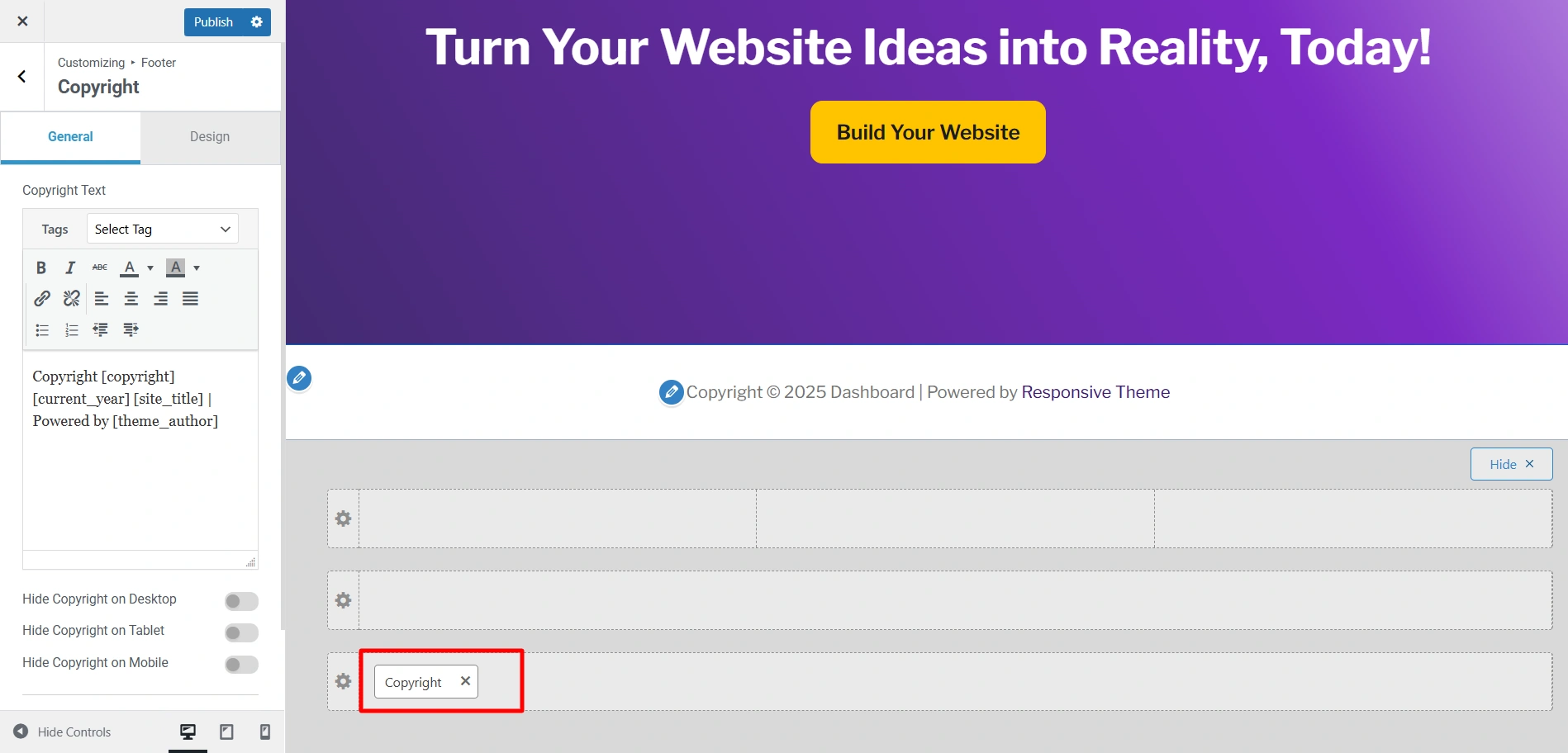
When you click on the Copyright tab, it opens certain settings. Now, let’s learn how to use these settings.
General Settings
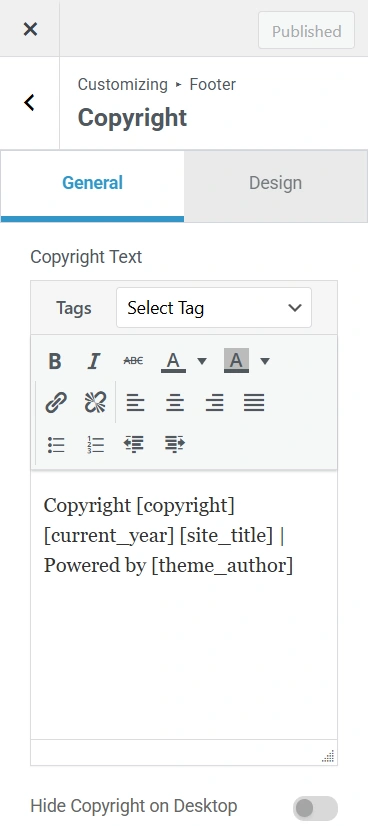
- Copyright Text :
This option lets you paste your copyright information in the Copyright Text section.
You can also customize and align the text however you like, using options like Bold, Italic, etc.
Also, you can change the text and background colour.
Additionally, there’s an option to assign a tag to your Copyright Text.

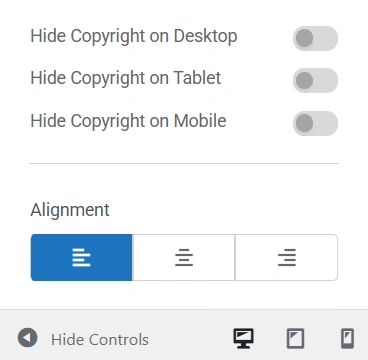
- Hide Copyright on Desktop: This option lets you hide the copyright text on a desktop.
- Hide Copyright on Mobile: This option lets you hide the copyright text on a mobile.
- Hide Copyright on Tablet: This option lets you hide the copyright test on a tablet.
- Alignment: Align your copyright section to the left, right, or center alignment format.

Design Settings
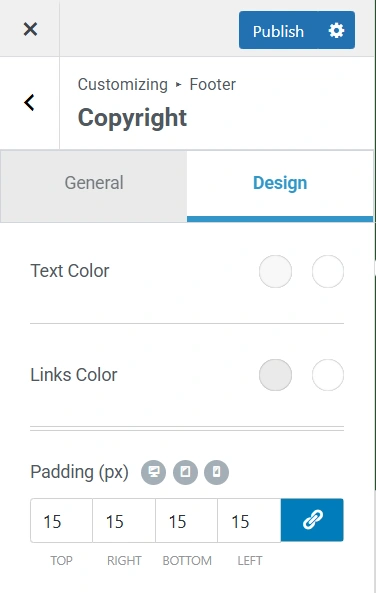
- Text Colour: Customise the text colour in your copyright section using the colour gradient. You can set different colours for when you hover over the copyright and for when it is displayed normally.
- Links Colour: You have the same options as Text Colour for links. If there are any links in your Copyright, you can customise their hover and normal colour.
- Padding: Add padding to your copyright section using the Padding option. You can either link all the values together or add individual values for left, right, top, and bottom.

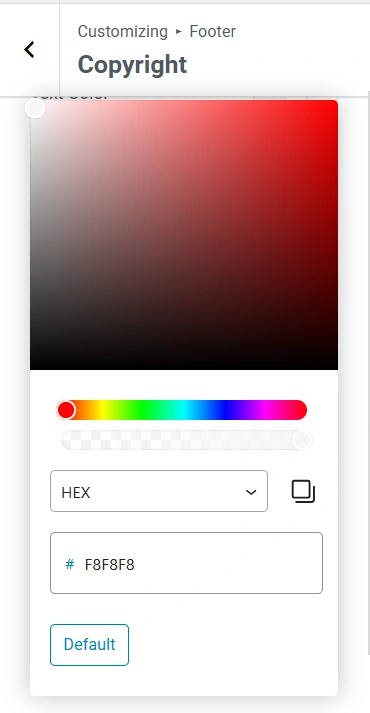
When you want to change the colour of the text or links, you can choose a colour from the colour gradient, paste a HEX code, or use the RGB or HSL options in the drop-down.
If you want to revert the settings, you can click on the Default button.